
Requirements
- A running Metoro hub installation.
- A model endpoint reachable from the apiserver pods.
- An API key for the model endpoint.
- A model name or deployment name for normal AI requests.
- Optionally, a separate model name or deployment name for summary requests.
Create the API Key Secret
Store the model API key in a Kubernetes Secret in the hub namespace. Do not put the key directly in the Helm values file.metoro-hub, use that namespace instead.
Configure Helm Values
Add the following block to the hub values file:
For Azure OpenAI-compatible
/openai/v1 endpoints that expect the Azure API key header, set:
apiKeyHeader to the header name required by the gateway.
When ai.enabled is true, the chart also deploys the Agent Sandbox controller, sandbox router, and Guardian SandboxTemplate used by the Guardian runner. The Guardian runner uses the same endpoint configuration as the rest of Metoro AI: ai.openai.model is passed as GUARDIAN_MODEL, ai.openai.reasoningEffort as GUARDIAN_REASONING_EFFORT, ai.openai.baseUrl as GUARDIAN_OPENAI_BASE_URL, ai.openai.apiKeyHeader as GUARDIAN_OPENAI_API_KEY_HEADER, and the apiserver reads the same Secret/key used by METORO_AI_OPENAI_API_KEY as GUARDIAN_OPENAI_API_KEY.
The default images are:
quay.io/metoro/metoro-guardian-runner:onprem-10.4.0quay.io/metoro/mirror/agent-sandbox-controller:v0.4.6quay.io/metoro/mirror/sandbox-router:latest-main@sha256:255769504eb73f13b0cf5d91c330f12de9512e5d8ea24601cb37c0fce01dbbe0
images.guardianRunner, images.agentSandboxController, and images.agentSandboxRouter for these images. global.imageRepositoryOverride rewrites their default Metoro repositories automatically, but the corresponding paths and tags must be present in the target registry. Keep the agentSandbox.image dependency pass-through value in sync when overriding images.agentSandboxController individually.
When a custom
ai.openai.baseUrl or ai.openai.apiKeyHeader is configured, the Guardian runner routes all model traffic through a custom model provider and uses the stateless OpenAI Responses API: there is no server-side response storage or previous_response_id chaining, and the full conversation context is resent with each request. This is suitable for Zero Data Retention gateways and endpoints that reject store: true. The exception is Azure-hosted base URLs (for example *.openai.azure.com or *.cognitiveservices.azure.com), where the underlying agent sends store: true because Azure’s Responses API requires it.The guardian-runner image must be at the version pinned by the chart release or newer; older runner images ignore the endpoint configuration and attempt to contact api.openai.com directly.Connect to Customer-Operated LiteLLM
Metoro does not install or manage LiteLLM. Use this configuration when your organization already operates a LiteLLM gateway that the Metoro apiserver pods can reach. Before configuring Metoro, collect:- The LiteLLM API base URL, including
/v1, for examplehttps://litellm.example.com/v1. - The LiteLLM model alias that Metoro should request. This must match a
model_nameexposed by your LiteLLM gateway. - A LiteLLM master key or virtual key that authorizes requests to the gateway.
/v1/responses endpoint, streaming, and tool calls for the configured model route. See the LiteLLM Responses API documentation for gateway compatibility details.
Store the LiteLLM Gateway Key
Store the LiteLLM master or virtual key in the existing Metoro AI Secret contract:Configure the LiteLLM Endpoint
Configure Metoro with the LiteLLM base URL and model alias:apiKeyHeader empty when LiteLLM uses its standard Authorization: Bearer authentication. model must exactly match the LiteLLM model alias. If you set summaryModel to a different value, LiteLLM must expose a matching alias for that value as well.
Set reasoningEffort only to a value supported by the model behind the LiteLLM route; leaving it empty uses Metoro’s default of xhigh. Keep fastModeEnabled disabled unless the routed model and LiteLLM configuration support OpenAI’s fast service tier.
Verify the LiteLLM Route
Before applying the Metoro Helm values, verify the gateway key, model alias, and streaming Responses API path directly:Apply to an Existing Hub
Editmetoro-hub-values.yaml and add the ai block above.
Apply the updated values:
Verify the Rollout
Wait for the apiserver rollout:ai.openai.apiKeyHeader is set, GUARDIAN_OPENAI_API_KEY_HEADER is also present. If ai.openai.fastModeEnabled is true, GUARDIAN_FAST_MODE_ENABLED is also present. If ai.openai.reasoningEffort is set, GUARDIAN_REASONING_EFFORT is also present.
Enable Guardian AI in the UI
After the apiserver rollout completes, enable Guardian AI in Metoro. Go to Settings -> Features -> Guardian AI -> Guardian AI Status and turn on the toggle.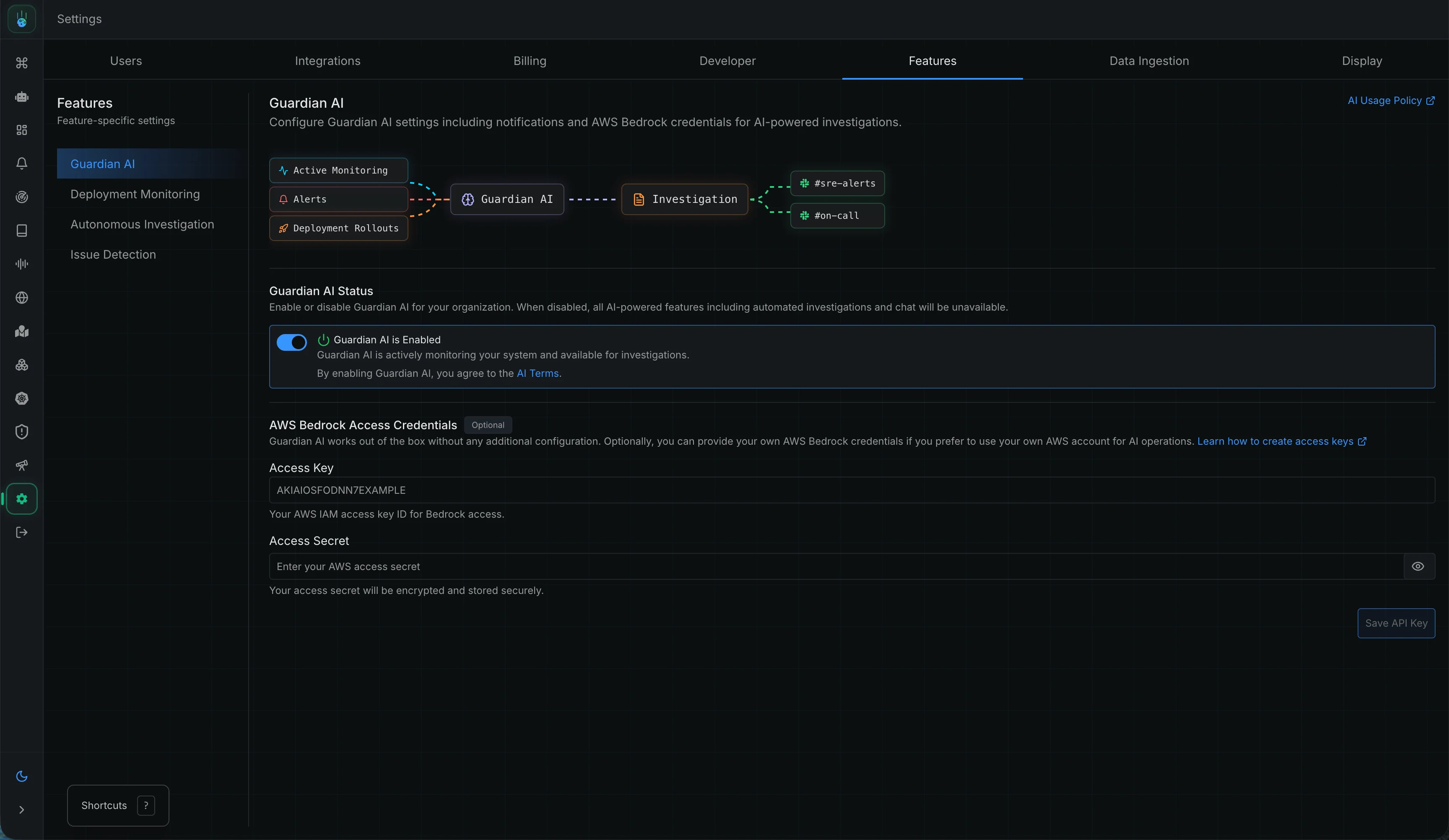
g, then c, from anywhere in the platform.
Guardian pages, including Guardian Issues and Guardian Deployment Verification, are available from the Guardian section in the side bar.
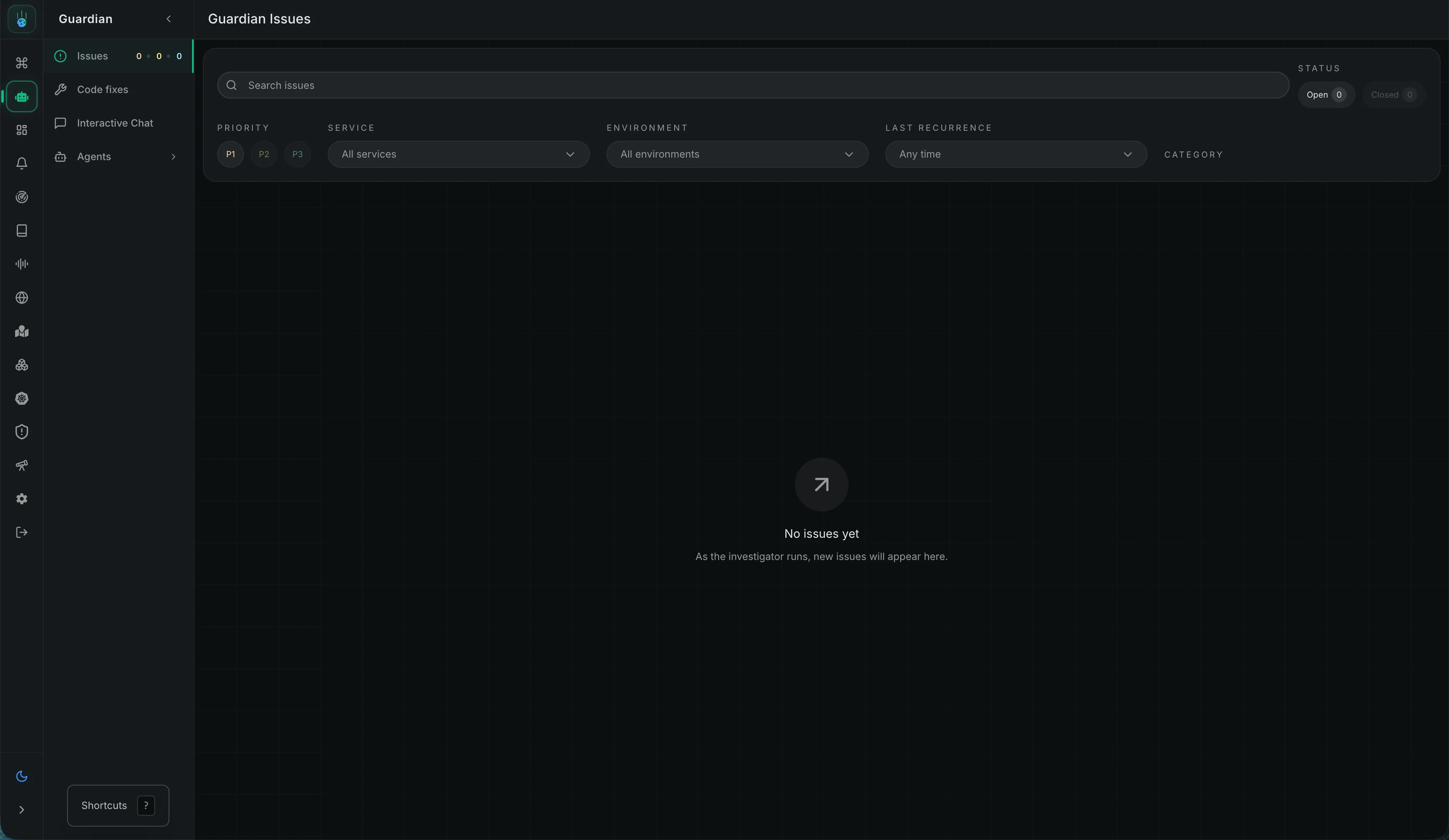
Code fix workflows are not currently available in on-premises installations.
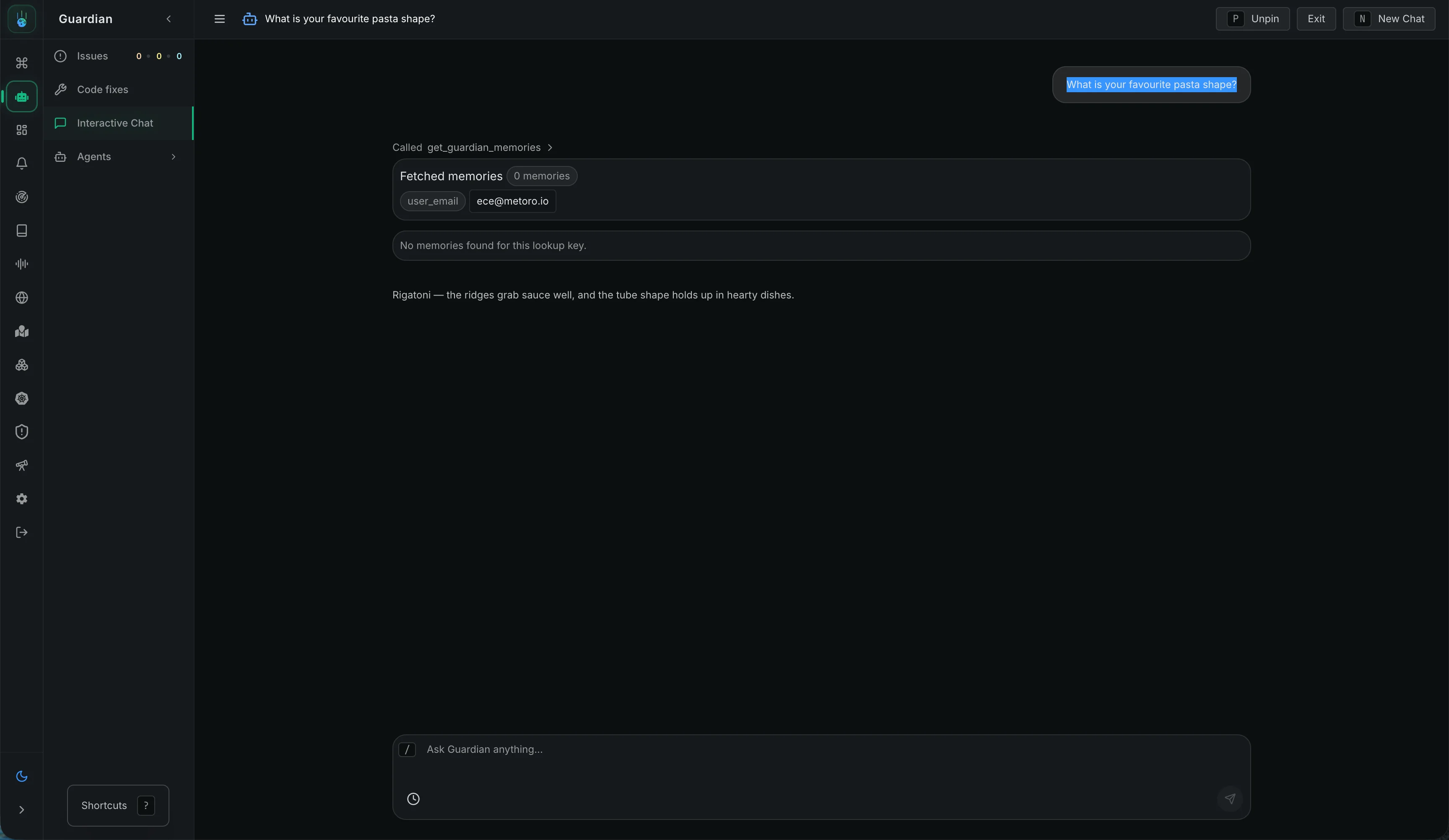
Verify Guardian Chat
Open Guardian AI chat and ask anything: For example: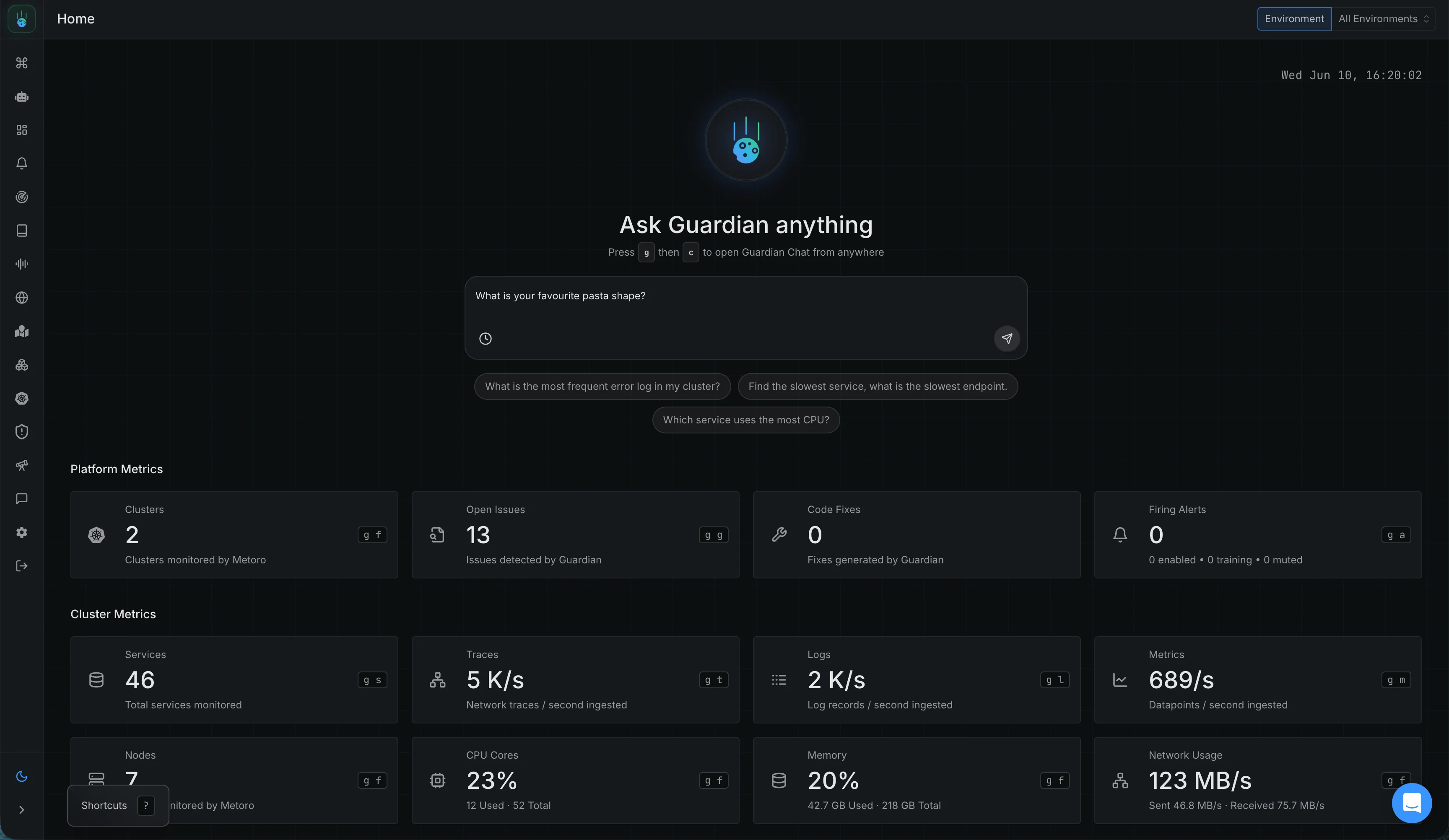
Troubleshooting
Helm Fails Before Applying
Check that all required fields are set when bothai.enabled and ai.openai.enabled are true:
ai.openai.enabled=trueai.openai.model(defaults togpt-5.5; fails only if explicitly set to an empty string)ai.openai.baseUrlai.openai.externalApiSecret.secretNameai.openai.externalApiSecret.keys.apiKey
AI Requests Return 401 Unauthorized
Check:- The API key value in the Kubernetes Secret.
- For LiteLLM, the Secret contains the LiteLLM master or virtual key, not the upstream model-provider key.
ai.openai.baseUrlpoints at the OpenAI-compatible API root.ai.openai.apiKeyHeadermatches the endpoint. Leave it empty for bearer auth. Useapi-keyfor Azure OpenAI-compatible endpoints that expect the Azure API key header.
LiteLLM Reports That the Model Does Not Exist
Check thatai.openai.model exactly matches a model alias exposed by LiteLLM. If ai.openai.summaryModel is set, LiteLLM must expose that alias too.
Test the same alias against ${LITELLM_BASE_URL}/responses using the direct verification request above. A provider-qualified upstream model name is not interchangeable with the LiteLLM alias unless your gateway exposes that exact name.
Metoro Cannot Reach LiteLLM or TLS Verification Fails
Confirm that the LiteLLM base URL is reachable from the Metoro apiserver pods, not only from an administrator workstation. The URL must include the OpenAI-compatible/v1 root.
For gateways using a private or self-signed CA, configure the on-prem chart’s trustedCAs values so the apiserver and Guardian runner trust the gateway certificate.
Guardian AI Pages Still Show Disabled or Chat Is Missing
After the Helm values are applied and the in-platform Guardian AI Status toggle is on, allow up to 5 minutes for the change to take effect. If Guardian AI pages still show as disabled or Guardian AI chat does not appear on the home page, clear the browser cache and hard reload the platform. If the UI still does not update, verify the apiserver rollout and theMETORO_AI environment variables again.
If issues persist, contact support. We are here to help!