Metoro can be adopted in two ways depending on how you want to use it in your stack.

Adopt Metoro in two ways

1. Use Metoro as your full observability and AI SRE platform

Choose this path if you want Metoro to be your primary platform for both observability and AI-powered production response. In this setup, Metoro collects telemetry from your Kubernetes cluster and becomes the main place to monitor systems, investigate issues, and run AI SRE workflows. This is the best path if you want a single platform for observability, issue detection, alert investigation, deployment verification, and remediation workflows. Best for
  • Teams looking to consolidate observability and AI SRE into one platform
  • Teams starting fresh and want full observability in less than 5 minutes
  • Teams replacing multiple monitoring and debugging tools
  • Teams that just migrated to Kubernetes and want a Kubernetes-native solution for observability and AI SRE

2. Run Metoro side by side with your existing observability stack

Choose this path if you want to keep your current observability tools and use Metoro for AI SRE functionality. In this setup, Metoro runs alongside your existing tooling. You can introduce Metoro’s own autonomous issue detection, deployment verification, and AI SRE workflows without fully migrating your observability stack on day one. This is the fastest way to add AI alert investigation, deployment verification, and autonomous issue detection while keeping the rest of your setup largely unchanged. Best for
  • Teams already invested in another observability platform
  • Teams that want to evaluate Metoro incrementally
  • Teams that want AI SRE workflows before doing a full migration

Choose a deployment model

Once you’ve decided how you want to adopt Metoro, choose how you want it deployed.

Managed Cloud

Metoro hosts and manages the control plane. You install the Metoro Agents (not AI) in your cluster and start sending data to Metoro. This is the fastest way to get started and the lowest operational overhead option. Just head to https://us-east.metoro.io/ to get started.

BYOC

With Bring Your Own Cloud, Metoro runs in your own cloud environment while still being managed by the Metoro team. This gives you more infrastructure and data control than Managed Cloud, while avoiding most of the operational burden of a fully self-managed deployment. Contact support@metoro.io if you want to discuss a BYOC deployment.

On-Prem

Metoro runs entirely in your own infrastructure. This is the right choice for teams that need maximum control over deployment, networking, security boundaries, and data residency.
With each option, you will get a dedicated Slack channel for support and updates.
If you would like to proceed with BYOC or On-Prem, shoot us an email at support@metoro.io or use the Intercom chat at the bottom right of the screen (blue bubble).

Install Metoro

Once you have chosen an adoption path and deployment model, install Metoro using the flow that matches how you want it deployed.

Prerequisites

Metoro supports production deployments on:
  • AWS Elastic Kubernetes Service (EKS)
  • Google Kubernetes Engine (GKE) without GKE Autopilot
  • Azure Kubernetes Service (AKS)
  • Bare-metal Kubernetes installations
  • OpenShift clusters
Before you start, make sure you have access to the cluster you want to monitor and that your kubectl context points at the correct cluster. If you want sizing guidance before installation, see System Requirements.

Managed Cloud

1

Create or open your Metoro account

Go to the Metoro web app and sign in.
2

Choose your cluster type

During onboarding you can install Metoro into:
  • An existing Kubernetes cluster
  • A local development cluster created for evaluation
3

Run the install command

Copy the generated installation command from the product and run it in your terminal. Make sure your kubectl context is pointed at the cluster where you want Metoro installed.Metoro Onboarding Pending Screen
4

Wait for installation to finish

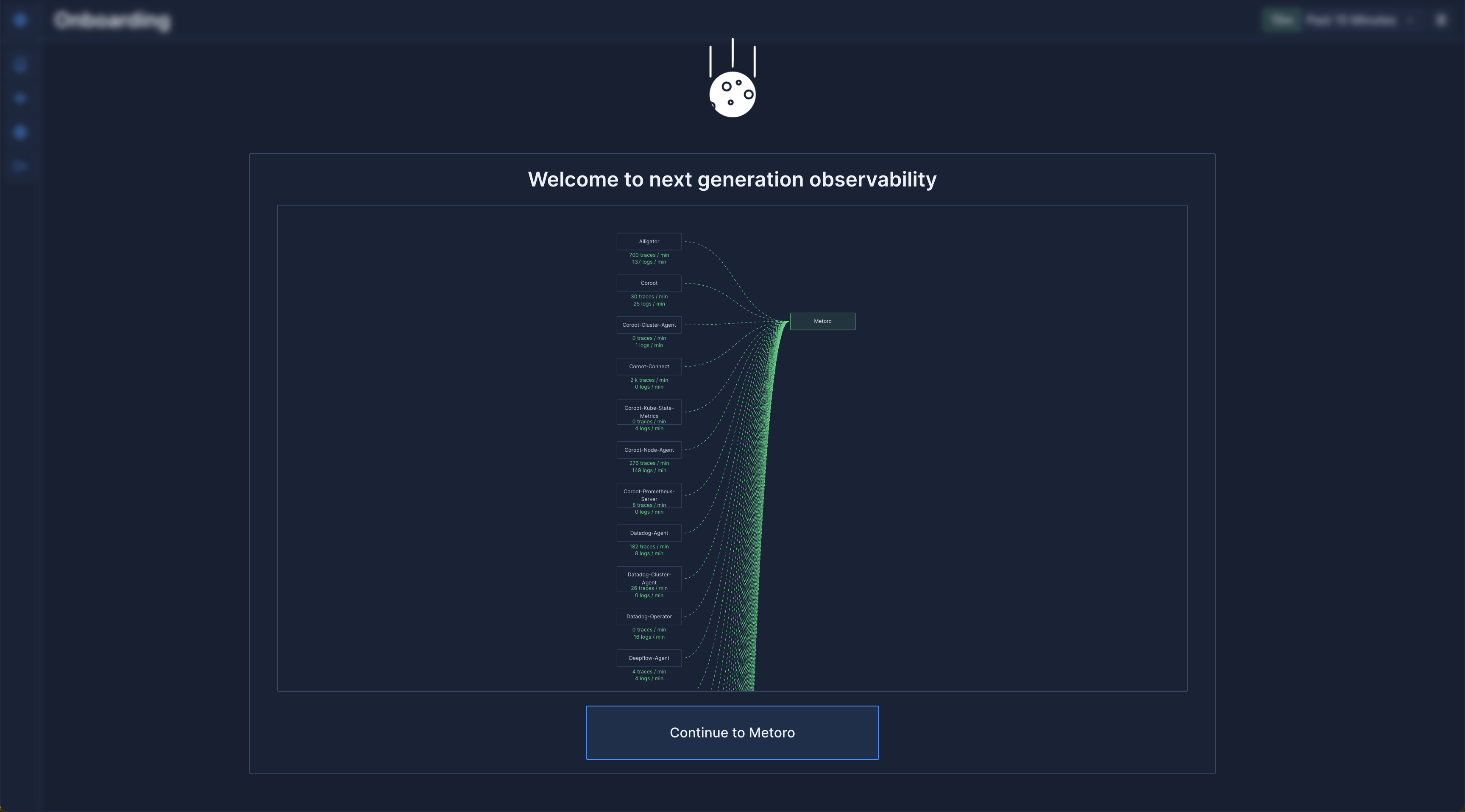
When the install completes successfully, Metoro starts collecting telemetry from the cluster immediately. You can return to the Metoro web app to follow the onboarding flow to enable AI SRE workflows.

BYOC

Contact support@metoro.io or your Metoro representative if you want to plan a BYOC deployment.

On-Prem

If you are self-hosting the control plane, follow the on-premises installation guide and then return here once the agents are sending data.

After installation

It can take a couple of minutes for telemetry to appear.
  • Local dev clusters can take 5 to 10 minutes because the cluster itself is being created.
  • Existing clusters usually start showing data in around a minute.
Once Metoro shows that data is flowing, you can proceed with rest of the onboarding flow to enable AI SRE workflows. Metoro Onboarding Completed Screen