Overview
Metoro Advisor continuously monitors your clusters to identify opportunities for resource optimization and inefficiencies. It operates through two main concepts:- Suggestions: Concrete recommendations and efficiency findings identified in your cluster
- Workflows: Automated processes that scan clusters to generate suggestions
Understanding Suggestions
Suggestions represent concrete optimization opportunities and resource-efficiency findings within your cluster components. Examples include:- Services with excessive memory allocation
- Over-provisioned nodes with low utilization
- Services experiencing CPU throttling or repeated OOMs because resource settings need adjustment
- Severity (Low to High): Helps prioritize follow-up
- Attributes: Identifying information (service name, namespace, etc.)
- Measurements: Quantitative data behind the suggestion
Severity levels help prioritize suggestions:
- Low: Efficiency improvements (e.g., over-provisioned resources)
- Medium: Performance impacts (e.g., CPU throttling)
- High: Resource constraints requiring prompt attention
Workflows
Workflows are automated processes that continuously scan your clusters for suggestions.- Run every 24 hours by default (midnight UTC)
- Analyze previous day’s data
- Automatically close resolved suggestions and open new ones when detected
- Configurable parameters for your specific needs
- Can be triggered on demand
- Right-Sizing Workflow: Optimizes resource allocation across your services
- More workflows coming soon…
Managing Suggestions
Suggestions View
The suggestions view lists all open and closed suggestions. You can apply filters, sort and search to identify the recommendations you’d like to act on first.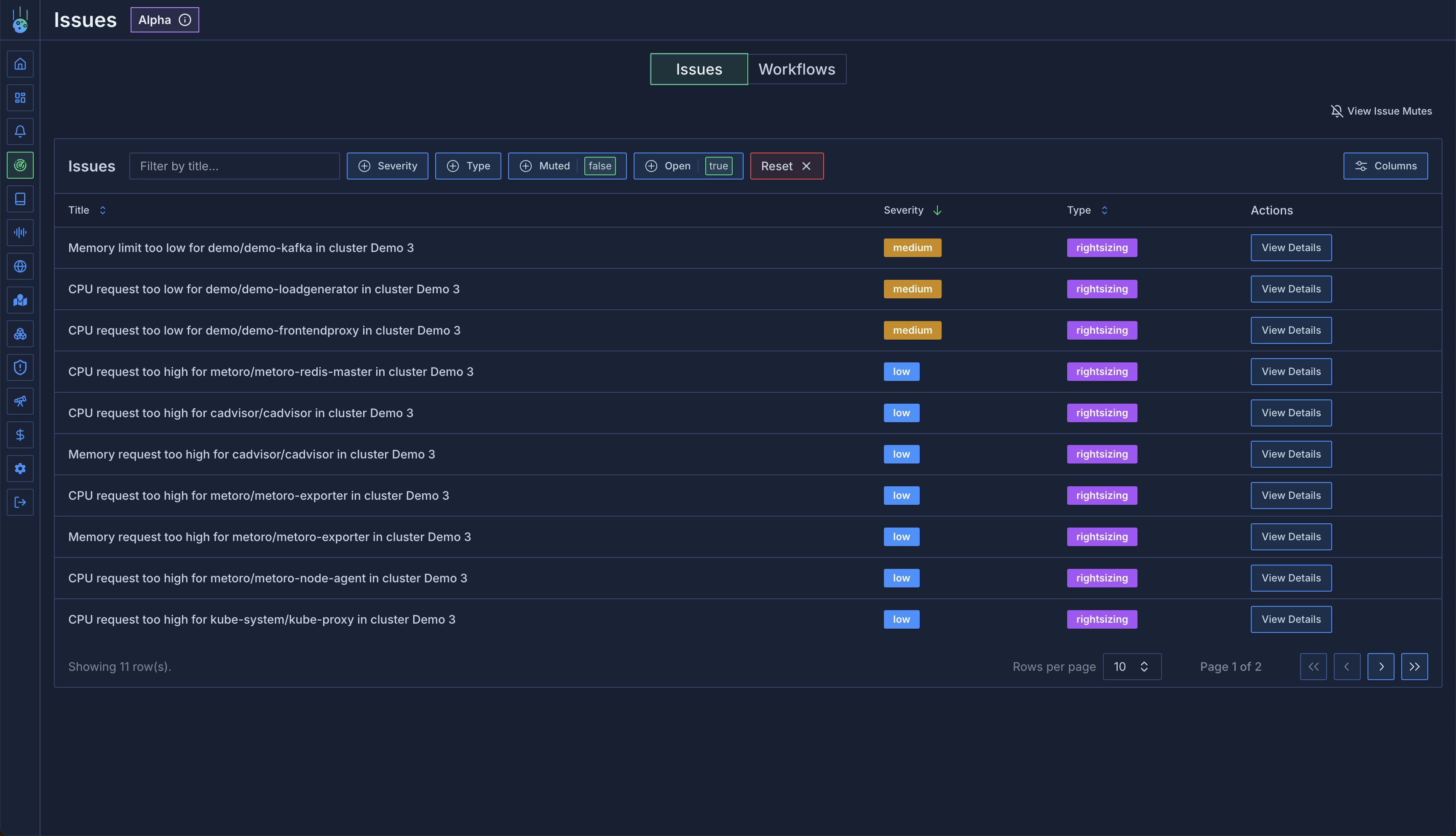
Suggestion Details
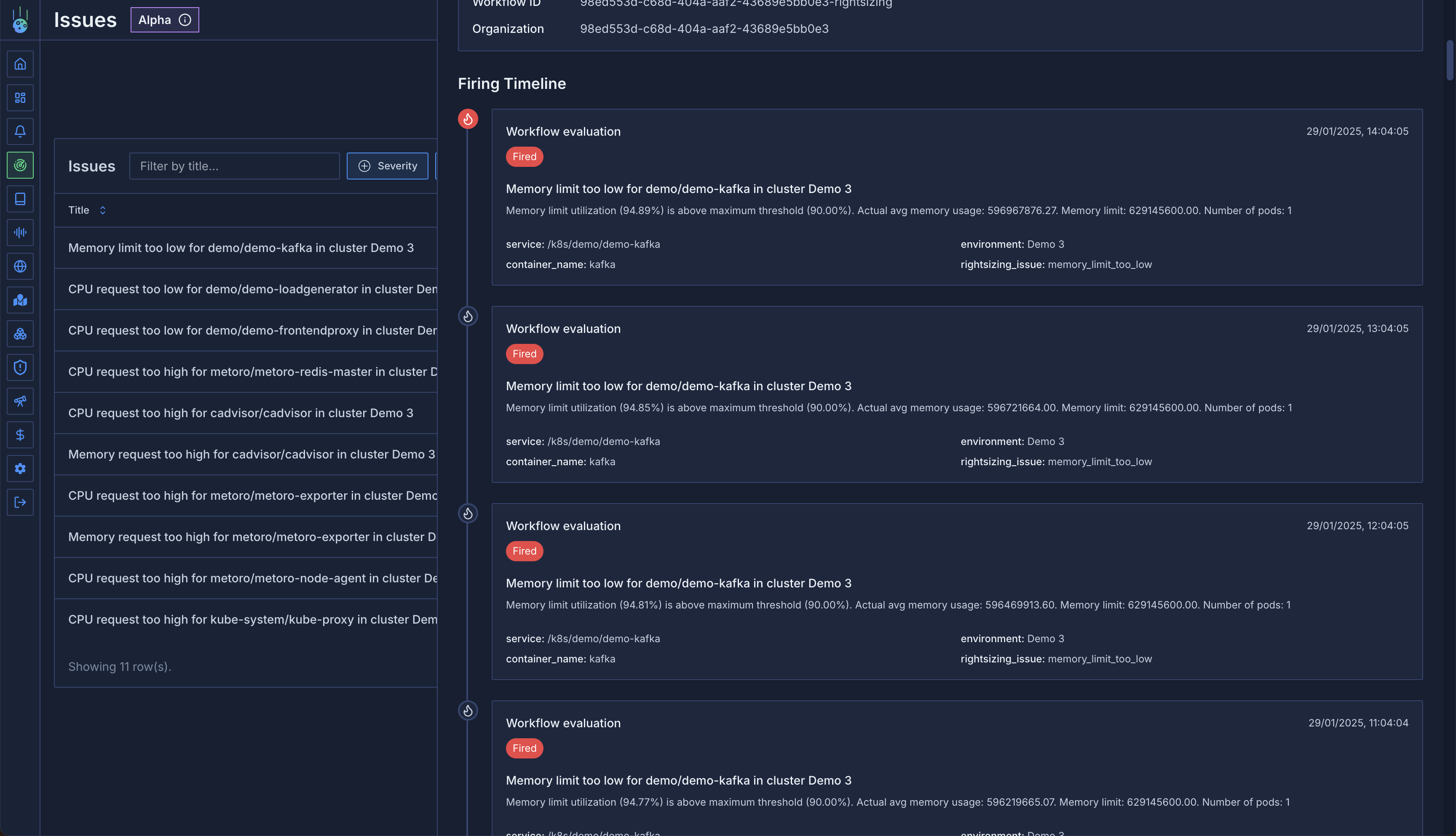
When clicking into a suggestion, you can view the data that the workflow used to generate it and a number of related metrics.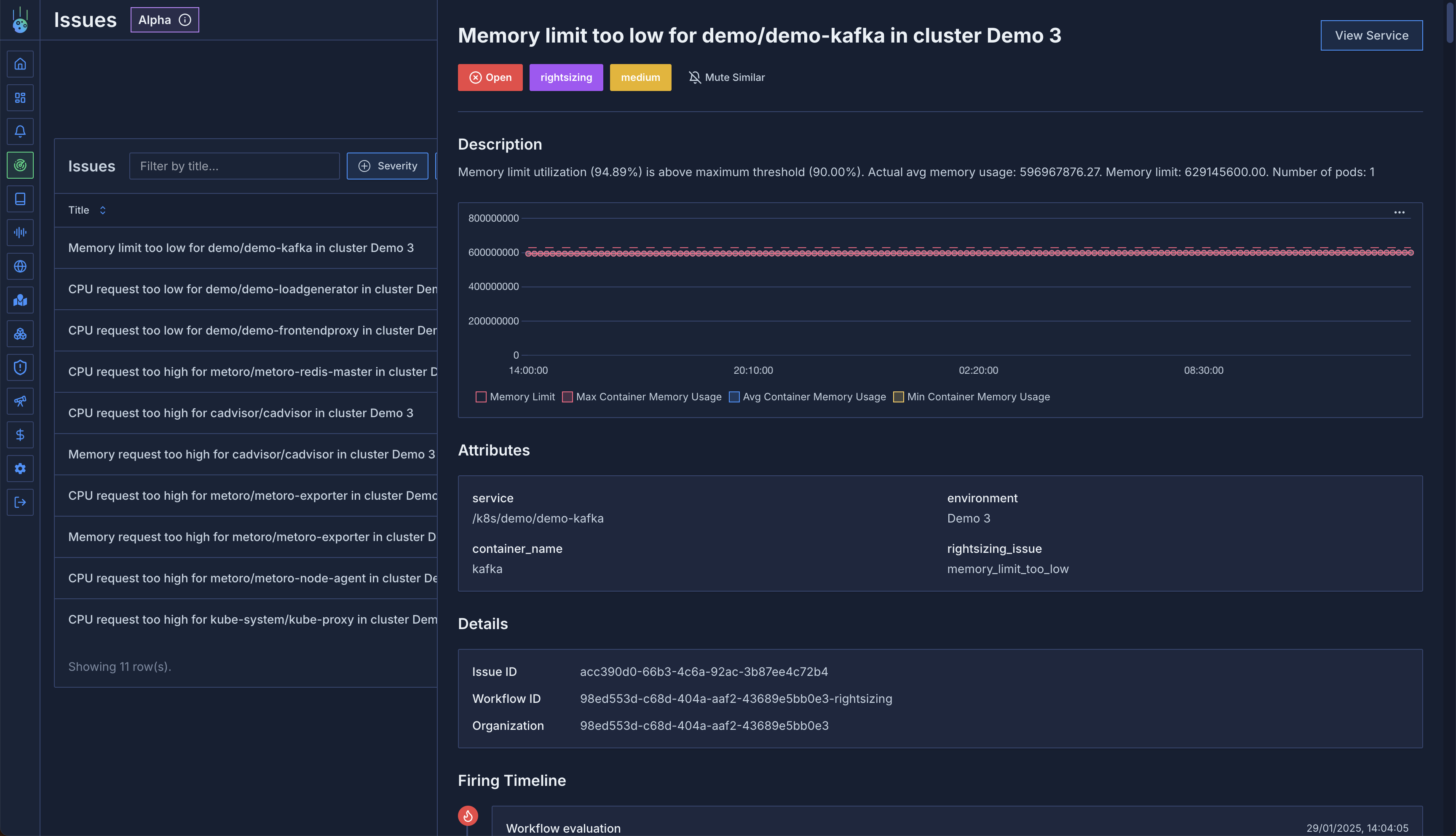
Workflow Configuration
Workflows come with sensible defaults, but you can adjust them to match your needs through workflow settings.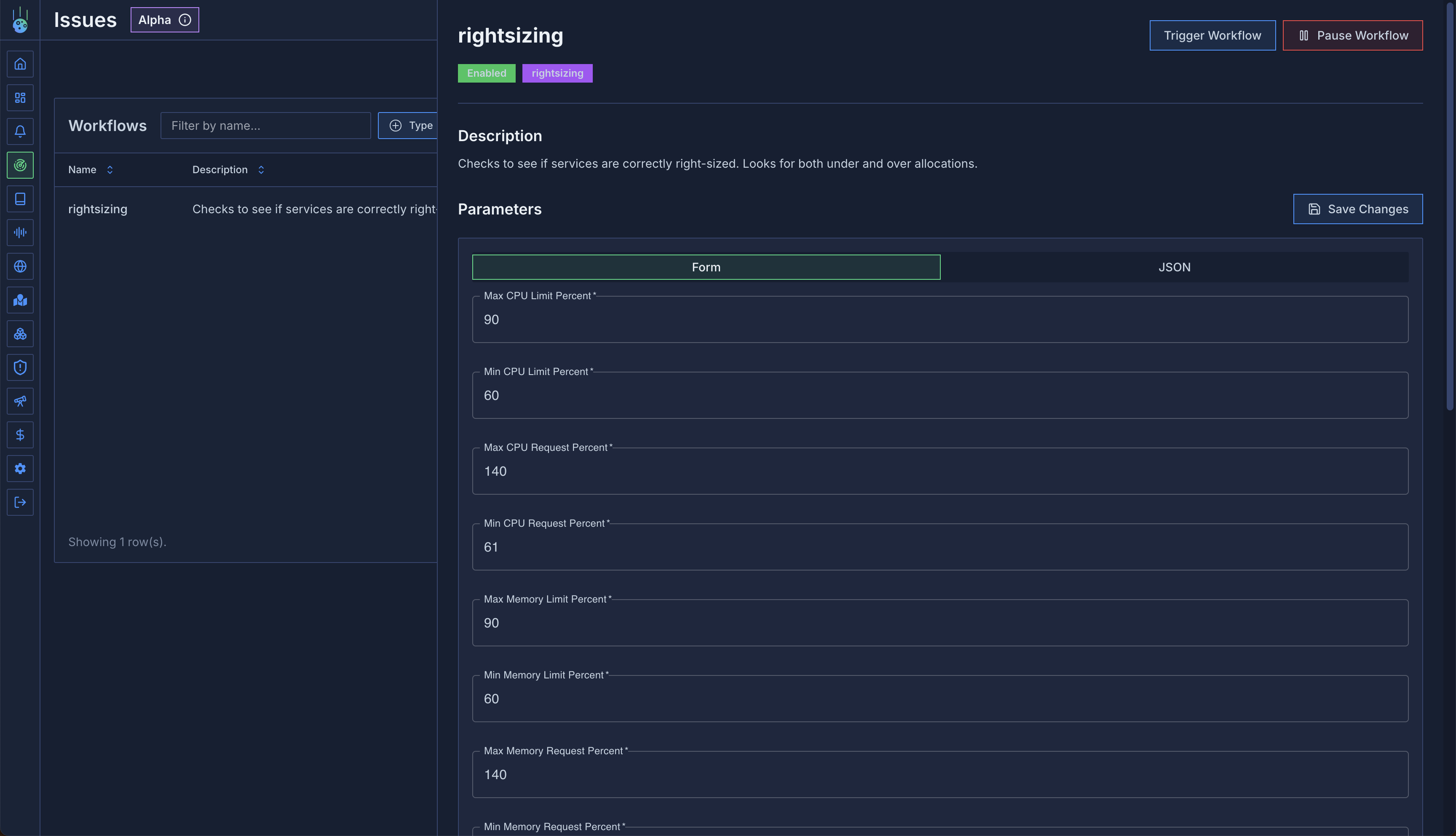
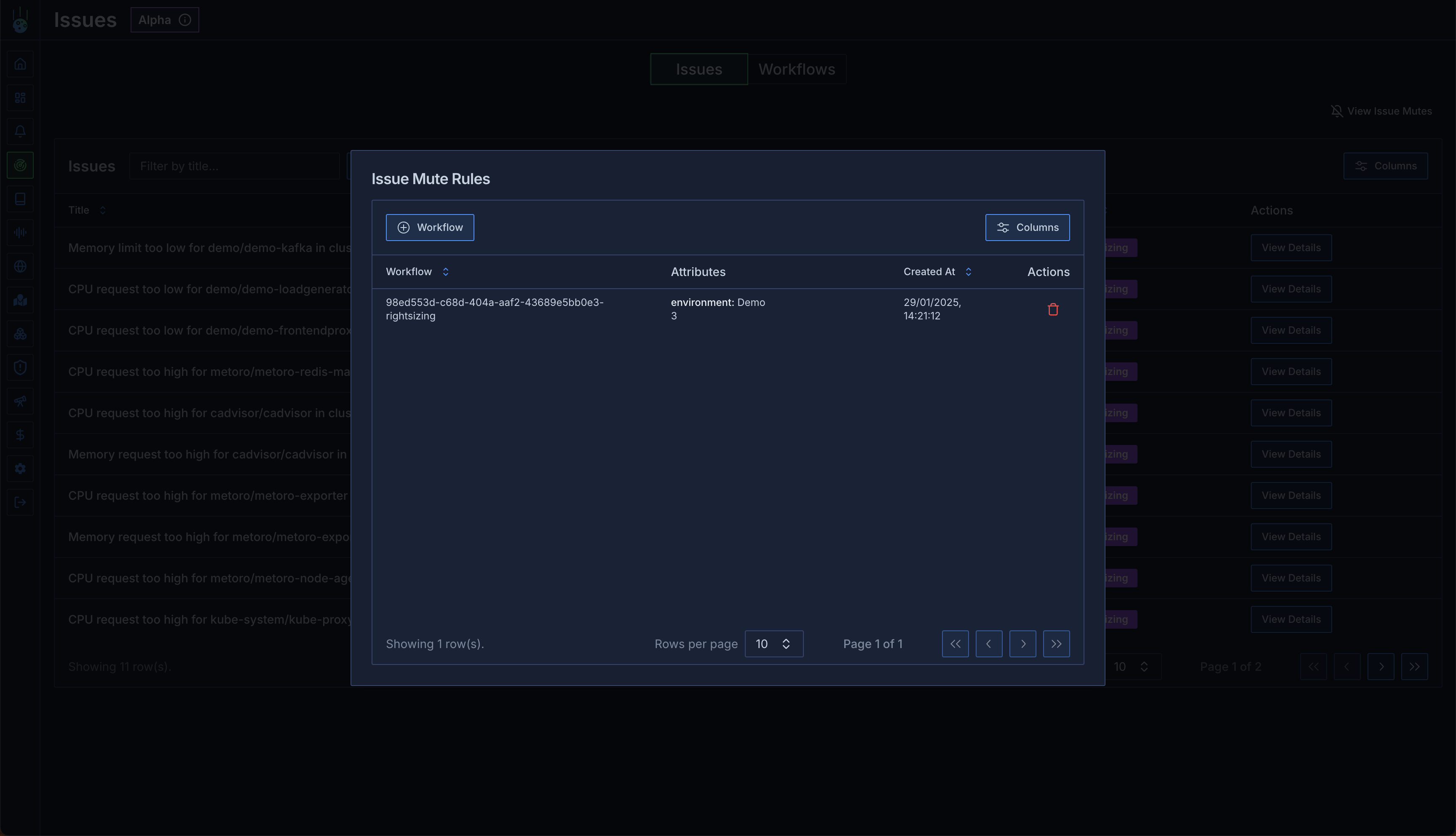
Suggestion Muting
Control which suggestions you want to track:- Find an example suggestion
- Click “Mute Similar”
- Select attributes to mute (e.g., development environment)
- Apply mute rule
- Development environments with expected low utilization
- Known exceptions to standard rules
- Temporary suppressions during maintenance