> ## Documentation Index
> Fetch the complete documentation index at: https://metoro.io/docs/llms.txt
> Use this file to discover all available pages before exploring further.
# Managing Roles
> Learn how to create and manage roles in Metoro
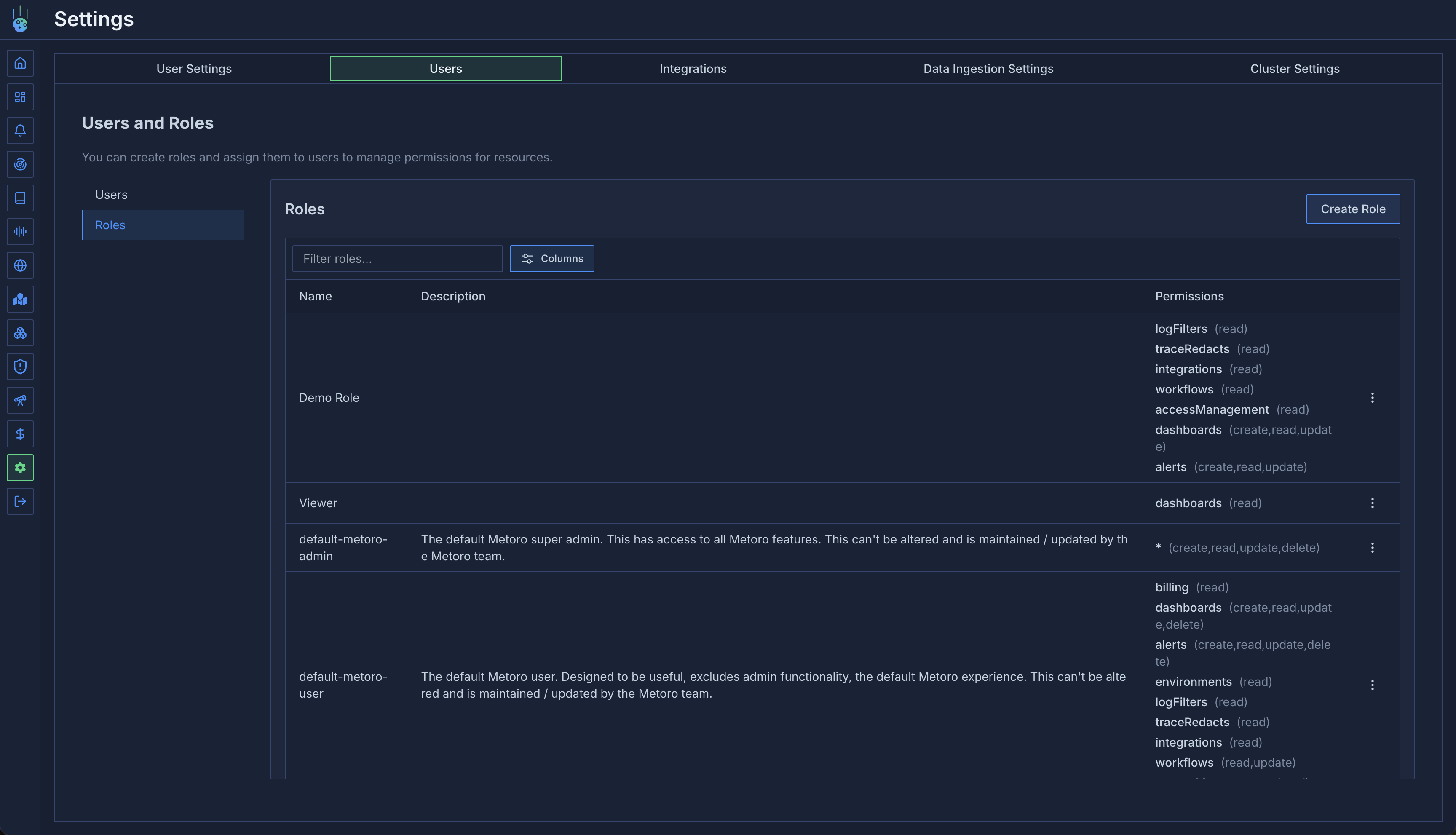
Roles in Metoro are collections of permissions that define what actions users can perform on different resources. Each role consists of a set of permissions that grant access to specific resource types.
 ## Built-in Roles
Metoro provides two built-in roles that cannot be modified:
1. **default-metoro-admin**
* Full access to all features and resources
* Can manage users, roles, and permissions
* Can configure integrations and settings
* Can view and manage billing information
2. **default-metoro-user**
* Can view all observability data
* Cannot modify integrations or settings
* Cannot manage users or roles
* Cannot access billing information
## Custom Roles
To create a new role, you must have `create`, `update`, `read` permissions for the `accessManagement` resource type.
You can create custom roles to provide more granular access control for your users. When creating a custom role:
1. Navigate to the [Roles tab](https://us-east.metoro.io/settings?tab=users) in Settings -> Users -> Roles
2. Click the "Create Role" button
3. Enter a name and description for the role
4. Select the permissions you want to grant for each resource type
5. Click "Create" to save the role
Custom roles can be edited or deleted at any time by users with `accessManagement` permissions.
## Role Permissions
Each role contains a set of permissions that determine what actions users with that role can perform. Permissions are grouped by resource type and can include:
* `view` - Ability to view or read the resource
* `create` - Ability to create new instances of the resource
* `update` - Ability to modify existing instances of the resource
* `delete` - Ability to remove instances of the resource
For a detailed list of available permissions and their effects, see the [Resource Types](/user-management/resource-types) documentation.
### Alert Folder Permissions
Alerts now respect folder-level RBAC through the filesystem. When you add an `alerts` permission, specify the exact folder path you want to scope—such as `/alerts/default/team-a/*`. Paths must:
* start with `/alerts/`
* reference a folder (end with `/`)
* usually end in `/*` to cover every alert within that folder
Common examples:
* `/alerts/default/*` — everything under the default folder
* `/alerts/default/team-a/*` — only Team A’s alerts
* `/alerts/*` — every folder and alert
Grant the operations that match the actions you want to allow:
* `read` – view/search/export alerts, inspect history and runbooks
* `create` – add alerts or subfolders beneath the path (also needed when moving alerts into the folder)
* `update` – edit definitions, destinations, mute/unmute
* `delete` – delete alerts or empty folders; moving alerts also needs `delete` on the source path
Users with read access to a subfolder automatically see the minimal parent folders required to reach it (for breadcrumbs/navigation) but not sibling folders they lack access to.
In Settings → Users → Roles, choosing the `alerts` resource reveals a path field. Paste the folder path from the Alerts sidebar, and API clients should set the same value via `CreateAlertRequest.path` or `Alert.Metadata.FolderPath`. Metoro still provisions `/alerts/` and `/alerts/default/` for every organization; any new folders must live beneath these roots.
## Built-in Roles
Metoro provides two built-in roles that cannot be modified:
1. **default-metoro-admin**
* Full access to all features and resources
* Can manage users, roles, and permissions
* Can configure integrations and settings
* Can view and manage billing information
2. **default-metoro-user**
* Can view all observability data
* Cannot modify integrations or settings
* Cannot manage users or roles
* Cannot access billing information
## Custom Roles
To create a new role, you must have `create`, `update`, `read` permissions for the `accessManagement` resource type.
You can create custom roles to provide more granular access control for your users. When creating a custom role:
1. Navigate to the [Roles tab](https://us-east.metoro.io/settings?tab=users) in Settings -> Users -> Roles
2. Click the "Create Role" button
3. Enter a name and description for the role
4. Select the permissions you want to grant for each resource type
5. Click "Create" to save the role
Custom roles can be edited or deleted at any time by users with `accessManagement` permissions.
## Role Permissions
Each role contains a set of permissions that determine what actions users with that role can perform. Permissions are grouped by resource type and can include:
* `view` - Ability to view or read the resource
* `create` - Ability to create new instances of the resource
* `update` - Ability to modify existing instances of the resource
* `delete` - Ability to remove instances of the resource
For a detailed list of available permissions and their effects, see the [Resource Types](/user-management/resource-types) documentation.
### Alert Folder Permissions
Alerts now respect folder-level RBAC through the filesystem. When you add an `alerts` permission, specify the exact folder path you want to scope—such as `/alerts/default/team-a/*`. Paths must:
* start with `/alerts/`
* reference a folder (end with `/`)
* usually end in `/*` to cover every alert within that folder
Common examples:
* `/alerts/default/*` — everything under the default folder
* `/alerts/default/team-a/*` — only Team A’s alerts
* `/alerts/*` — every folder and alert
Grant the operations that match the actions you want to allow:
* `read` – view/search/export alerts, inspect history and runbooks
* `create` – add alerts or subfolders beneath the path (also needed when moving alerts into the folder)
* `update` – edit definitions, destinations, mute/unmute
* `delete` – delete alerts or empty folders; moving alerts also needs `delete` on the source path
Users with read access to a subfolder automatically see the minimal parent folders required to reach it (for breadcrumbs/navigation) but not sibling folders they lack access to.
In Settings → Users → Roles, choosing the `alerts` resource reveals a path field. Paste the folder path from the Alerts sidebar, and API clients should set the same value via `CreateAlertRequest.path` or `Alert.Metadata.FolderPath`. Metoro still provisions `/alerts/` and `/alerts/default/` for every organization; any new folders must live beneath these roots.