> ## Documentation Index
> Fetch the complete documentation index at: https://metoro.io/docs/llms.txt
> Use this file to discover all available pages before exploring further.
# Access Control (RBAC)
> How users, groups, roles, and permissions control access in Metoro
Metoro uses role-based access control (RBAC) to decide what each person in your organization can see and do. The model has four parts:
```mermaid theme={null}
%%{init: {
'theme': 'dark',
'themeVariables': {
'fontFamily': 'Inter',
'primaryColor': '#151F32',
'primaryTextColor': '#EBF1F7',
'primaryBorderColor': '#3793FF',
'lineColor': '#334670',
'secondaryColor': '#151F32',
'tertiaryColor': '#151F32',
'mainBkg': '#151F32',
'nodeBorder': '#3793FF',
'clusterBkg': '#182338',
'titleColor': '#EBF1F7',
'edgeLabelBackground': '#151F32',
'clusterBorder': '#334670'
},
'maxZoom': 2,
'minZoom': 0.5,
'zoom': true
}}%%
flowchart LR
U["Users"] -->|belong to| G["Groups"]
G -->|bound to| R["Roles"]
R -->|carry| P["Permissions"]
P --> RP["Resource permissions
dashboards, alerts, settings"]
P --> TP["Telemetry permissions
logs, metrics, traces"]
```
* **Users** are individual accounts in your organization.
* **Groups** are collections of users. Groups are the only way access is assigned — roles are never attached directly to a user.
* **Roles** are bundles of permissions. A group can be bound to any number of roles.
* **Permissions** are the actual grants. They come in two types: [resource permissions](#resource-permissions) for Metoro resources (dashboards, alerts, webhooks, ...) and [telemetry permissions](#telemetry-permissions) for observability data (logs, metrics, traces, ...).
Everything on this page applies to both Metoro cloud and on-prem installs. You can manage all of it from **Settings → Users & Groups**, and most of it can also be declared as Kubernetes custom resources — see [Kubernetes RBAC Resources](/user-management/kubernetes-crds).
## How access is evaluated
A user's effective access is the **union of every permission from every role of every group they belong to**.
* Permissions are **allow-only and additive**. There are no deny rules; adding a group or role can only ever grant more access, never remove it.
* Access is **deny-by-default**. If nothing in a user's groups grants a permission, the user does not have it. In particular, a user with no telemetry grants sees no telemetry data at all. (The built-in roles include full telemetry access, so this only comes into play once you build custom roles.)
## Users
The **Users** tab in [Settings → Users & Groups](https://us-east.metoro.io/settings?tab=users) lists everyone who has been created or invited in your organization.
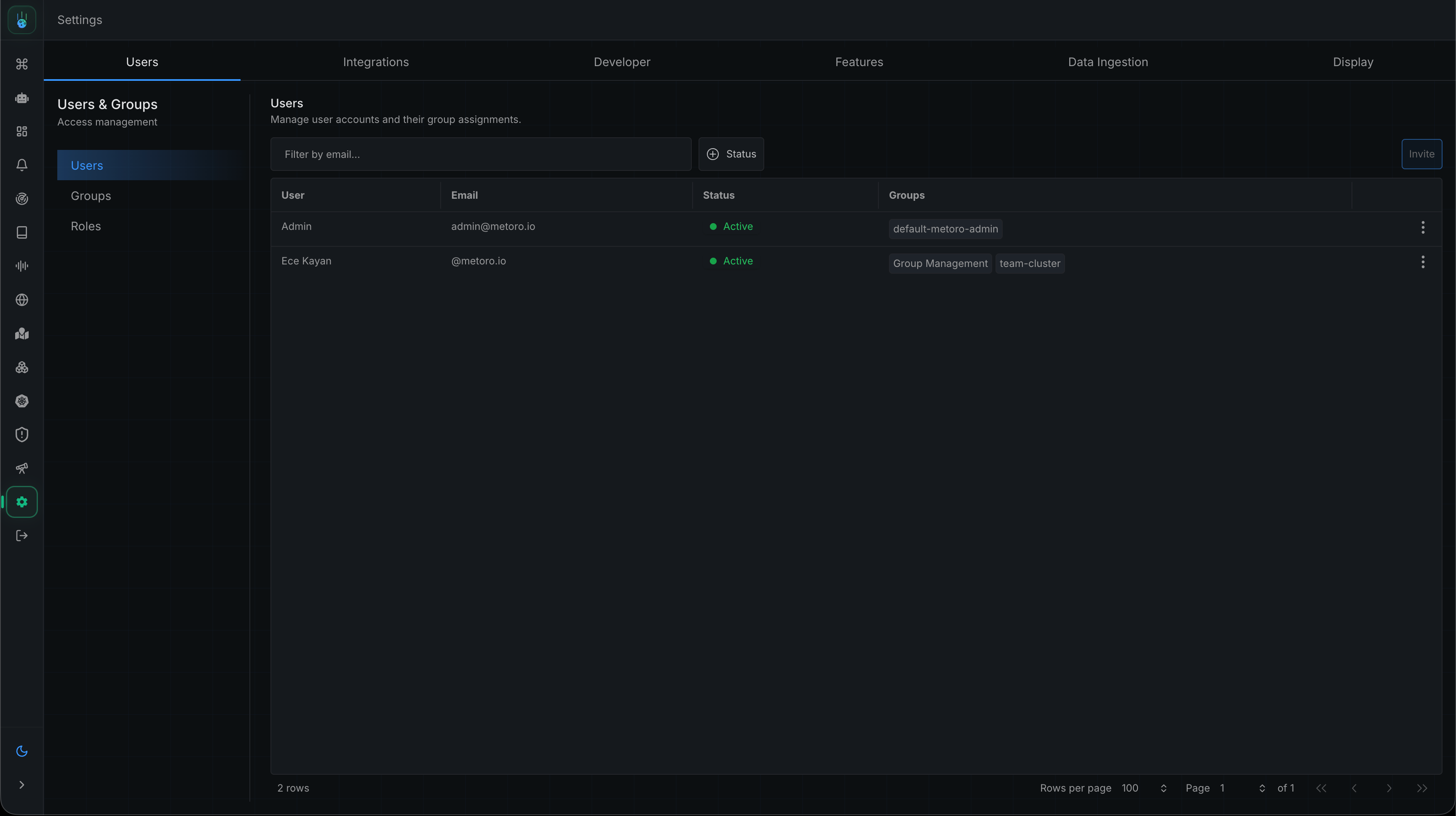 Managing users, groups, and roles requires `create`, `read`, and `update`
permissions on the `accessManagement` resource type.
To invite a new user:
1. Click **Invite** in the top right corner of the Users tab
2. Enter the user's email address
3. Select the groups the user should join
4. Click **Invite** to send the invitation
Managing users, groups, and roles requires `create`, `read`, and `update`
permissions on the `accessManagement` resource type.
To invite a new user:
1. Click **Invite** in the top right corner of the Users tab
2. Enter the user's email address
3. Select the groups the user should join
4. Click **Invite** to send the invitation
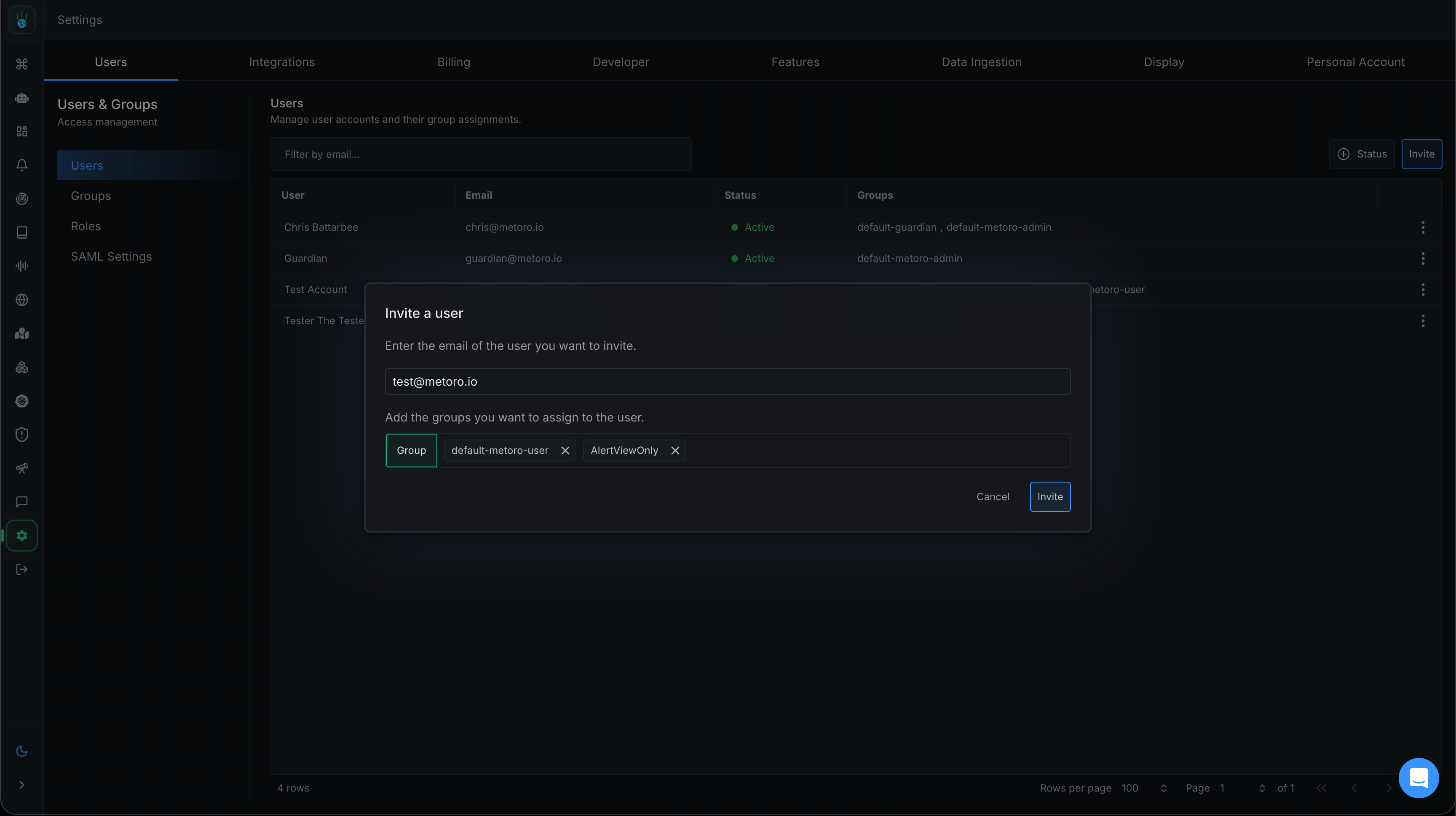 The user receives an email with a link to accept the invitation and create an account.
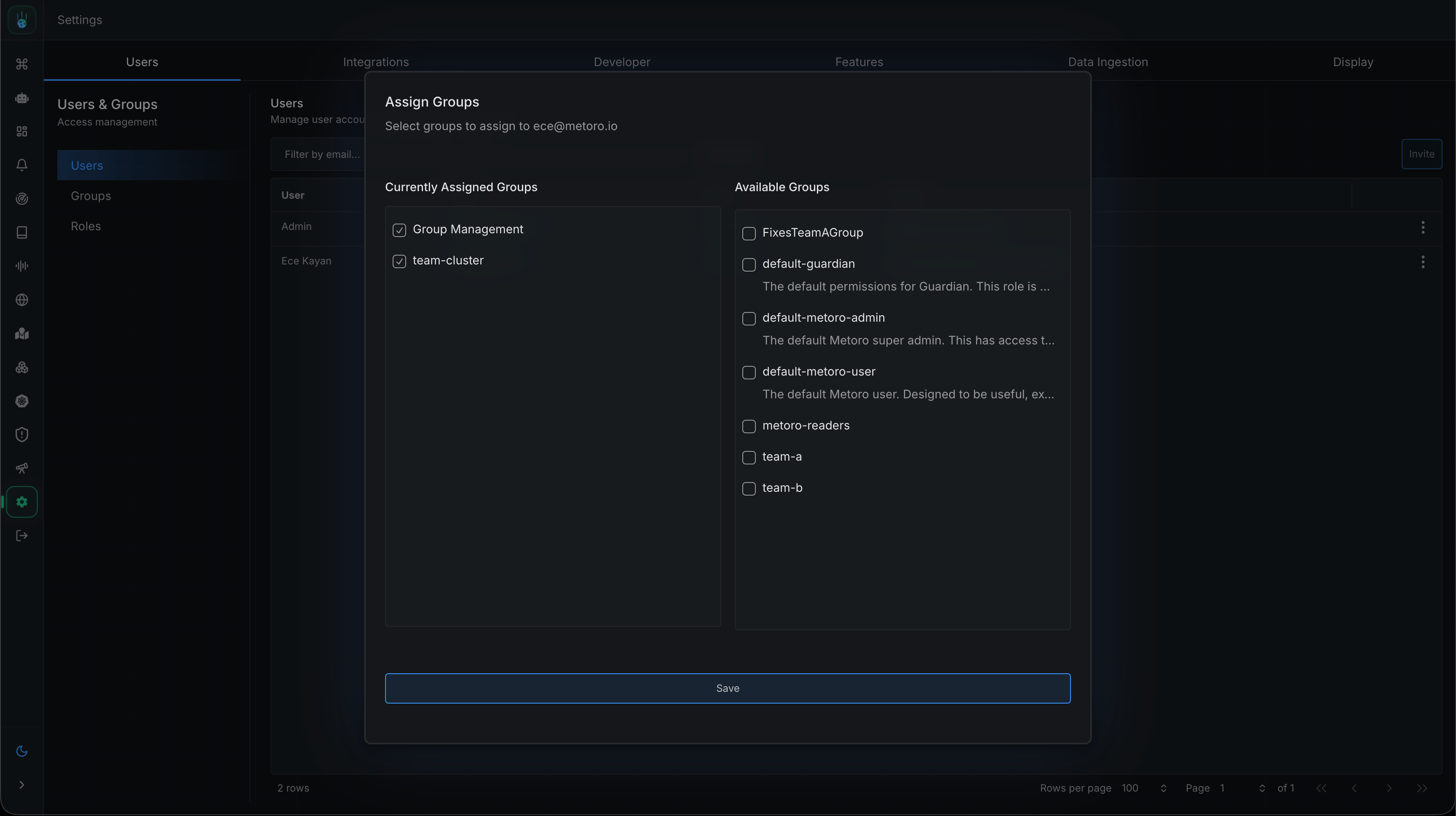
To change an existing user's access, open the row actions menu (three dots) next to the user and choose **Assign Groups**. A user can belong to any number of groups; their access is the combination of everything those groups grant.
The user receives an email with a link to accept the invitation and create an account.
To change an existing user's access, open the row actions menu (three dots) next to the user and choose **Assign Groups**. A user can belong to any number of groups; their access is the combination of everything those groups grant.
 If you use SSO, group membership can also be driven by your identity provider so that users are placed into the right Metoro groups automatically when they log in. See [Authentication](/user-management/authentication).
## Groups
Groups connect users to roles. You can create them in three ways:
* **In the UI** — the **Groups** tab in Settings → Users & Groups.
* **From your identity provider** — you can map IdP groups to Metoro roles so users are placed into the matching group automatically when they sign in via SSO. See [Authentication](/user-management/authentication).
* **As Kubernetes resources** — the `MetoroGroup` custom resource, on on-prem installs. See [Kubernetes RBAC Resources](/user-management/kubernetes-crds).
A group grants nothing by itself. Access only flows once the group is bound to one or more roles.
Metoro creates built-in default groups that back the built-in roles. These cannot be modified or deleted. Groups declared from Kubernetes are also read-only in the UI, because the Kubernetes resource is the source of truth.
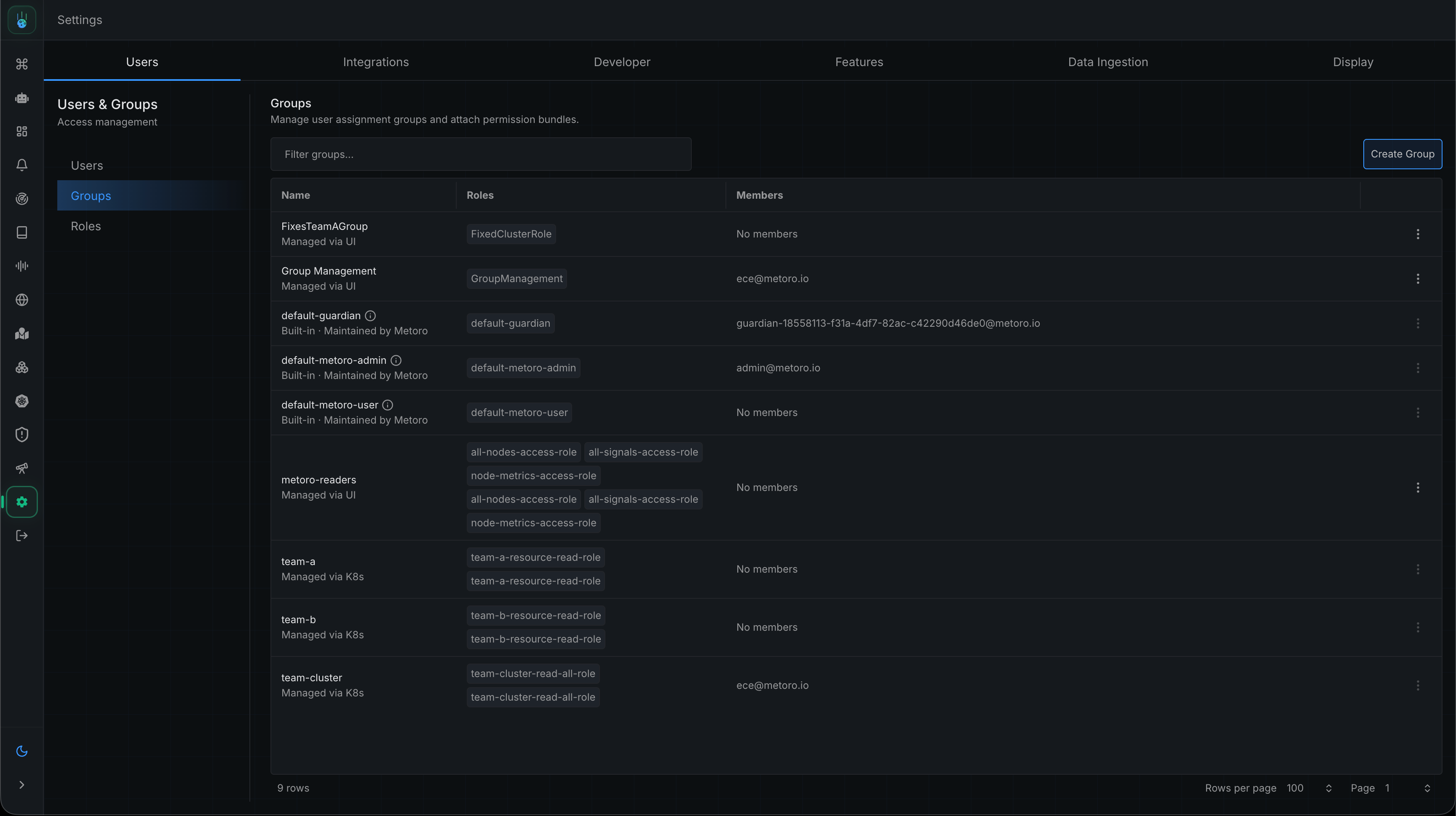
The **Groups** tab lists every group with the roles bound to it and its source — **Managed via UI**, **Built-in**, or **Managed via K8s** for Kubernetes-declared groups.
If you use SSO, group membership can also be driven by your identity provider so that users are placed into the right Metoro groups automatically when they log in. See [Authentication](/user-management/authentication).
## Groups
Groups connect users to roles. You can create them in three ways:
* **In the UI** — the **Groups** tab in Settings → Users & Groups.
* **From your identity provider** — you can map IdP groups to Metoro roles so users are placed into the matching group automatically when they sign in via SSO. See [Authentication](/user-management/authentication).
* **As Kubernetes resources** — the `MetoroGroup` custom resource, on on-prem installs. See [Kubernetes RBAC Resources](/user-management/kubernetes-crds).
A group grants nothing by itself. Access only flows once the group is bound to one or more roles.
Metoro creates built-in default groups that back the built-in roles. These cannot be modified or deleted. Groups declared from Kubernetes are also read-only in the UI, because the Kubernetes resource is the source of truth.
The **Groups** tab lists every group with the roles bound to it and its source — **Managed via UI**, **Built-in**, or **Managed via K8s** for Kubernetes-declared groups.
 ## Roles
Roles are bundles of permissions. Metoro ships with two built-in roles:
* **`default-metoro-admin`** — full access to everything, including user management, integrations, billing, and settings.
* **`default-metoro-user`** — full access to observability data, but cannot modify integrations, cluster settings, users, or billing.
Both built-in roles include unrestricted telemetry access. They cannot be modified.
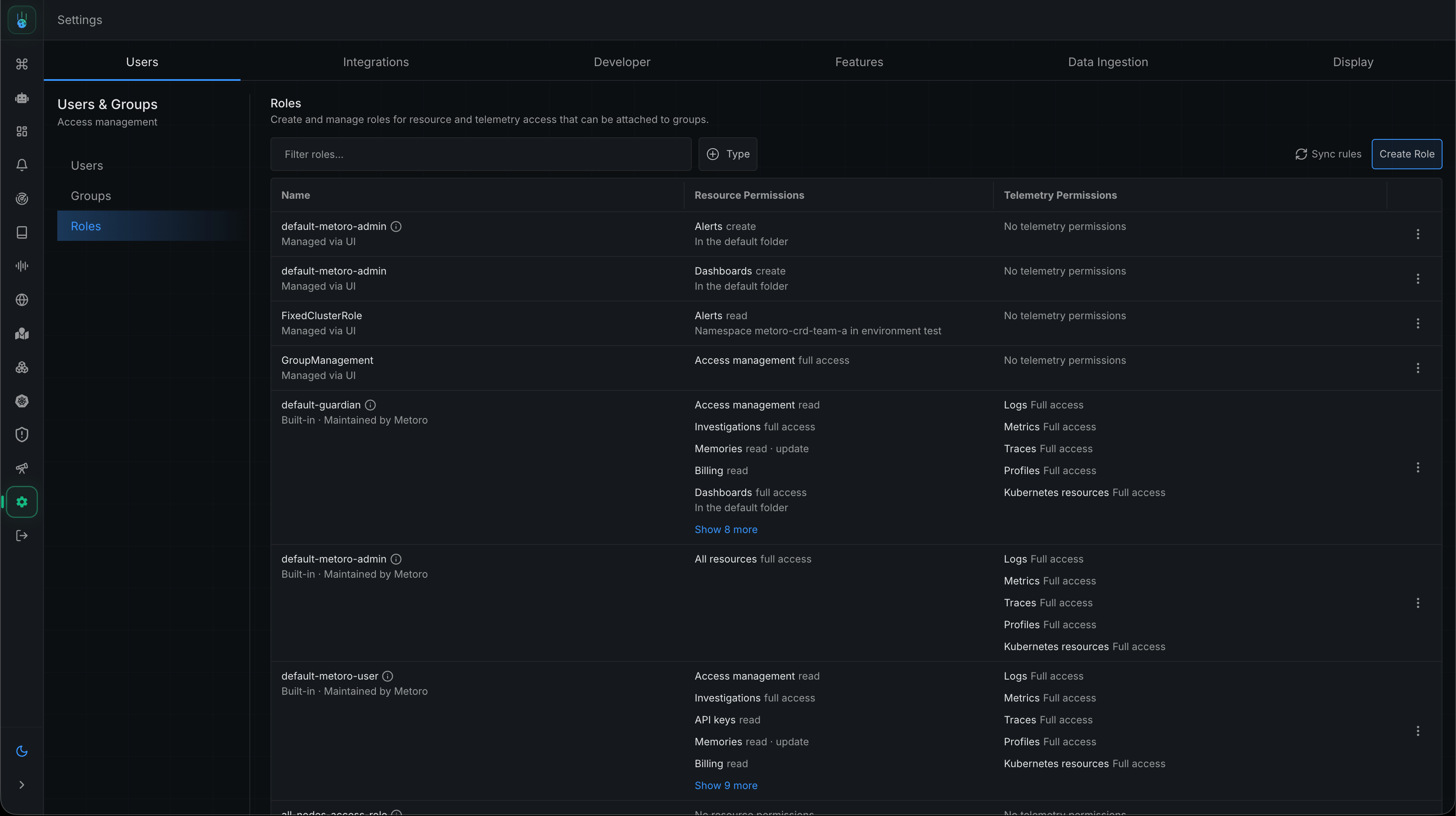
To create a custom role, open the **Roles** tab in Settings → Users & Groups and click **Create Role**:
1. Use the **Details** tab to name and describe the role
2. Use the **Resource Permissions** tab to grant access to Metoro resources
3. Use the **Telemetry Permissions** tab to grant visibility into observability data
4. Save the role, then bind it to groups from the Groups tab
## Roles
Roles are bundles of permissions. Metoro ships with two built-in roles:
* **`default-metoro-admin`** — full access to everything, including user management, integrations, billing, and settings.
* **`default-metoro-user`** — full access to observability data, but cannot modify integrations, cluster settings, users, or billing.
Both built-in roles include unrestricted telemetry access. They cannot be modified.
To create a custom role, open the **Roles** tab in Settings → Users & Groups and click **Create Role**:
1. Use the **Details** tab to name and describe the role
2. Use the **Resource Permissions** tab to grant access to Metoro resources
3. Use the **Telemetry Permissions** tab to grant visibility into observability data
4. Save the role, then bind it to groups from the Groups tab
 ## Resource permissions
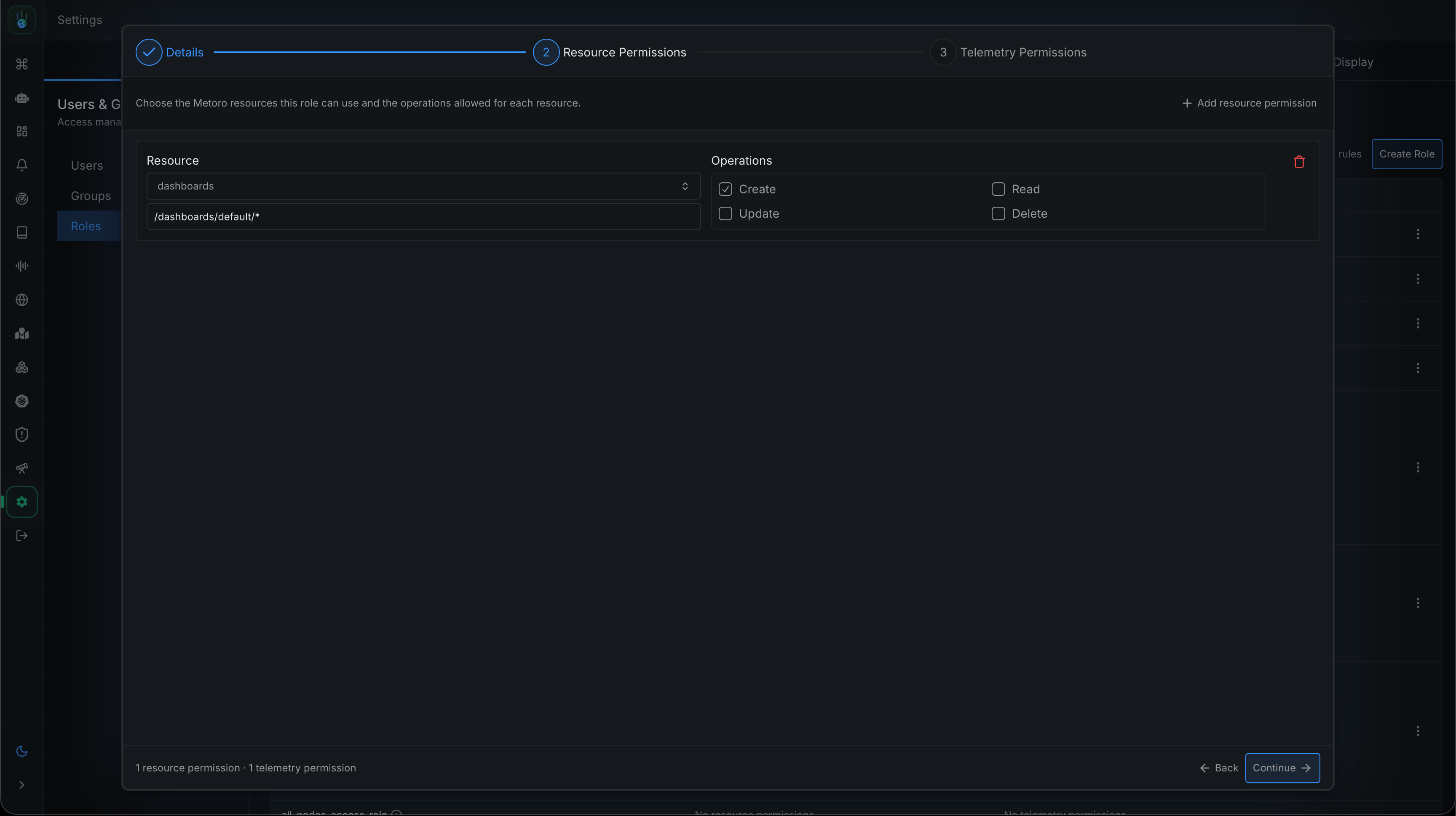
Resource permissions control access to Metoro resources — the objects you create and manage such as dashboards, alerts, and webhooks, as well as administrative areas like billing, integrations, and user management. Each permission is a **resource type** plus a set of **verbs**:
| Verb | Allows |
| -------- | ------------------------------------ |
| `read` | View the resource |
| `create` | Create new instances of the resource |
| `update` | Modify existing instances |
| `delete` | Remove instances |
See [Resource Types](/user-management/resource-types) for the full list of resource types and what each verb means for them.
## Resource permissions
Resource permissions control access to Metoro resources — the objects you create and manage such as dashboards, alerts, and webhooks, as well as administrative areas like billing, integrations, and user management. Each permission is a **resource type** plus a set of **verbs**:
| Verb | Allows |
| -------- | ------------------------------------ |
| `read` | View the resource |
| `create` | Create new instances of the resource |
| `update` | Modify existing instances |
| `delete` | Remove instances |
See [Resource Types](/user-management/resource-types) for the full list of resource types and what each verb means for them.
 ### Path scoping
Some resource types — alerts, dashboards, and webhooks — are organized into folders, and permissions on them can be scoped to a folder path rather than the whole type. A path must start with the resource type's root and usually ends in `/*` to cover everything beneath it:
* `/alerts/default/*` — everything under the default alerts folder
* `/alerts/default/team-a/*` — only Team A's alerts
* `/dashboards/production/*` — only dashboards in the `production` folder
* `/webhooks/kubernetes-managed/prod/payments/*` — Kubernetes-managed webhooks from the `payments` namespace on the `prod` cluster
* `/alerts/*` — every alert folder
Verbs interact with paths the way you'd expect: `create` lets a user add alerts or subfolders beneath the path (and move alerts into it), `delete` lets them remove alerts or empty folders (moving an alert out also needs `delete` on the source path). Users with access to a subfolder automatically see the minimal chain of parent folders needed to navigate to it, but not sibling folders they lack access to.
For example, a role that grants `read` and `create` on `/alerts/default/team-a/*`:
* lets the user view every alert under `team-a` and create new alerts or subfolders inside it
* shows `/alerts/` and `/alerts/default/` in the sidebar so they can navigate to `team-a`, but hides sibling folders like `/alerts/default/team-b/`
* does not let them edit or delete those alerts (no `update` or `delete`), or move an alert out of `team-a` — moving out also requires `delete` on the source path
## Telemetry permissions
Telemetry permissions control which observability data a user can query. Each grant covers one **signal**:
`logs` · `metrics` · `traces` · `profiles` · `kubernetesResources`
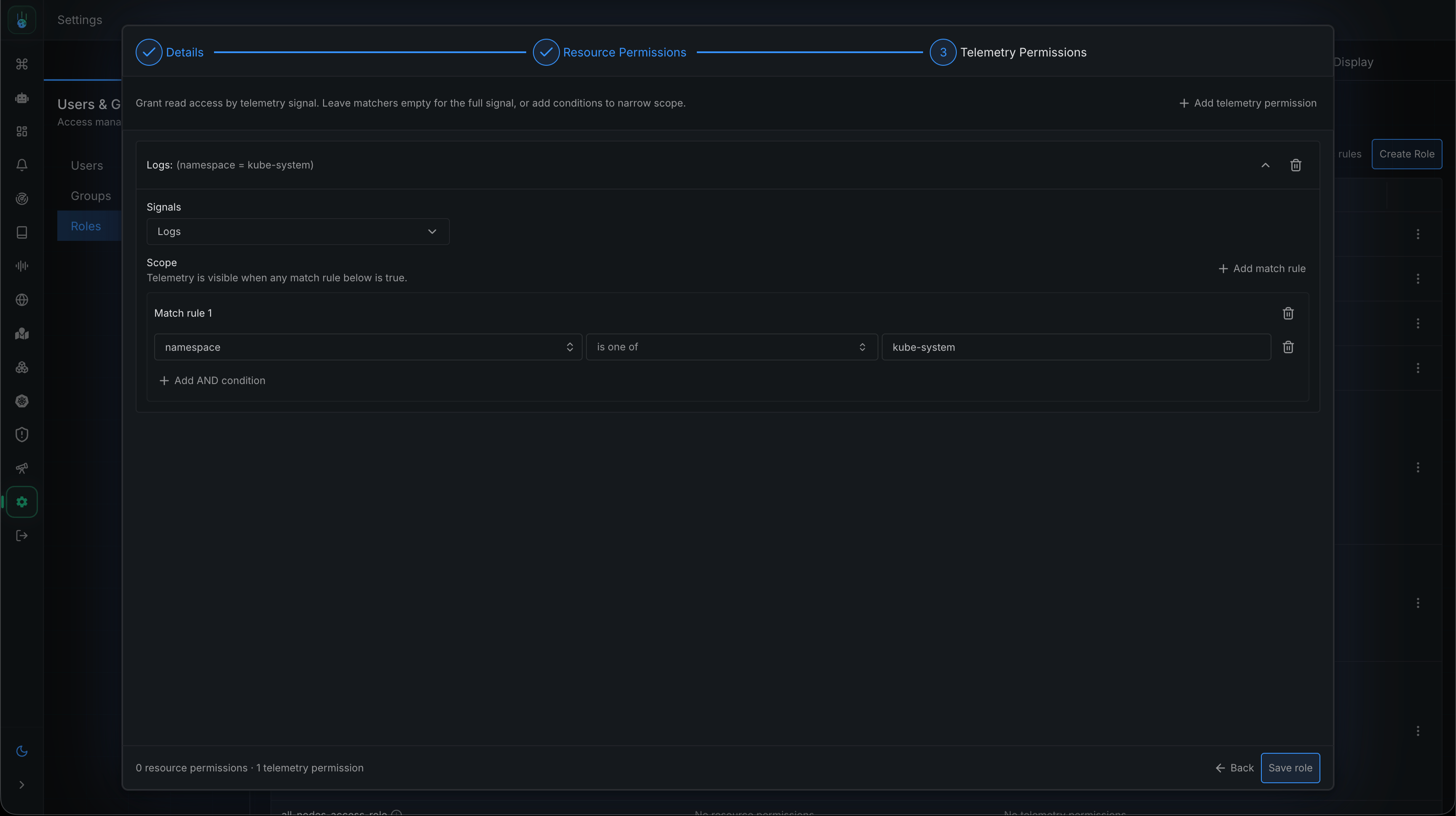
A grant can cover the whole signal, or be narrowed with **match expressions** — conditions on telemetry attributes such as `namespace`, `service.name`, `severity`, or `metric.name`. Each expression is a key, an operator, and (for most operators) a list of values:
| Operator | Matches when |
| -------------- | ------------------------------------------------------- |
| `In` | The attribute's value is in the list |
| `NotIn` | The attribute's value is not in the list |
| `RegexIn` | The attribute's value matches one of the regex patterns |
| `Exists` | The attribute is present (no values) |
| `DoesNotExist` | The attribute is absent (no values) |
Expressions **within one match group must all be true** (they are ANDed). **Separate grants are independent** (they are ORed) — a user can query anything that at least one grant allows. For example, one grant can allow logs where `service.name` is `checkout-api`, while another allows metrics whose `metric.name` matches `^node_.*`.
The common scoping keys — `environment`, `namespace`, and `service.name` — work across every signal, so the same match expression applies no matter which signals a grant covers. Each signal also exposes its own attributes: for example `metric.name` for metrics, `log.severity` for logs, or `server.namespace` and `client.namespace` to match a specific side of a trace.
Telemetry access is deny-by-default. A role with no telemetry grants gives no
visibility into any signal, so when you move users off the built-in roles,
make sure their custom roles include the telemetry access they need.
To manage telemetry grants in the UI, open the **Telemetry Permissions** tab when creating or editing a role, select a signal, and either leave the scope empty to grant the whole signal or add match groups to narrow it.
### Path scoping
Some resource types — alerts, dashboards, and webhooks — are organized into folders, and permissions on them can be scoped to a folder path rather than the whole type. A path must start with the resource type's root and usually ends in `/*` to cover everything beneath it:
* `/alerts/default/*` — everything under the default alerts folder
* `/alerts/default/team-a/*` — only Team A's alerts
* `/dashboards/production/*` — only dashboards in the `production` folder
* `/webhooks/kubernetes-managed/prod/payments/*` — Kubernetes-managed webhooks from the `payments` namespace on the `prod` cluster
* `/alerts/*` — every alert folder
Verbs interact with paths the way you'd expect: `create` lets a user add alerts or subfolders beneath the path (and move alerts into it), `delete` lets them remove alerts or empty folders (moving an alert out also needs `delete` on the source path). Users with access to a subfolder automatically see the minimal chain of parent folders needed to navigate to it, but not sibling folders they lack access to.
For example, a role that grants `read` and `create` on `/alerts/default/team-a/*`:
* lets the user view every alert under `team-a` and create new alerts or subfolders inside it
* shows `/alerts/` and `/alerts/default/` in the sidebar so they can navigate to `team-a`, but hides sibling folders like `/alerts/default/team-b/`
* does not let them edit or delete those alerts (no `update` or `delete`), or move an alert out of `team-a` — moving out also requires `delete` on the source path
## Telemetry permissions
Telemetry permissions control which observability data a user can query. Each grant covers one **signal**:
`logs` · `metrics` · `traces` · `profiles` · `kubernetesResources`
A grant can cover the whole signal, or be narrowed with **match expressions** — conditions on telemetry attributes such as `namespace`, `service.name`, `severity`, or `metric.name`. Each expression is a key, an operator, and (for most operators) a list of values:
| Operator | Matches when |
| -------------- | ------------------------------------------------------- |
| `In` | The attribute's value is in the list |
| `NotIn` | The attribute's value is not in the list |
| `RegexIn` | The attribute's value matches one of the regex patterns |
| `Exists` | The attribute is present (no values) |
| `DoesNotExist` | The attribute is absent (no values) |
Expressions **within one match group must all be true** (they are ANDed). **Separate grants are independent** (they are ORed) — a user can query anything that at least one grant allows. For example, one grant can allow logs where `service.name` is `checkout-api`, while another allows metrics whose `metric.name` matches `^node_.*`.
The common scoping keys — `environment`, `namespace`, and `service.name` — work across every signal, so the same match expression applies no matter which signals a grant covers. Each signal also exposes its own attributes: for example `metric.name` for metrics, `log.severity` for logs, or `server.namespace` and `client.namespace` to match a specific side of a trace.
Telemetry access is deny-by-default. A role with no telemetry grants gives no
visibility into any signal, so when you move users off the built-in roles,
make sure their custom roles include the telemetry access they need.
To manage telemetry grants in the UI, open the **Telemetry Permissions** tab when creating or editing a role, select a signal, and either leave the scope empty to grant the whole signal or add match groups to narrow it.
 ## Kubernetes-managed access
Groups and permissions can be declared as Kubernetes custom resources instead of managed in the UI — useful for GitOps workflows where access control lives in version control next to the workloads it protects.
Kubernetes-managed groups, roles, and grants appear in Settings → Users & Groups with a **Managed via K8s** label and are read-only in the UI, because the next sync would overwrite any manual edit. After you edit a custom resource, the exporter takes about a minute to discover the change and send it to the hub, where it is reconciled automatically. Once the change has reached the hub, the **Sync rules** button applies it immediately instead of waiting for the next reconcile.
See [Kubernetes RBAC Resources](/user-management/kubernetes-crds) for the full reference and worked examples.
## Best practices
* **Grant least privilege.** Start from `read` and add verbs as needed; scope telemetry grants to the namespaces and services a team actually owns.
* **Model groups on teams.** One group per team, bound to the roles that team needs, keeps membership changes (people joining and leaving) separate from permission changes.
* **Audit periodically.** Review group memberships and role bindings from Settings → Users & Groups; Kubernetes-managed grants can be reviewed in version control.
## Kubernetes-managed access
Groups and permissions can be declared as Kubernetes custom resources instead of managed in the UI — useful for GitOps workflows where access control lives in version control next to the workloads it protects.
Kubernetes-managed groups, roles, and grants appear in Settings → Users & Groups with a **Managed via K8s** label and are read-only in the UI, because the next sync would overwrite any manual edit. After you edit a custom resource, the exporter takes about a minute to discover the change and send it to the hub, where it is reconciled automatically. Once the change has reached the hub, the **Sync rules** button applies it immediately instead of waiting for the next reconcile.
See [Kubernetes RBAC Resources](/user-management/kubernetes-crds) for the full reference and worked examples.
## Best practices
* **Grant least privilege.** Start from `read` and add verbs as needed; scope telemetry grants to the namespaces and services a team actually owns.
* **Model groups on teams.** One group per team, bound to the roles that team needs, keeps membership changes (people joining and leaving) separate from permission changes.
* **Audit periodically.** Review group memberships and role bindings from Settings → Users & Groups; Kubernetes-managed grants can be reviewed in version control.