> ## Documentation Index
> Fetch the complete documentation index at: https://metoro.io/docs/llms.txt
> Use this file to discover all available pages before exploring further.
# Uptime Monitoring Logs
> How to view and analyze uptime monitoring check results via logs
# Uptime Monitoring Logs
After setting up your uptime monitors, you'll want to track their results to ensure your services are functioning properly. Metoro provides detailed logs allowing you to analyze performance and troubleshoot issues.
## Finding Uptime Monitoring Logs
1. Navigate to the **Logs** page in your Metoro dashboard
2. Use the following filters to find uptime monitoring logs:
* Service name: `uptime-monitor`
* Environment: `metoro-internal`
* Severity: All (to see both successes and failures)
## Log Content
Each log entry contains detailed information about a monitor check:
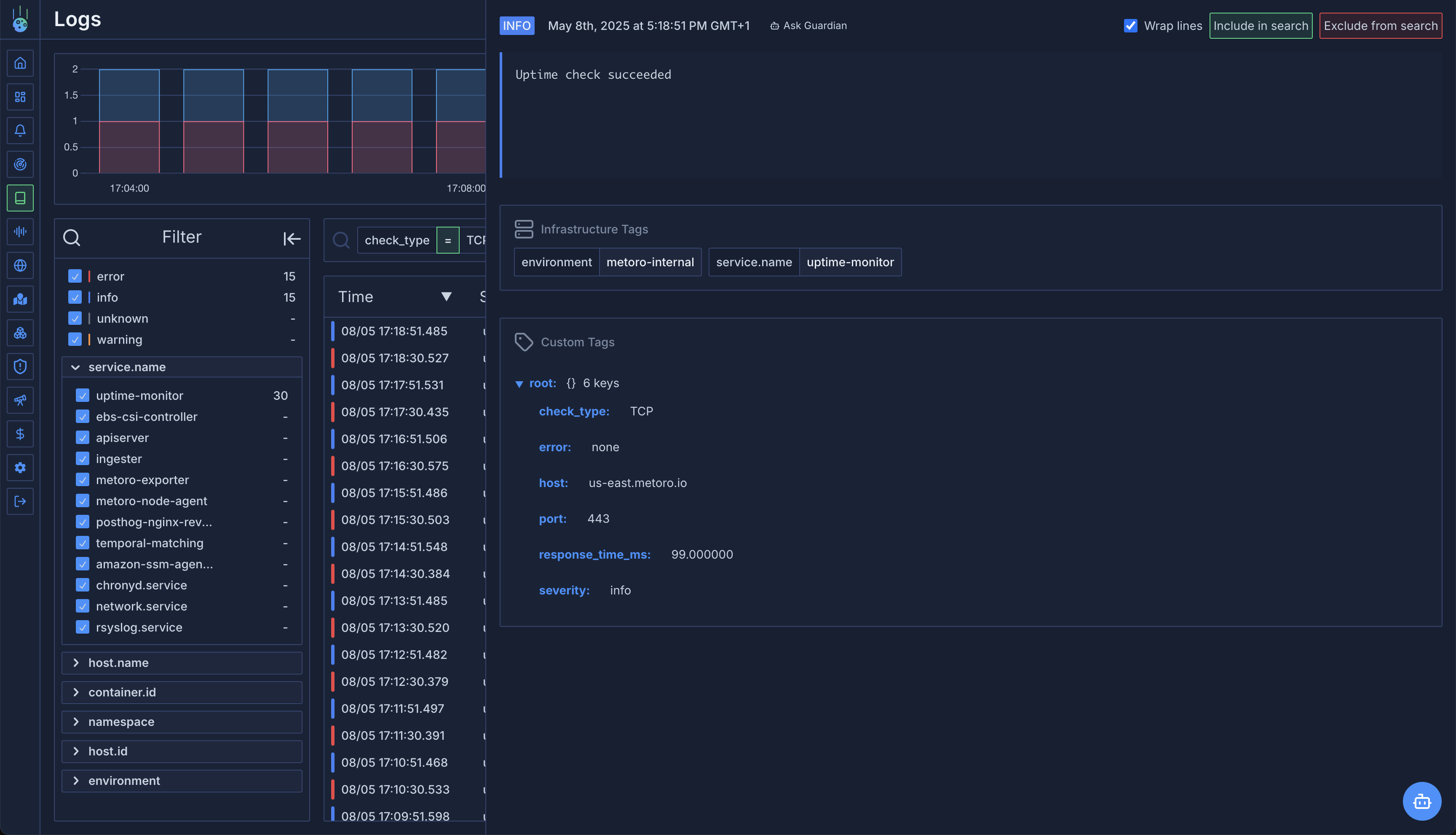
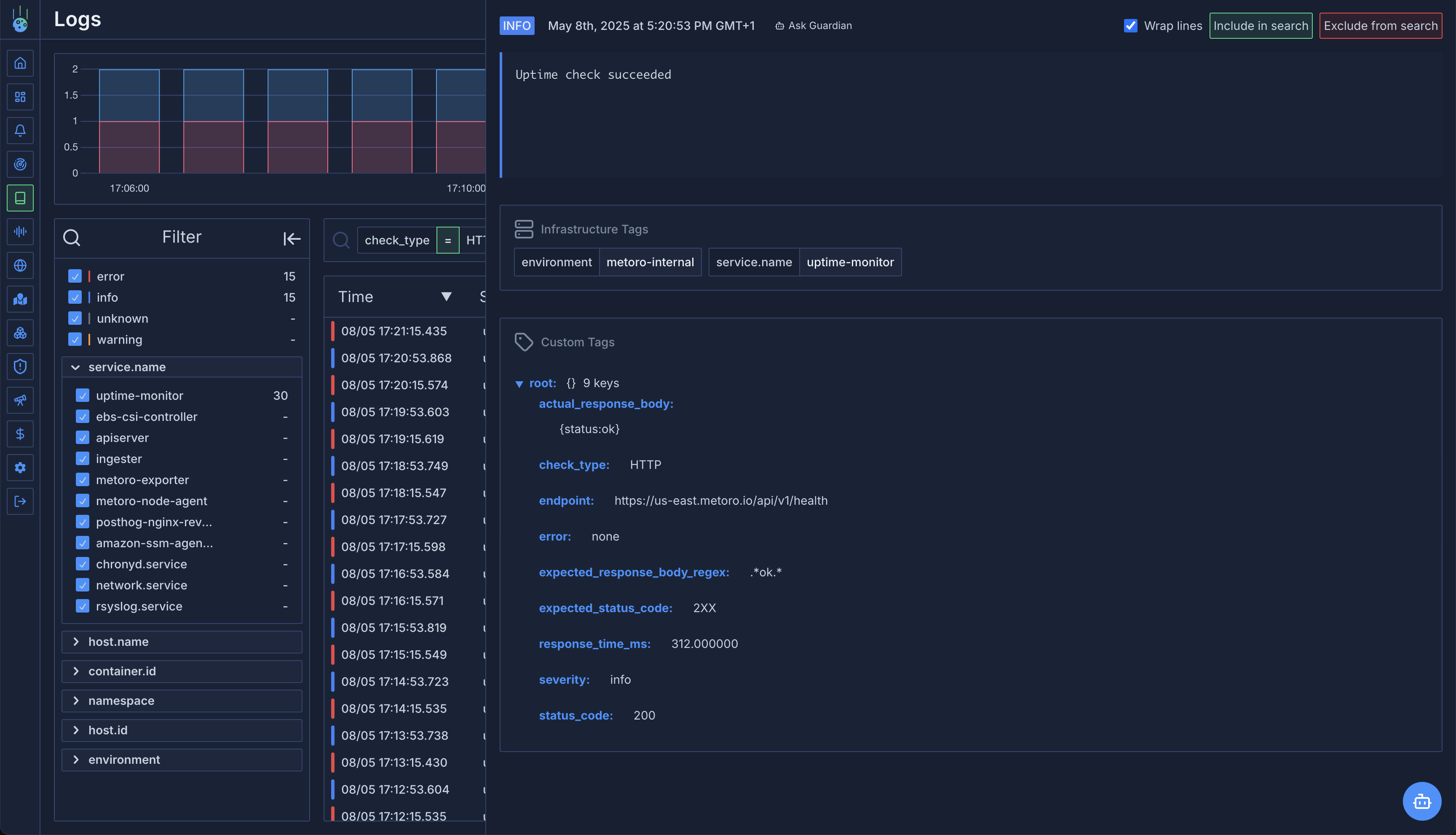
**For successful checks:**
* Log line: `Uptime check succeeded`
* Attributes include:
* `check_type`: Whether this was an HTTP or TCP check
* `response_time_ms`: How long the request took to complete
* For HTTP checks:
* `endpoint`: The URL that was checked
* `status_code`: The HTTP status code received
* `expected_status_code`: The pattern you configured
* `actual_response_body`: The body content returned (may be truncated for large responses)
* For TCP checks:
* `host`: The hostname or IP address
* `port`: The TCP port number
**Successful TCP Check Log Line**
 **Successful HTTP Check Log Line**
 **For failed checks:**
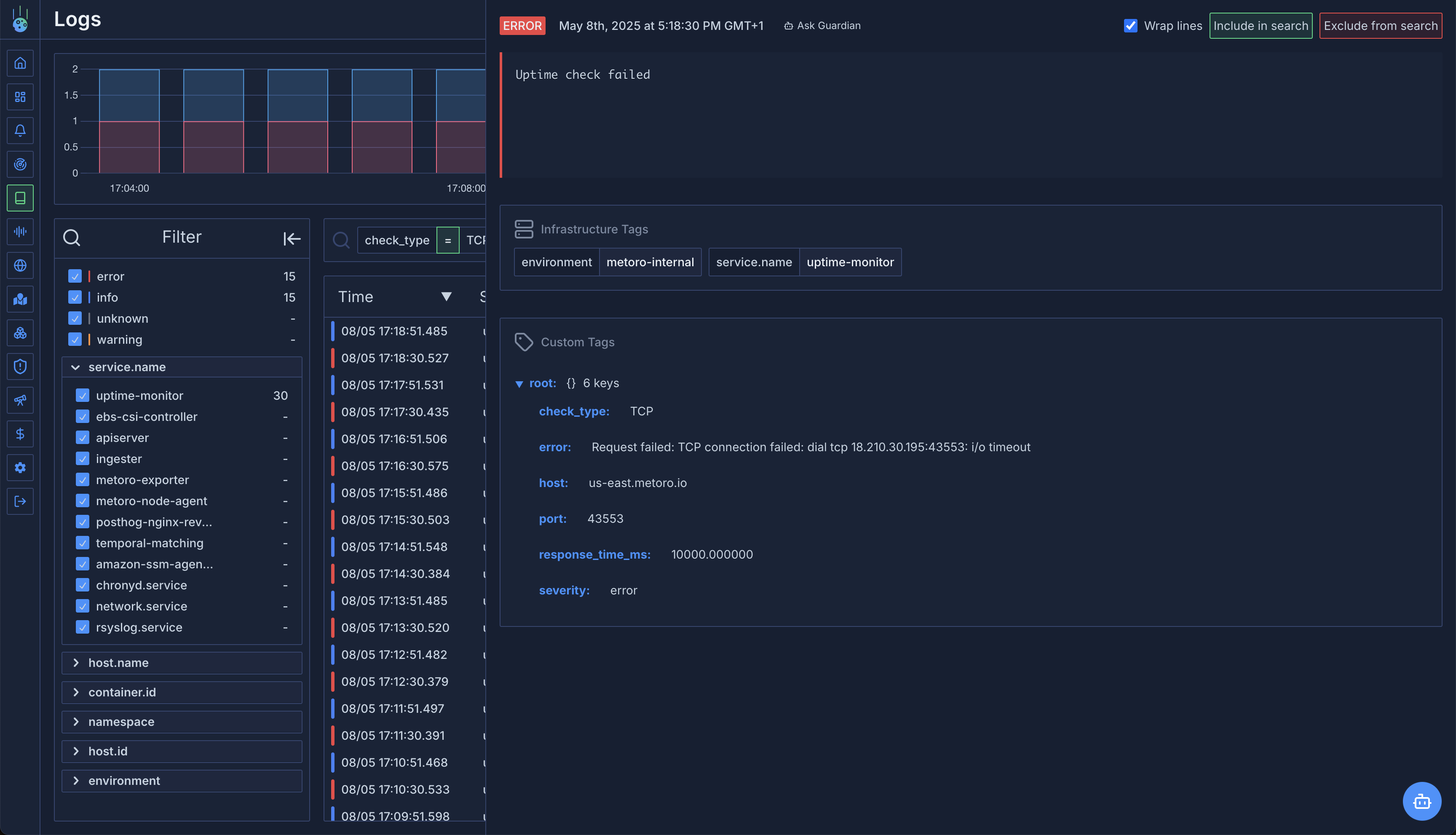
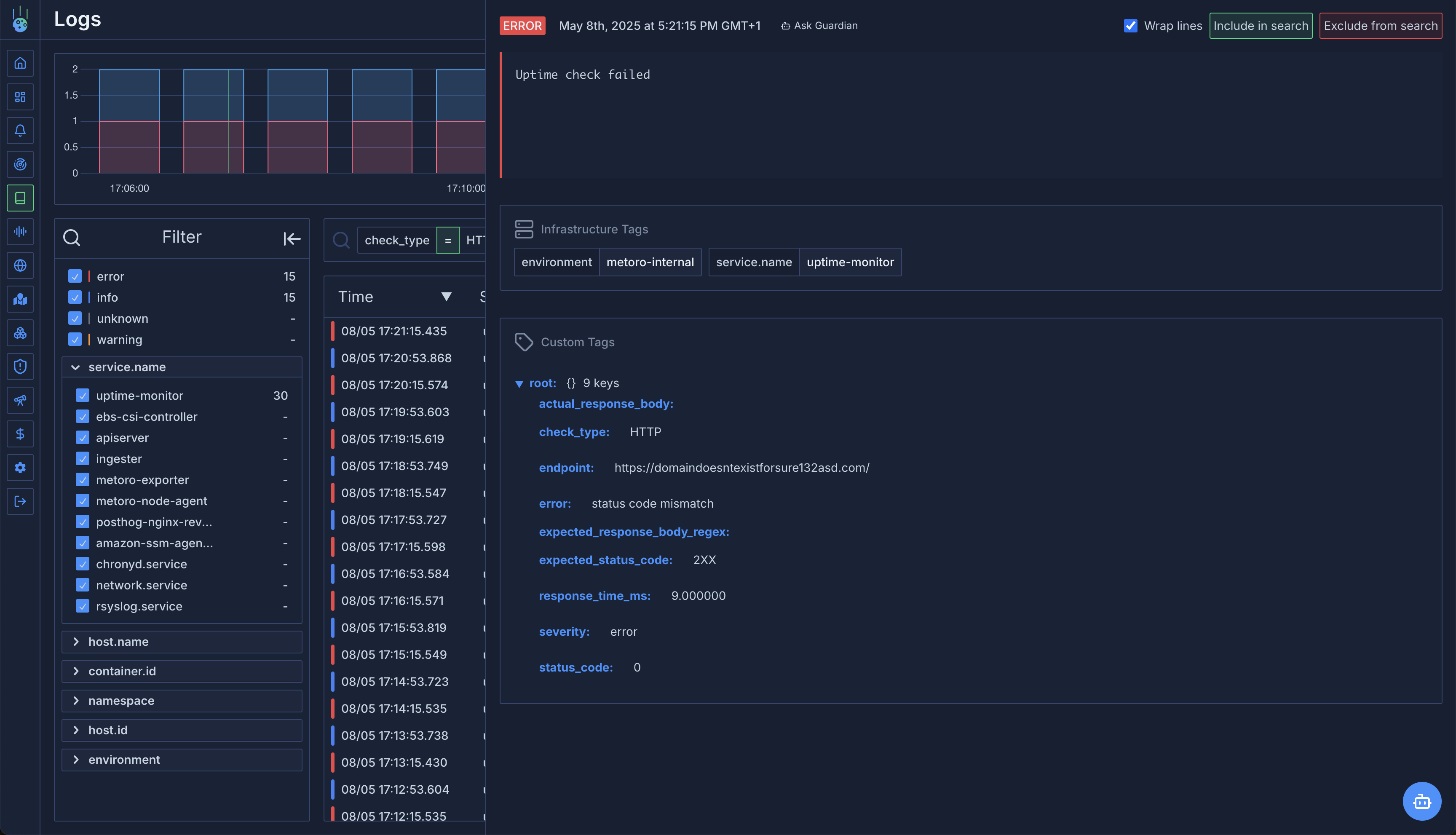
* Log line: `Uptime check failed`
* Attributes include:
* `error`: Detailed reason for the failure (e.g., "status code mismatch", "response body mismatch", "TCP Dial failed")
* `check_type`: Whether this was an HTTP or TCP check
* `response_time_ms`: How long the request took before failing
* Other attributes as described for successful checks
**Failed TCP Check Log Line**
**For failed checks:**
* Log line: `Uptime check failed`
* Attributes include:
* `error`: Detailed reason for the failure (e.g., "status code mismatch", "response body mismatch", "TCP Dial failed")
* `check_type`: Whether this was an HTTP or TCP check
* `response_time_ms`: How long the request took before failing
* Other attributes as described for successful checks
**Failed TCP Check Log Line**
 **Failed HTTP Check Log Line**
 ## Troubleshooting Using Logs
When a check fails, look at the `error` field first to understand the type of failure:
1. **Connection errors** - For errors like "connection refused" or "timeout", the service may be down, blocked by a firewall, or experiencing network issues.
2. **Status code mismatches** - Compare the `status_code` with `expected_status_code` to see if the service is returning unexpected responses.
3. **Response body mismatches** - Check if the `actual_response_body` contains the content you expected to match your regex pattern.
4. **TCP connection failures** - For errors like "TCP Dial failed", verify the host is reachable and the port is open.
If the `actual_response_body` attribute is empty in the logs, it likely means the HTTP server did not return a response. In this case, the `status_code` attribute will be 0, indicating that no response was received.
## Troubleshooting Using Logs
When a check fails, look at the `error` field first to understand the type of failure:
1. **Connection errors** - For errors like "connection refused" or "timeout", the service may be down, blocked by a firewall, or experiencing network issues.
2. **Status code mismatches** - Compare the `status_code` with `expected_status_code` to see if the service is returning unexpected responses.
3. **Response body mismatches** - Check if the `actual_response_body` contains the content you expected to match your regex pattern.
4. **TCP connection failures** - For errors like "TCP Dial failed", verify the host is reachable and the port is open.
If the `actual_response_body` attribute is empty in the logs, it likely means the HTTP server did not return a response. In this case, the `status_code` attribute will be 0, indicating that no response was received.