> ## Documentation Index
> Fetch the complete documentation index at: https://metoro.io/docs/llms.txt
> Use this file to discover all available pages before exploring further.
# Enable Metoro AI
> Configure Guardian, Metoro AI, for on-premises installations using an OpenAI-compatible model endpoint
Guardian is Metoro's AI. It can investigate alerts and production issues, verify deployments, assist debugging, and generate code fixes when the relevant integrations are configured. For the full set of Guardian capabilities, see [AI SRE Overview](/docs/ai-sre/overview).
Metoro AI is disabled by default in on-premises installations. Enable it by configuring the hub apiserver with an OpenAI-compatible Responses API endpoint and an API key.
The model does not need to be hosted by OpenAI. It must expose an OpenAI-compatible API for the model name you configure.
## Requirements
* A running Metoro hub installation.
* A model endpoint reachable from the apiserver pods.
* An API key for the model endpoint.
* A model name or deployment name for normal AI requests.
* Optionally, a separate model name or deployment name for summary requests.
## Create the API Key Secret
Store the model API key in a Kubernetes Secret in the hub namespace. Do not put the key directly in the Helm values file.
```bash theme={null}
kubectl -n metoro-hub create secret generic metoro-ai-openai \
--from-literal=METORO_AI_OPENAI_API_KEY="CHANGE_ME_MODEL_API_KEY" \
--dry-run=client -o yaml | kubectl apply -f -
```
If your hub uses a namespace other than `metoro-hub`, use that namespace instead.
## Configure Helm Values
Add the following block to the hub values file:
```yaml theme={null}
ai:
enabled: true
openai:
enabled: true
model: gpt-5.5
summaryModel: ""
baseUrl: CHANGE_ME_MODEL_BASE_URL # Example: https://api.openai.com/v1
apiKeyHeader: CHANGE_ME_MODEL_API_KEY_HEADER # Example: api-key; use "" for standard bearer auth
externalApiSecret:
enabled: true
secretName: metoro-ai-openai
keys:
apiKey: METORO_AI_OPENAI_API_KEY
```
Set the fields as follows:
| Field | Required | Description |
| ----------------------------------------- | -------- | -------------------------------------------------------------------------------------------------------------------------------------------------------------------------------------------------- |
| `ai.enabled` | Yes | Global AI enablement flag for the hub. |
| `ai.openai.enabled` | Yes | Enables the OpenAI-compatible client used by Metoro AI. |
| `ai.openai.model` | No | Model or deployment name for primary AI requests. This value is passed through as an opaque model identifier. Defaults to `gpt-5.5`. |
| `ai.openai.summaryModel` | No | Model or deployment name for summary requests. If empty, Metoro uses `ai.openai.model`. |
| `ai.openai.reasoningEffort` | No | Reasoning effort for Guardian model calls (for example `low`, `medium`, `high`, or `xhigh`; supported values depend on the model). If empty, the apiserver default (`xhigh`) is used. |
| `ai.openai.baseUrl` | Yes | OpenAI-compatible API root. For OpenAI, use `https://api.openai.com/v1`; for a custom gateway, use its OpenAI-compatible root (for example `https://models.example.com/openai/v1`). |
| `ai.openai.apiKeyHeader` | No | Header used to send the API key. Leave empty for standard `Authorization: Bearer` API key auth. Set this when your endpoint expects a custom key header. |
| `ai.openai.fastModeEnabled` | No | Enables Guardian fast mode, which requests the OpenAI `fast` service tier for Guardian model calls. Defaults to `false`. Only enable this when your model endpoint supports the fast service tier. |
| `ai.openai.externalApiSecret.enabled` | Yes | Set to `true` to read the API key from an existing Kubernetes Secret. |
| `ai.openai.externalApiSecret.secretName` | Yes | Name of the Kubernetes Secret that contains the API key. |
| `ai.openai.externalApiSecret.keys.apiKey` | Yes | Secret key that contains the API key value. |
For Azure OpenAI-compatible `/openai/v1` endpoints that expect the Azure API key header, set:
```yaml theme={null}
apiKeyHeader: api-key
```
For custom gateways, set `apiKeyHeader` to the header name required by the gateway.
When `ai.enabled` is `true`, the chart also deploys the Agent Sandbox controller, sandbox router, and Guardian `SandboxTemplate` used by the Guardian runner. The Guardian runner uses the same endpoint configuration as the rest of Metoro AI: `ai.openai.model` is passed as `GUARDIAN_MODEL`, `ai.openai.reasoningEffort` as `GUARDIAN_REASONING_EFFORT`, `ai.openai.baseUrl` as `GUARDIAN_OPENAI_BASE_URL`, `ai.openai.apiKeyHeader` as `GUARDIAN_OPENAI_API_KEY_HEADER`, and the apiserver reads the same Secret/key used by `METORO_AI_OPENAI_API_KEY` as `GUARDIAN_OPENAI_API_KEY`.
The default images are:
* `quay.io/metoro/metoro-guardian-runner:onprem-10.4.0`
* `quay.io/metoro/mirror/agent-sandbox-controller:v0.4.6`
* `quay.io/metoro/mirror/sandbox-router:latest-main@sha256:255769504eb73f13b0cf5d91c330f12de9512e5d8ea24601cb37c0fce01dbbe0`
If your installation mirrors or allowlists images individually, configure `images.guardianRunner`, `images.agentSandboxController`, and `images.agentSandboxRouter` for these images. `global.imageRepositoryOverride` rewrites their default Metoro repositories automatically, but the corresponding paths and tags must be present in the target registry. Keep the `agentSandbox.image` dependency pass-through value in sync when overriding `images.agentSandboxController` individually.
When a custom `ai.openai.baseUrl` or `ai.openai.apiKeyHeader` is configured, the Guardian runner routes all model traffic through a custom model provider and uses the **stateless** OpenAI Responses API: there is no server-side response storage or `previous_response_id` chaining, and the full conversation context is resent with each request. This is suitable for Zero Data Retention gateways and endpoints that reject `store: true`. The exception is Azure-hosted base URLs (for example `*.openai.azure.com` or `*.cognitiveservices.azure.com`), where the underlying agent sends `store: true` because Azure's Responses API requires it.
The guardian-runner image must be at the version pinned by the chart release or newer; older runner images ignore the endpoint configuration and attempt to contact `api.openai.com` directly.
## Connect to Customer-Operated LiteLLM
Metoro does not install or manage LiteLLM. Use this configuration when your organization already operates a LiteLLM gateway that the Metoro apiserver pods can reach.
Before configuring Metoro, collect:
* The LiteLLM API base URL, including `/v1`, for example `https://litellm.example.com/v1`.
* The LiteLLM model alias that Metoro should request. This must match a `model_name` exposed by your LiteLLM gateway.
* A LiteLLM master key or virtual key that authorizes requests to the gateway.
The gateway must support the OpenAI-compatible `/v1/responses` endpoint, streaming, and tool calls for the configured model route. See the [LiteLLM Responses API documentation](https://docs.litellm.ai/docs/response_api) for gateway compatibility details.
### Store the LiteLLM Gateway Key
Store the LiteLLM master or virtual key in the existing Metoro AI Secret contract:
```bash theme={null}
export LITELLM_API_KEY="CHANGE_ME_LITELLM_MASTER_OR_VIRTUAL_KEY"
kubectl -n metoro-hub create secret generic metoro-ai-openai \
--from-literal=METORO_AI_OPENAI_API_KEY="${LITELLM_API_KEY}" \
--dry-run=client -o yaml | kubectl apply -f -
unset LITELLM_API_KEY
```
This Secret must contain the key that LiteLLM accepts from clients. Do not put the upstream OpenAI or model-provider key in this Secret; that credential remains managed by LiteLLM.
### Configure the LiteLLM Endpoint
Configure Metoro with the LiteLLM base URL and model alias:
```yaml theme={null}
ai:
enabled: true
openai:
enabled: true
model: CHANGE_ME_MODEL_NAME
summaryModel: ""
baseUrl: https://litellm.example.com/v1
apiKeyHeader: ""
fastModeEnabled: false
externalApiSecret:
enabled: true
secretName: metoro-ai-openai
keys:
apiKey: METORO_AI_OPENAI_API_KEY
```
Keep `apiKeyHeader` empty when LiteLLM uses its standard `Authorization: Bearer` authentication. `model` must exactly match the LiteLLM model alias. If you set `summaryModel` to a different value, LiteLLM must expose a matching alias for that value as well.
Set `reasoningEffort` only to a value supported by the model behind the LiteLLM route; leaving it empty uses Metoro's default of `xhigh`. Keep `fastModeEnabled` disabled unless the routed model and LiteLLM configuration support OpenAI's fast service tier.
### Verify the LiteLLM Route
Before applying the Metoro Helm values, verify the gateway key, model alias, and streaming Responses API path directly:
```bash theme={null}
export LITELLM_BASE_URL="https://litellm.example.com/v1"
export LITELLM_API_KEY="CHANGE_ME_LITELLM_MASTER_OR_VIRTUAL_KEY"
curl --no-buffer --request POST "${LITELLM_BASE_URL}/responses" \
--header "Authorization: Bearer ${LITELLM_API_KEY}" \
--header "Content-Type: application/json" \
--data '{
"model": "CHANGE_ME_MODEL_NAME",
"input": "Reply with OK.",
"stream": true,
"store": false
}'
unset LITELLM_BASE_URL LITELLM_API_KEY
```
A successful request streams response events and completes normally. This confirms the base URL, authentication, model alias, and stateless streaming path; verify tool calls through Guardian after applying the Metoro configuration.
## Apply to an Existing Hub
Edit `metoro-hub-values.yaml` and add the `ai` block above.
Apply the updated values:
```bash theme={null}
helm upgrade --install metoro oci://quay.io/metoro/charts/metoro-onprem
--namespace metoro-hub
--version CHANGE_ME_YOUR_CURRENT_METORO_VERSION
--values metoro-hub-values.yaml
```
If you install from an OCI chart instead of a local chart path, keep the same values file and use your normal chart reference and chart version.
## Verify the Rollout
Wait for the apiserver rollout:
```bash theme={null}
kubectl -n metoro-hub rollout status deploy/apiserver --timeout=10m
```
Confirm the apiserver Deployment has the AI environment variables:
```bash theme={null}
kubectl -n metoro-hub get deploy apiserver \
-o jsonpath='{range .spec.template.spec.containers[?(@.name=="apiserver")].env[*]}{.name}{"\n"}{end}' \
| grep '^METORO_AI'
```
Expected names:
```text theme={null}
METORO_AI_ENABLED
METORO_AI_OPENAI_ENABLED
METORO_AI_OPENAI_MODEL
METORO_AI_OPENAI_SUMMARY_MODEL
METORO_AI_OPENAI_BASE_URL
METORO_AI_OPENAI_API_KEY
```
When AI is enabled, also confirm these names are present:
```text theme={null}
MCP_ENDPOINT
GUARDIAN_ENABLED
GUARDIAN_OPENAI_API_KEY
GUARDIAN_MODEL
GUARDIAN_OPENAI_BASE_URL
GUARDIAN_CALLBACK_BASE_URL
GUARDIAN_RUNNER_MODE
GUARDIAN_AGENT_SANDBOX_TEMPLATE
GUARDIAN_AGENT_SANDBOX_NAMESPACE
GUARDIAN_AGENT_SANDBOX_API_URL
GUARDIAN_AGENT_SANDBOX_READY_TIMEOUT
GUARDIAN_AGENT_SANDBOX_RUN_TIMEOUT
```
If `ai.openai.apiKeyHeader` is set, `GUARDIAN_OPENAI_API_KEY_HEADER` is also present. If `ai.openai.fastModeEnabled` is `true`, `GUARDIAN_FAST_MODE_ENABLED` is also present. If `ai.openai.reasoningEffort` is set, `GUARDIAN_REASONING_EFFORT` is also present.
## Enable Guardian AI in the UI
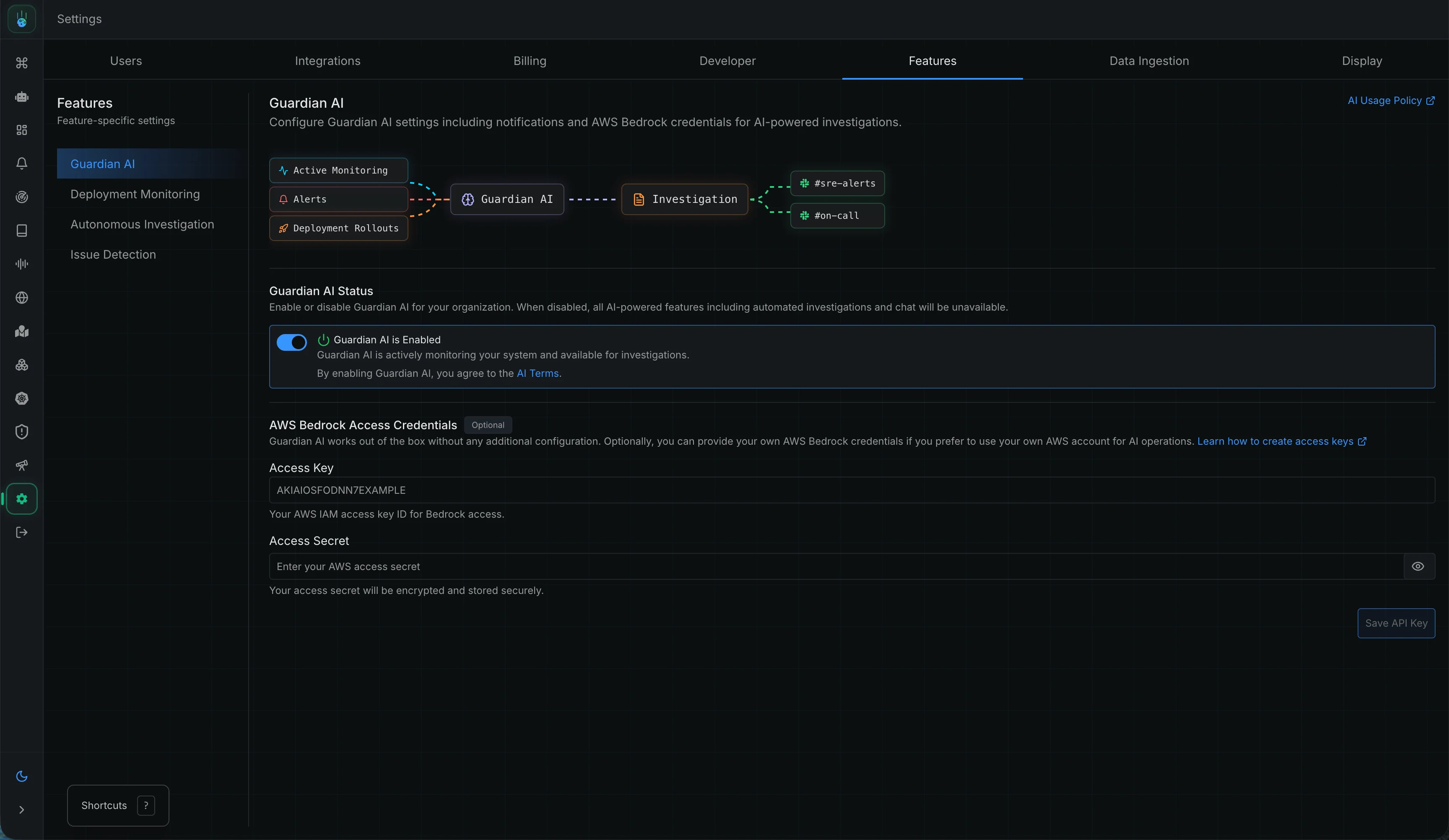
After the apiserver rollout completes, enable Guardian AI in Metoro.
Go to **Settings** -> **Features** -> **Guardian AI** -> **Guardian AI Status** and turn on the toggle.
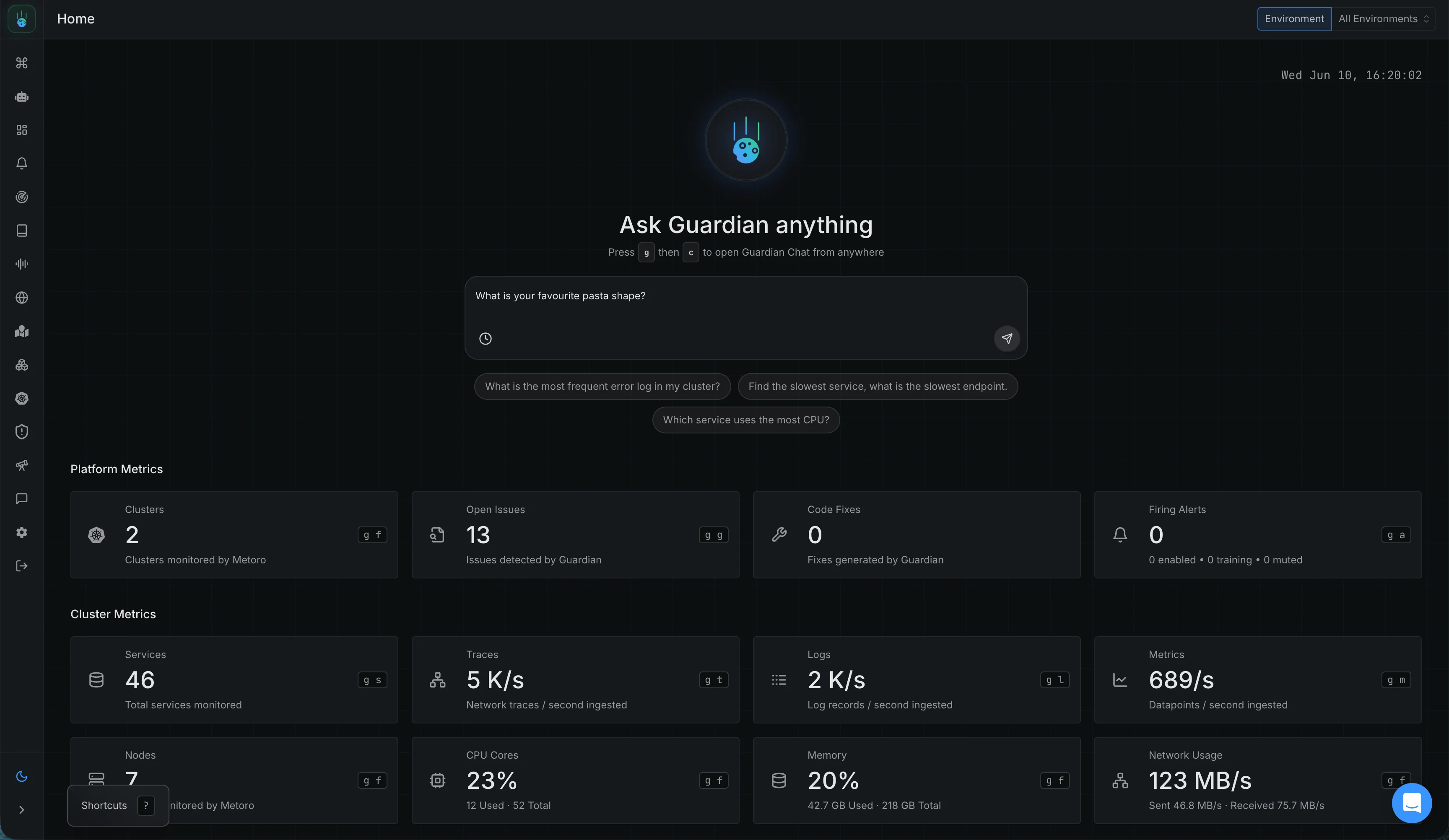
 After Guardian AI is enabled, the home page should show Guardian AI chat. You can also open Guardian AI chat by pressing `g`, then `c`, from anywhere in the platform.
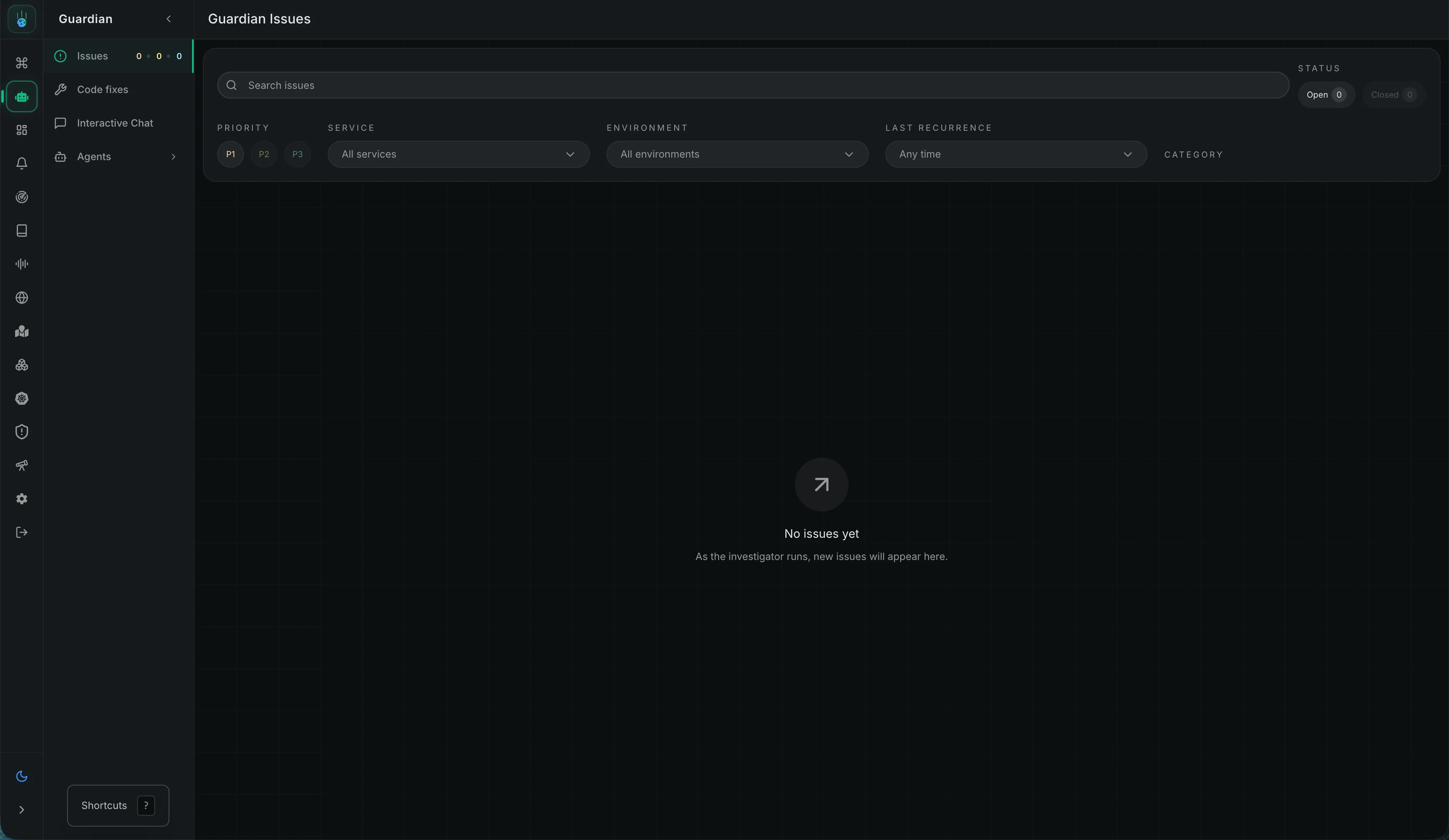
Guardian pages, including Guardian Issues and Guardian Deployment Verification, are available from the Guardian section in the side bar.
After Guardian AI is enabled, the home page should show Guardian AI chat. You can also open Guardian AI chat by pressing `g`, then `c`, from anywhere in the platform.
Guardian pages, including Guardian Issues and Guardian Deployment Verification, are available from the Guardian section in the side bar.
 Code fix workflows are not currently available in on-premises installations.
## Verify Guardian Chat
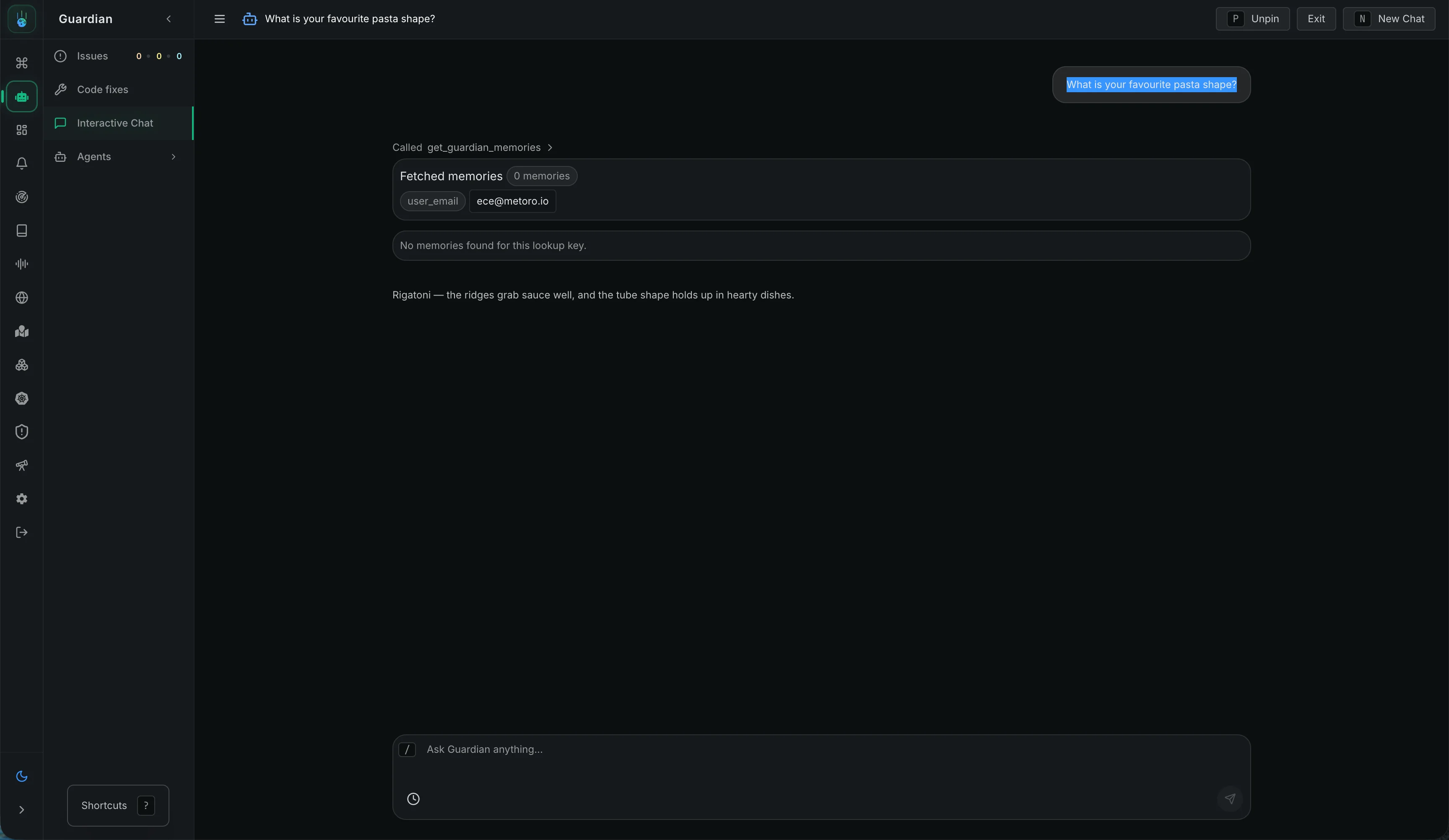
Open Guardian AI chat and ask anything:
For example:
```text theme={null}
What is your favourite pasta shape?
```
Code fix workflows are not currently available in on-premises installations.
## Verify Guardian Chat
Open Guardian AI chat and ask anything:
For example:
```text theme={null}
What is your favourite pasta shape?
```
 Guardian should return a normal chat response from the configured model endpoint.
 ## Troubleshooting
### Helm Fails Before Applying
Check that all required fields are set when both `ai.enabled` and `ai.openai.enabled` are `true`:
* `ai.openai.enabled=true`
* `ai.openai.model` (defaults to `gpt-5.5`; fails only if explicitly set to an empty string)
* `ai.openai.baseUrl`
* `ai.openai.externalApiSecret.secretName`
* `ai.openai.externalApiSecret.keys.apiKey`
### AI Requests Return 401 Unauthorized
Check:
* The API key value in the Kubernetes Secret.
* For LiteLLM, the Secret contains the LiteLLM master or virtual key, not the upstream model-provider key.
* `ai.openai.baseUrl` points at the OpenAI-compatible API root.
* `ai.openai.apiKeyHeader` matches the endpoint. Leave it empty for bearer auth. Use `api-key` for Azure OpenAI-compatible endpoints that expect the Azure API key header.
### LiteLLM Reports That the Model Does Not Exist
Check that `ai.openai.model` exactly matches a model alias exposed by LiteLLM. If `ai.openai.summaryModel` is set, LiteLLM must expose that alias too.
Test the same alias against `${LITELLM_BASE_URL}/responses` using the direct verification request above. A provider-qualified upstream model name is not interchangeable with the LiteLLM alias unless your gateway exposes that exact name.
### Metoro Cannot Reach LiteLLM or TLS Verification Fails
Confirm that the LiteLLM base URL is reachable from the Metoro apiserver pods, not only from an administrator workstation. The URL must include the OpenAI-compatible `/v1` root.
For gateways using a private or self-signed CA, configure the on-prem chart's `trustedCAs` values so the apiserver and Guardian runner trust the gateway certificate.
### Guardian AI Pages Still Show Disabled or Chat Is Missing
After the Helm values are applied and the in-platform **Guardian AI Status** toggle is on, allow up to 5 minutes for the change to take effect.
If Guardian AI pages still show as disabled or Guardian AI chat does not appear on the home page, clear the browser cache and hard reload the platform.
If the UI still does not update, verify the apiserver rollout and the `METORO_AI` environment variables again.
If issues persist, contact support. We are here to help!
## Troubleshooting
### Helm Fails Before Applying
Check that all required fields are set when both `ai.enabled` and `ai.openai.enabled` are `true`:
* `ai.openai.enabled=true`
* `ai.openai.model` (defaults to `gpt-5.5`; fails only if explicitly set to an empty string)
* `ai.openai.baseUrl`
* `ai.openai.externalApiSecret.secretName`
* `ai.openai.externalApiSecret.keys.apiKey`
### AI Requests Return 401 Unauthorized
Check:
* The API key value in the Kubernetes Secret.
* For LiteLLM, the Secret contains the LiteLLM master or virtual key, not the upstream model-provider key.
* `ai.openai.baseUrl` points at the OpenAI-compatible API root.
* `ai.openai.apiKeyHeader` matches the endpoint. Leave it empty for bearer auth. Use `api-key` for Azure OpenAI-compatible endpoints that expect the Azure API key header.
### LiteLLM Reports That the Model Does Not Exist
Check that `ai.openai.model` exactly matches a model alias exposed by LiteLLM. If `ai.openai.summaryModel` is set, LiteLLM must expose that alias too.
Test the same alias against `${LITELLM_BASE_URL}/responses` using the direct verification request above. A provider-qualified upstream model name is not interchangeable with the LiteLLM alias unless your gateway exposes that exact name.
### Metoro Cannot Reach LiteLLM or TLS Verification Fails
Confirm that the LiteLLM base URL is reachable from the Metoro apiserver pods, not only from an administrator workstation. The URL must include the OpenAI-compatible `/v1` root.
For gateways using a private or self-signed CA, configure the on-prem chart's `trustedCAs` values so the apiserver and Guardian runner trust the gateway certificate.
### Guardian AI Pages Still Show Disabled or Chat Is Missing
After the Helm values are applied and the in-platform **Guardian AI Status** toggle is on, allow up to 5 minutes for the change to take effect.
If Guardian AI pages still show as disabled or Guardian AI chat does not appear on the home page, clear the browser cache and hard reload the platform.
If the UI still does not update, verify the apiserver rollout and the `METORO_AI` environment variables again.
If issues persist, contact support. We are here to help!