> ## Documentation Index
> Fetch the complete documentation index at: https://metoro.io/docs/llms.txt
> Use this file to discover all available pages before exploring further.
# Export Logs
> Export logs from Metoro
Metoro's Log Export feature allows you to export your current log search as a **csv** file.
## Using Log Export
1. Navigate to the Logs page in the Metoro UI.
2. In the search bar, click the **Export** button with 📥 icon (down facing arrow) on the most right side
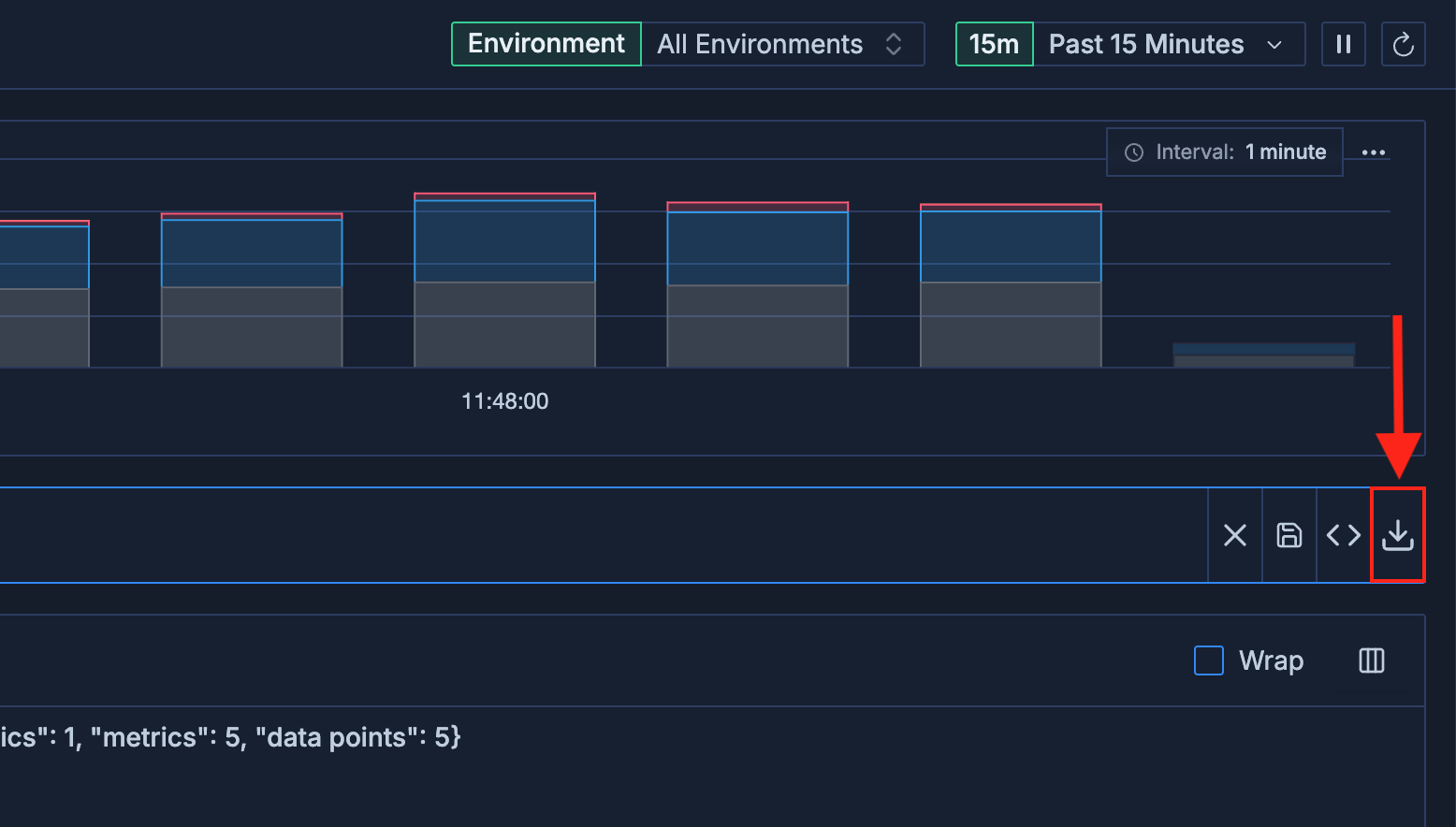 3. A dialog will appear, confirming the current search criteria to export.
* Enter a limit for the number of logs to export (default is 100).
Please enter a reasonable limit, such as 10, 50, 100 etc, (not 10000)
Use as many filters as possible to filter out the logs that you are looking for to improve performance
## Custom Column Export
You can select custom columns to include in the export.
1. Before you click the Export button, click the **Columns** button
3. A dialog will appear, confirming the current search criteria to export.
* Enter a limit for the number of logs to export (default is 100).
Please enter a reasonable limit, such as 10, 50, 100 etc, (not 10000)
Use as many filters as possible to filter out the logs that you are looking for to improve performance
## Custom Column Export
You can select custom columns to include in the export.
1. Before you click the Export button, click the **Columns** button
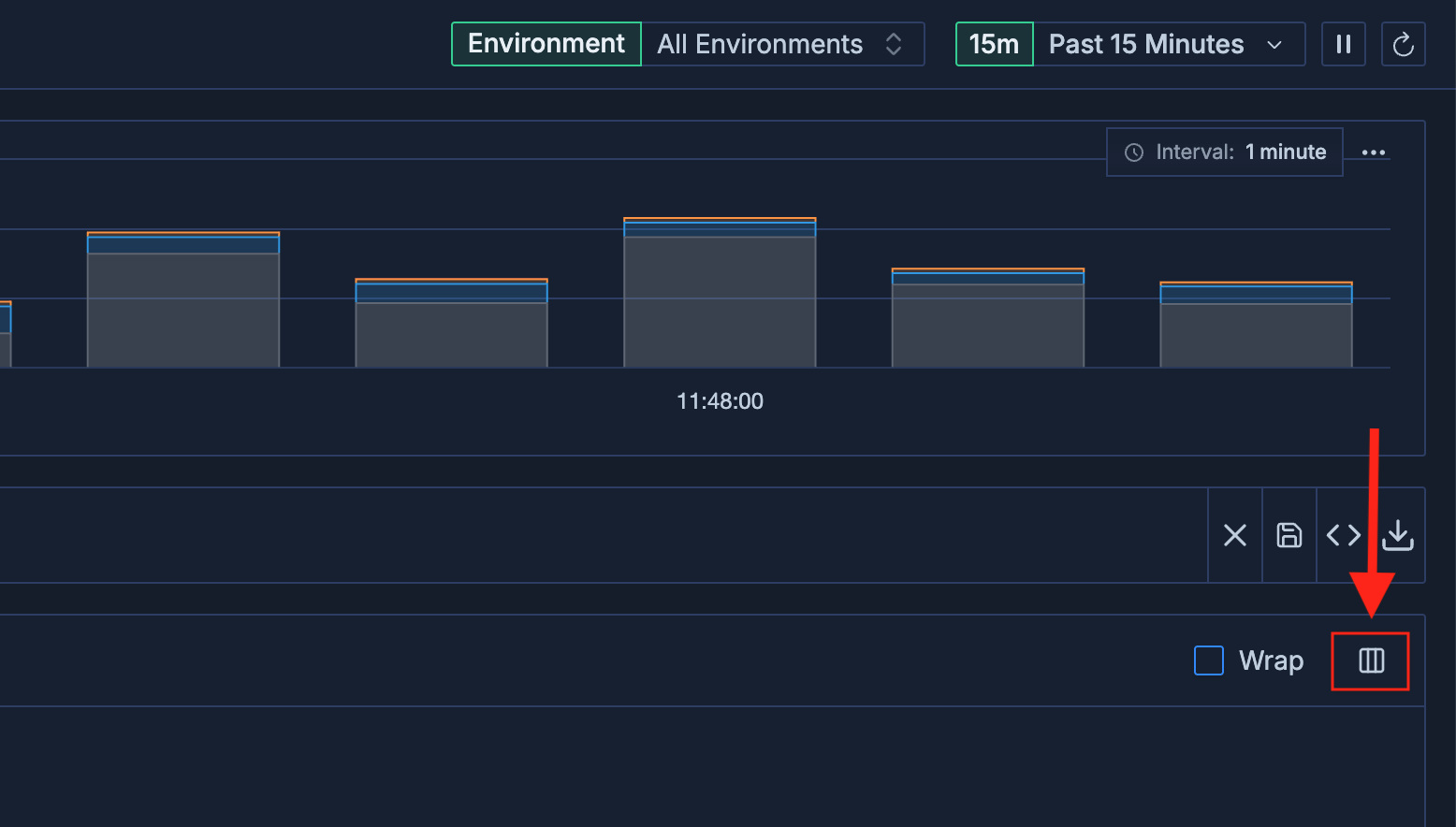 2. From the dropdown, select the log attributes you want to include as columns in the export.
3. Click the **Export** button to download the logs as a CSV file with your selected columns.
If you created a custom attribute using Log Transformations, you can select your custom attribute to be viewed as a column here.
2. From the dropdown, select the log attributes you want to include as columns in the export.
3. Click the **Export** button to download the logs as a CSV file with your selected columns.
If you created a custom attribute using Log Transformations, you can select your custom attribute to be viewed as a column here.