> ## Documentation Index
> Fetch the complete documentation index at: https://metoro.io/docs/llms.txt
> Use this file to discover all available pages before exploring further.
# Log Transformations
> You can parse your log messages or log attributes using Log Transformations to create custom attributes that can be used in your log searches and saved searches.
Metoro's Log Transformations feature allows you to parse your log messages or attributes to create custom attributes. This enables you to extract specific information from your logs and use it in your searches, making it easier to analyze and filter log data.
## Creating Log Transformations
1. Navigate to the Logs page in the Metoro UI.
2. In the search bar, click the **Transformations** button (shown below) on the most left side.
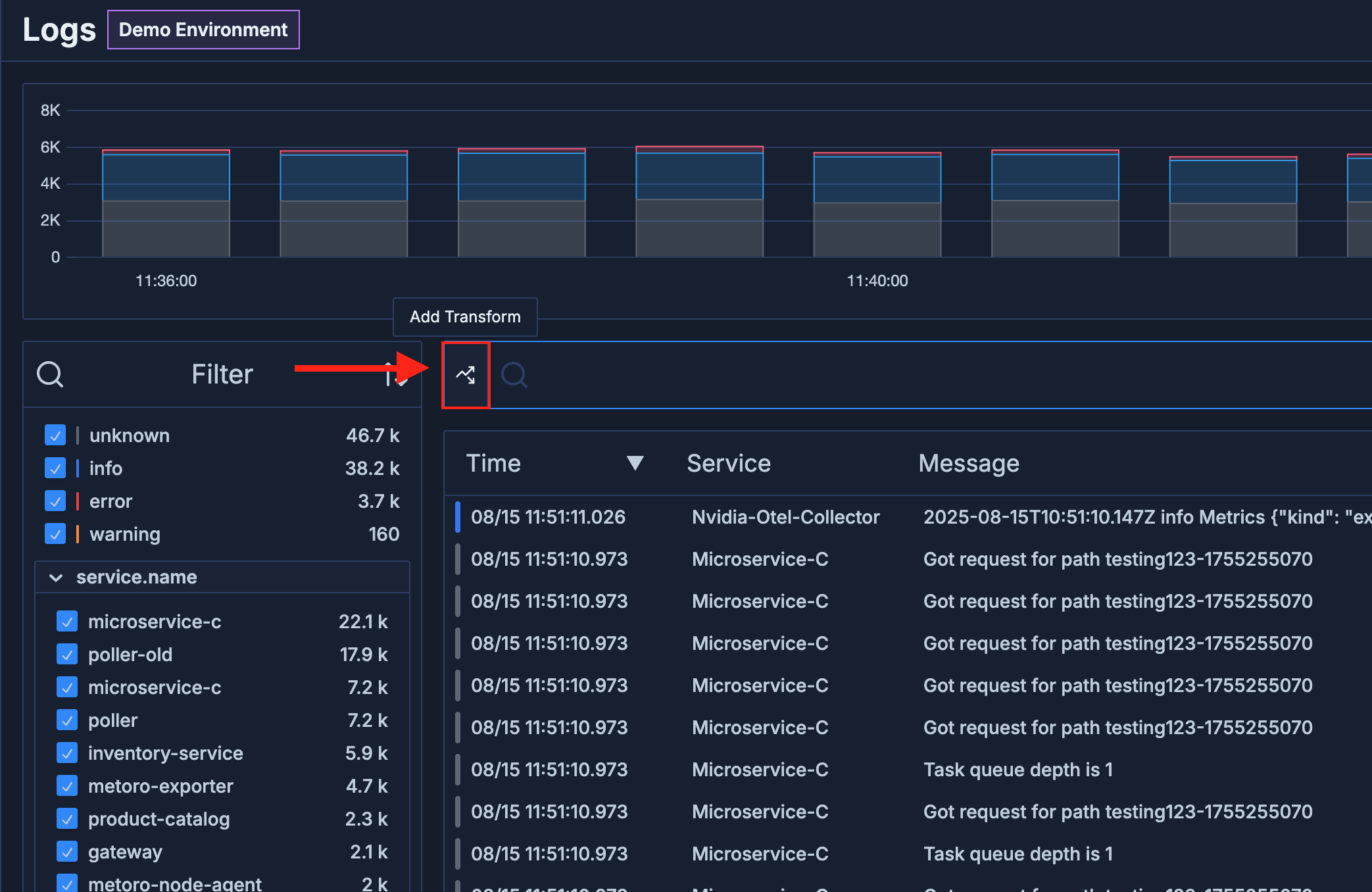 3. Log Transformations input pills will appear, under the search bar (see below).
 4. Fill in the details:
* **inputAttribute**: Specify the log attribute you want to transform. This can be a standard log attribute (like `message`, `kubernetes.container.name`, etc.) or a custom attribute you have created from previous transformations.
* **regex**: Enter a regular expression in re2 form to match the log messages or attributes you want to transform. Use capturing groups to extract specific parts of the log.
* **outputAttribute**: Enter the name of the new attribute you want to create from the transformation. This custom attribute will appear in custom columns and can be used the same way as any other log attribute for filtering and searching.
You can use the `message` as inputAttribute to transform the log message, or any other log attribute that you have in your json structured logs.
5. To see the **outputAttribute** as a column in the logs table, click the **Columns** button (shown below) on the most right side of the search bar.
4. Fill in the details:
* **inputAttribute**: Specify the log attribute you want to transform. This can be a standard log attribute (like `message`, `kubernetes.container.name`, etc.) or a custom attribute you have created from previous transformations.
* **regex**: Enter a regular expression in re2 form to match the log messages or attributes you want to transform. Use capturing groups to extract specific parts of the log.
* **outputAttribute**: Enter the name of the new attribute you want to create from the transformation. This custom attribute will appear in custom columns and can be used the same way as any other log attribute for filtering and searching.
You can use the `message` as inputAttribute to transform the log message, or any other log attribute that you have in your json structured logs.
5. To see the **outputAttribute** as a column in the logs table, click the **Columns** button (shown below) on the most right side of the search bar.
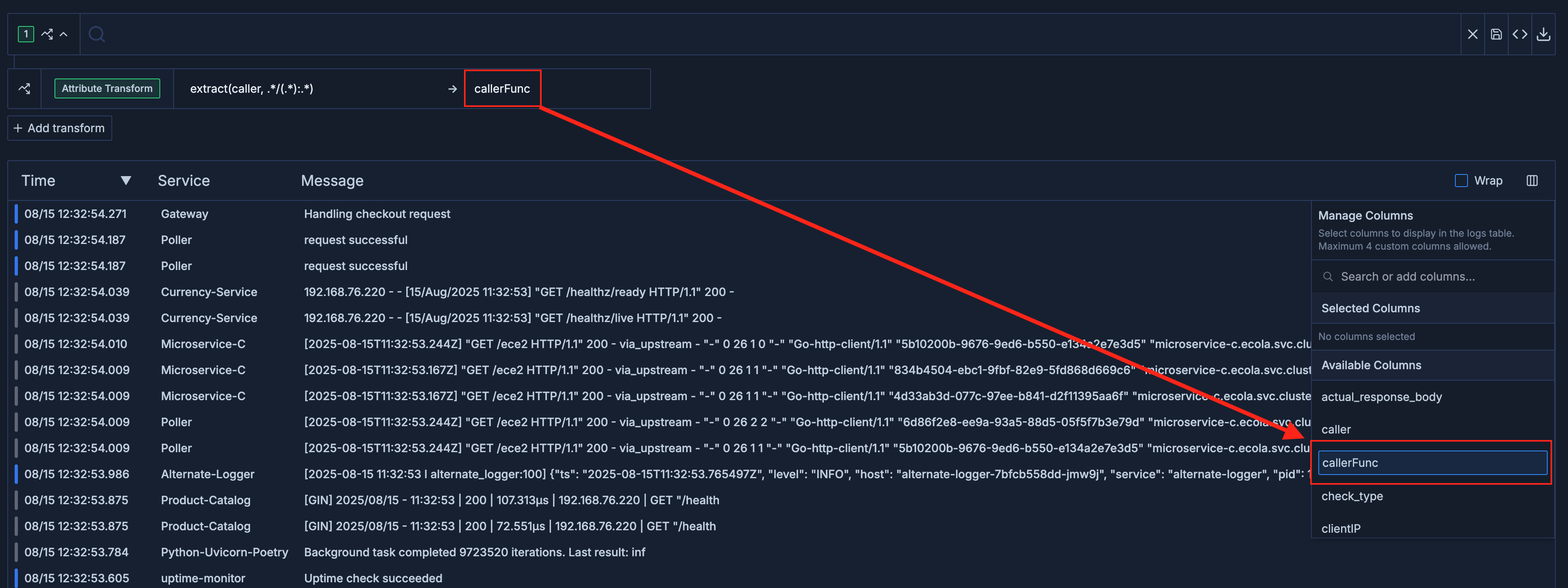 For more information on how to use custom columns, see our [Custom Columns Guide](/logs/custom_columns).
6. Ta da! Your custom attribute is now available for use in log searches and saved searches.
For more information on how to use custom columns, see our [Custom Columns Guide](/logs/custom_columns).
6. Ta da! Your custom attribute is now available for use in log searches and saved searches.
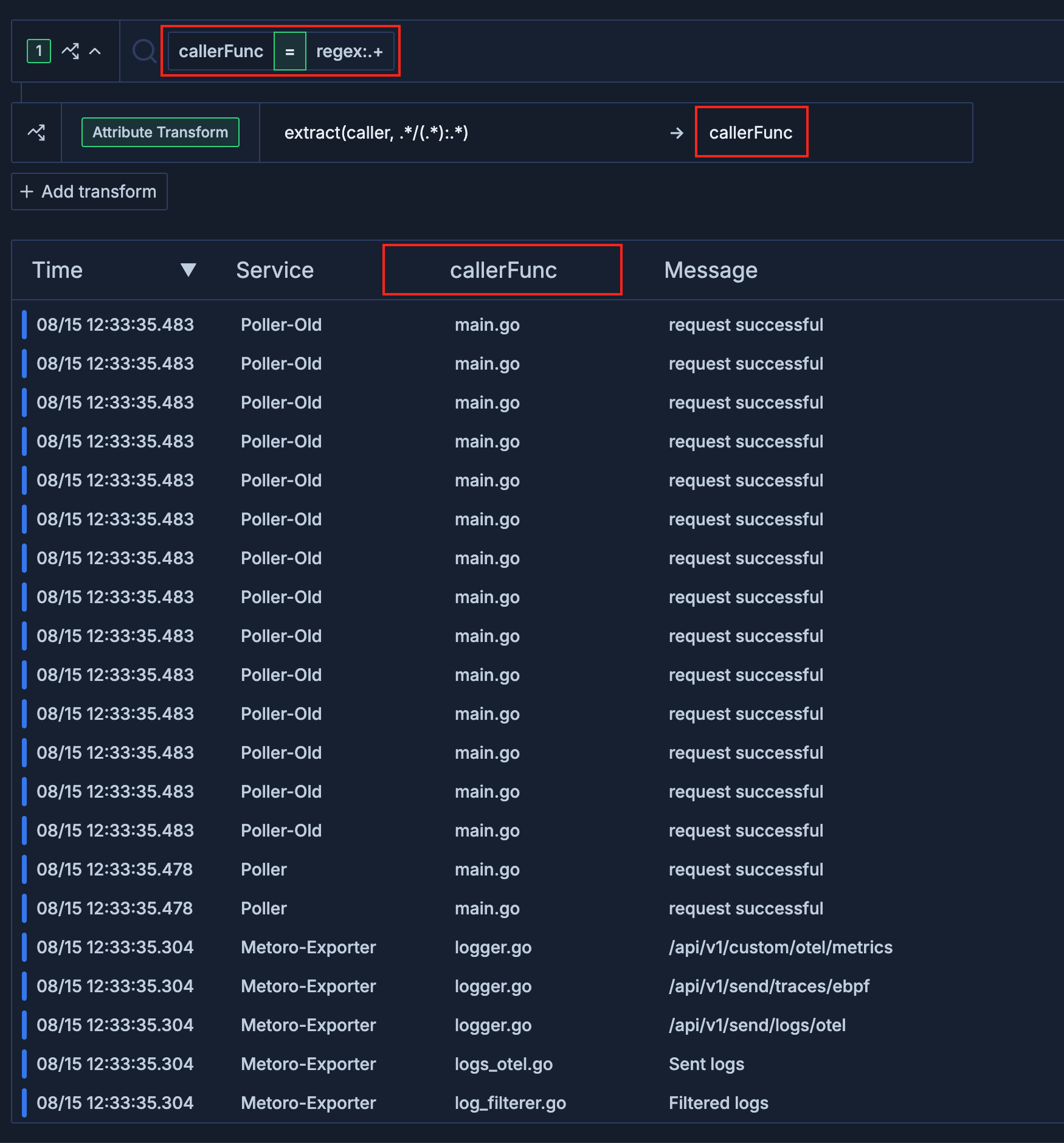 You can use the custom attributes you create with Log Transformations to **filter** or as a **grouping attribute** in your log searches. This allows you to analyze logs based on specific patterns or extracted information.
### More Examples and Features
1. You can use multiple transformations in a single search. Each transformation will create a new custom attribute that can be used independently.
You can use the custom attributes you create with Log Transformations to **filter** or as a **grouping attribute** in your log searches. This allows you to analyze logs based on specific patterns or extracted information.
### More Examples and Features
1. You can use multiple transformations in a single search. Each transformation will create a new custom attribute that can be used independently.
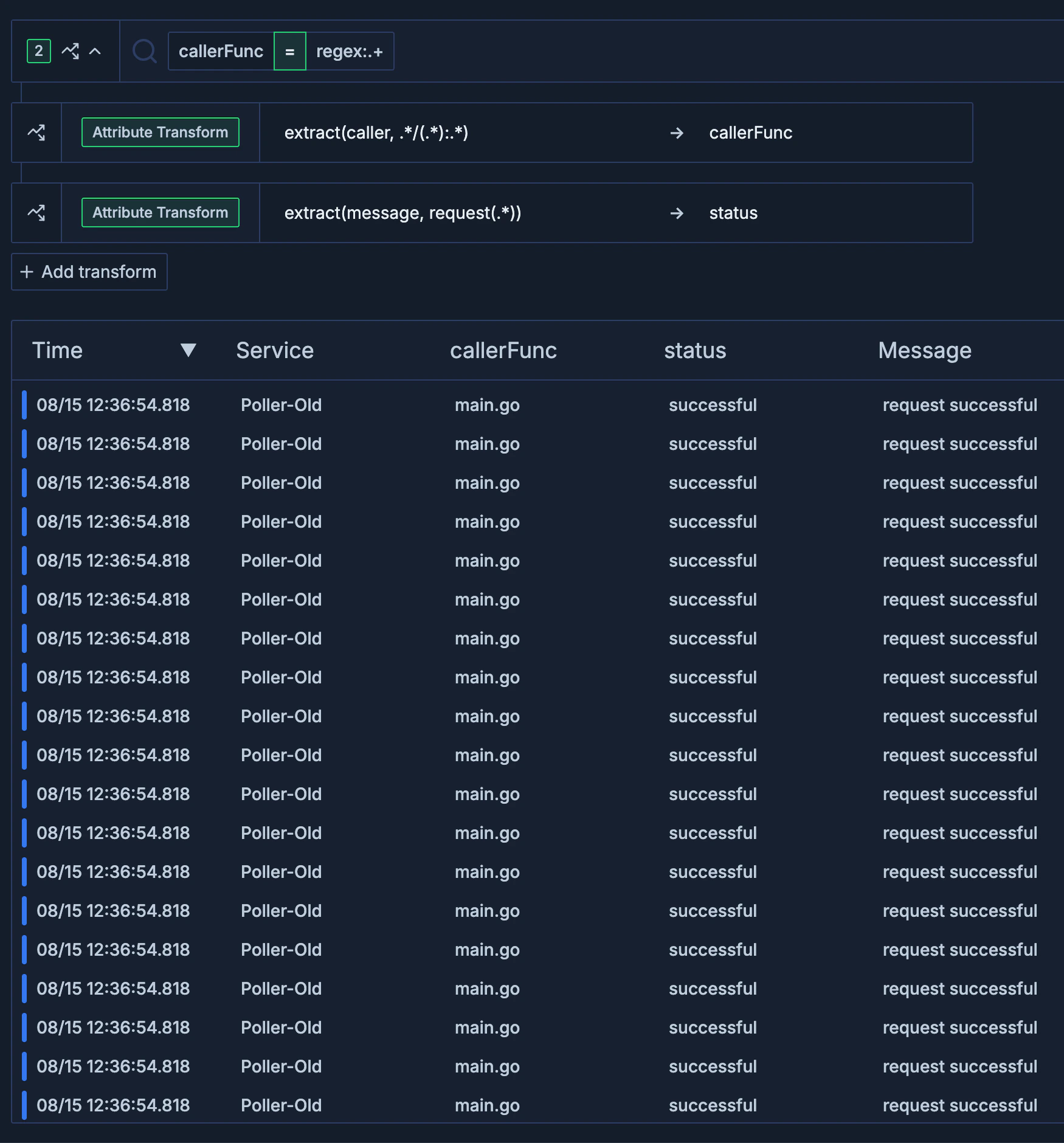 2. You can chain transformations by using the output of one transformation as the input for another. This allows you to build complex parsing logic.
3. You can use transformations to create alerts.
4. You can use transformations to plot graphs.
5. You can use MetoroQL syntax if you prefer to write transformations in a more structured query format. For example:
```code theme={null}
count(transformAttribute(transformAttribute(logs{callerFunc=~".+"}, "callerFunc", extract("caller", ".*/(.*):.*")), "status", extract("message", "request(.*)")))
```
### MetoroQL Syntax for Log Transformations
Syntax for `transformAttribute` in MetoroQL:
```code theme={null}
count(transformAttribute(logs, , extract(, )))
```
* You can use a **nested** transformAttribute, like this:
```code theme={null}
count(transformAttribute(transformAttribute(logs, , extract(, )), , extract(, )))
```
* You can **group by** the custom attribute you created using `transformAttribute` in your MetoroQL queries. For example:
```code theme={null}
count(transformAttribute(logs, "callerFunc", extract("message", "caller=(.*)"))) by (callerFunc)
```
* You can use the output attribute you created to **filter** logs in your MetoroQL queries. For example:
```code theme={null}
count(transformAttribute(logs{callerFunc=~".+"}, "callerFunc", extract("message", "caller=(.*)")))
```
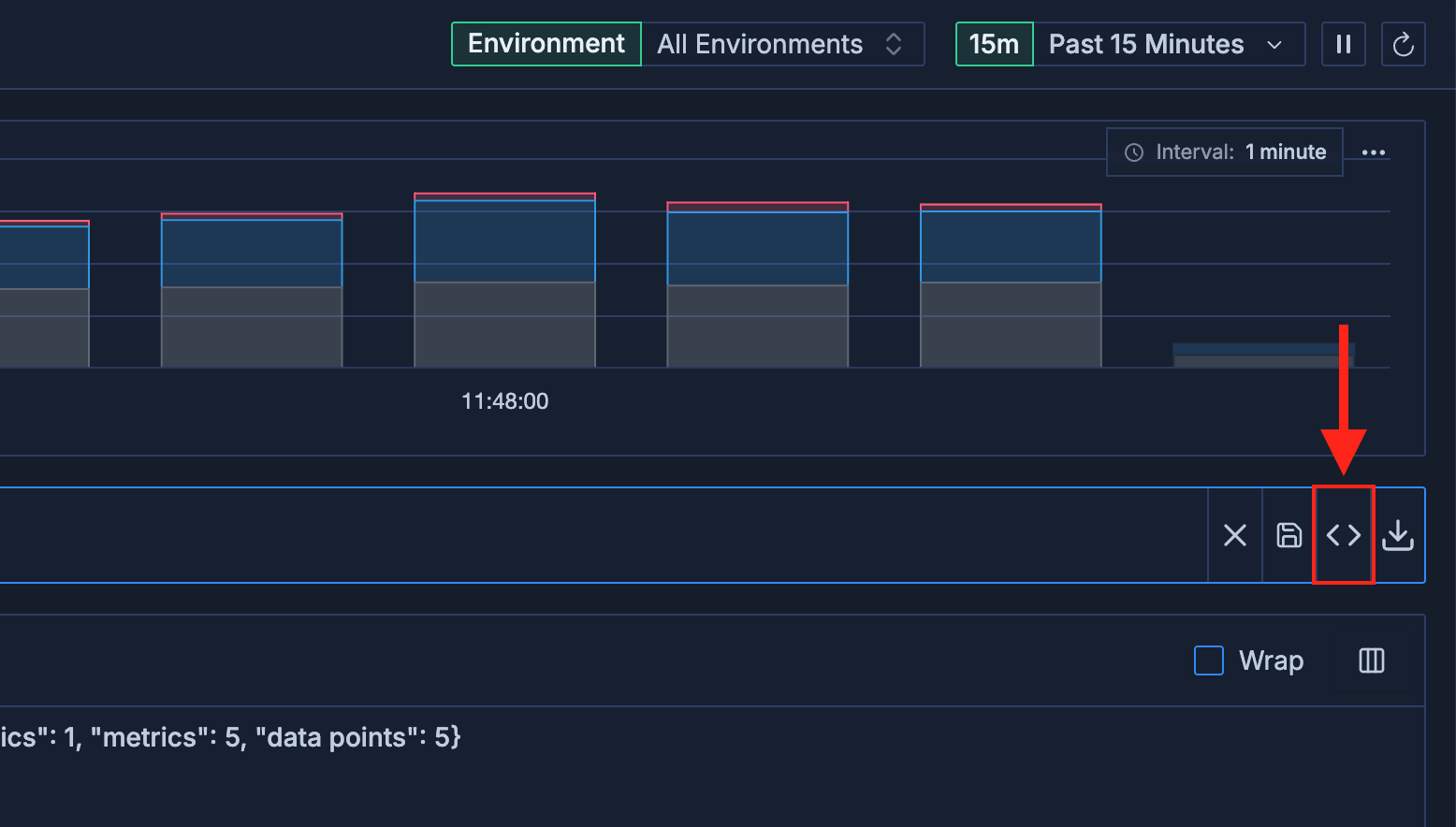
Easily swap between MetoroQL and UI by using the **\< >** icon on the right side of the search bar.
2. You can chain transformations by using the output of one transformation as the input for another. This allows you to build complex parsing logic.
3. You can use transformations to create alerts.
4. You can use transformations to plot graphs.
5. You can use MetoroQL syntax if you prefer to write transformations in a more structured query format. For example:
```code theme={null}
count(transformAttribute(transformAttribute(logs{callerFunc=~".+"}, "callerFunc", extract("caller", ".*/(.*):.*")), "status", extract("message", "request(.*)")))
```
### MetoroQL Syntax for Log Transformations
Syntax for `transformAttribute` in MetoroQL:
```code theme={null}
count(transformAttribute(logs, , extract(, )))
```
* You can use a **nested** transformAttribute, like this:
```code theme={null}
count(transformAttribute(transformAttribute(logs, , extract(, )), , extract(, )))
```
* You can **group by** the custom attribute you created using `transformAttribute` in your MetoroQL queries. For example:
```code theme={null}
count(transformAttribute(logs, "callerFunc", extract("message", "caller=(.*)"))) by (callerFunc)
```
* You can use the output attribute you created to **filter** logs in your MetoroQL queries. For example:
```code theme={null}
count(transformAttribute(logs{callerFunc=~".+"}, "callerFunc", extract("message", "caller=(.*)")))
```
Easily swap between MetoroQL and UI by using the **\< >** icon on the right side of the search bar.