> ## Documentation Index
> Fetch the complete documentation index at: https://metoro.io/docs/llms.txt
> Use this file to discover all available pages before exploring further.
# Custom Log Columns
> Customize your logs table by adding different log attributes as custom columns
Metoro allows you to customize the logs table view by adding up to 4 custom columns.
This feature enables you to display specific log attributes that are most relevant to your analysis, making it easier to view and compare log data directly in the table.
## Adding and Removing Custom Columns
1. Navigate to the Logs page in the Metoro UI.
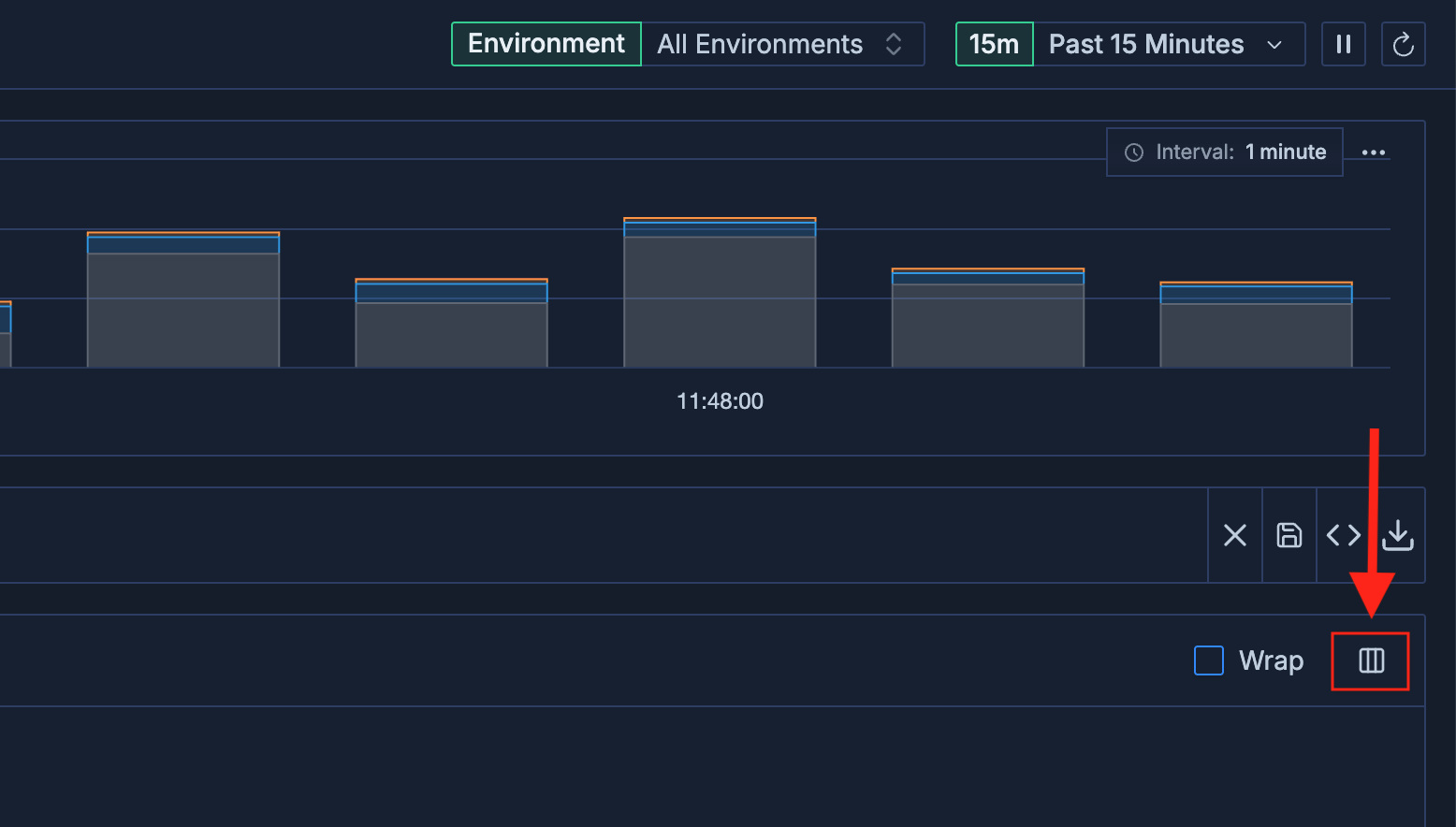
2. In the search bar, click the **Columns** button (shown below) on the most right side.
 3. A dropdown will appear, showing all available log attributes, including any custom attributes you have created using **Log Transformations**.
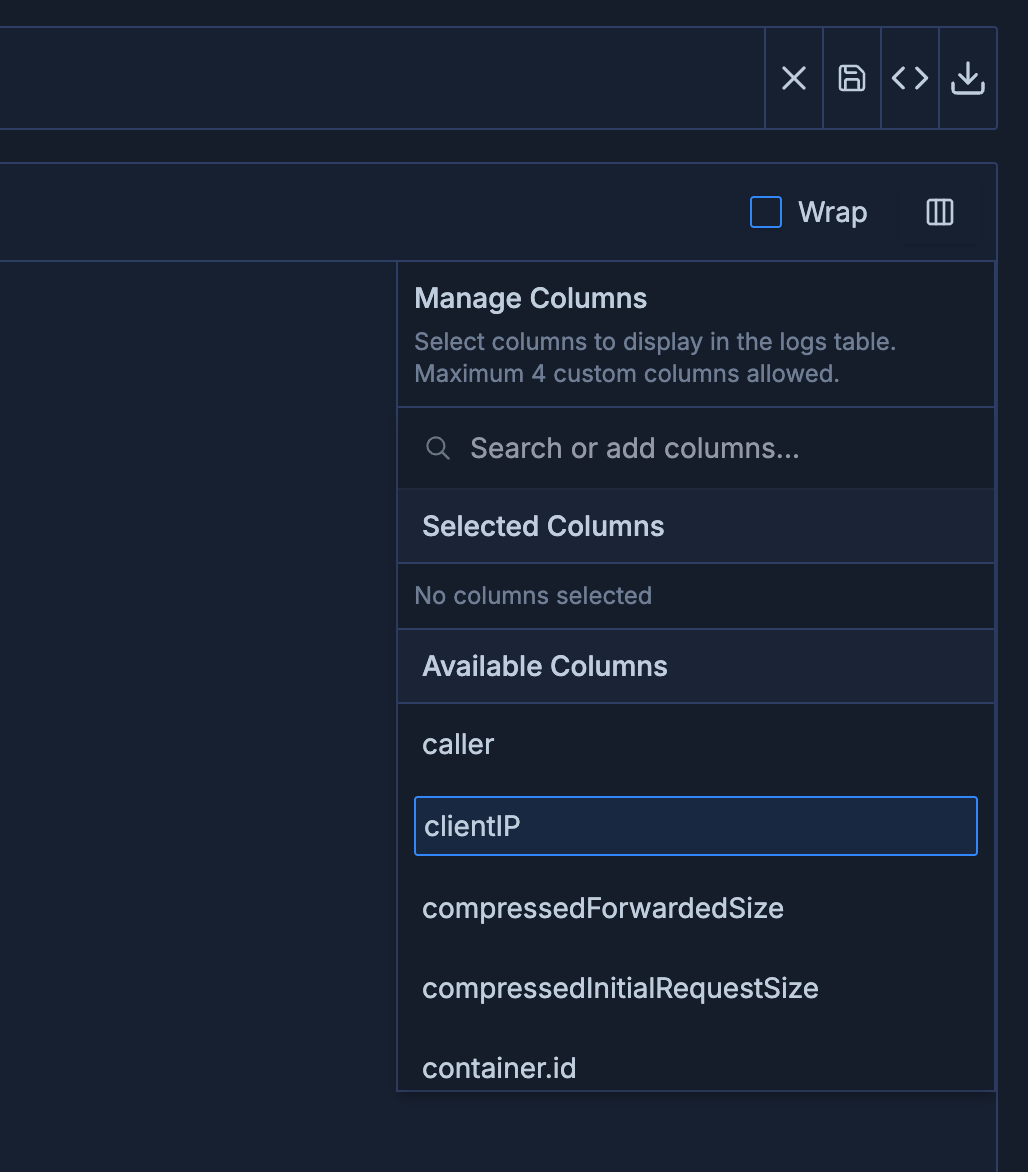 4. Select up to 4 attributes to display as custom columns in the logs table.
Did you know that you can save your current log search with custom columns? This allows you to quickly access your preferred log view without having to reconfigure the columns each time. For more details, see our [Saved Searches Guide](/logs/saved_searches).
5. To remove a custom column, simply uncheck the attribute in the dropdown menu.
4. Select up to 4 attributes to display as custom columns in the logs table.
Did you know that you can save your current log search with custom columns? This allows you to quickly access your preferred log view without having to reconfigure the columns each time. For more details, see our [Saved Searches Guide](/logs/saved_searches).
5. To remove a custom column, simply uncheck the attribute in the dropdown menu.