> ## Documentation Index
> Fetch the complete documentation index at: https://metoro.io/docs/llms.txt
> Use this file to discover all available pages before exploring further.
# PagerDuty Integration
## PagerDuty + Metoro Integration Benefits
* Notify on-call responders based on alerts sent from Metoro.
* Send event details from Metoro including description of the alert that triggered the event.
## How it Works
* When an alert is created in Metoro, you can select a PagerDuty service as the destination for the alert. If the alert breaches the defined threshold, an event will be sent to the selected PagerDuty service.
## Requirements
* To set up the PagerDuty integration in Metoro, you need to be an Admin user.
* Admin users are listed as "Admin" as their **Role** in **Settings** > **Users** in Metoro.
* If you are not an Admin user, you will need to contact an Admin user in your organization to set up the integration for you.
## Support
If you need help with this integration, please email [support@metoro.io](mailto:support@metoro.io) or join our [Community Slack](https://join.slack.com/t/metorocommunity/shared_invite/zt-2makpjl5j-F0WcpGnPcdc8anbNGcewqw).
## Integration Walkthrough
### In PagerDuty
* If you already have a PagerDuty service that you would like to use to receive alert events from Metoro, please skip to the **In Metoro** section.
* If you are creating a new service for your integration:
* Please read PagerDuty documentation in section [Configuring Services and Integrations](https://support.pagerduty.com/docs/services-and-integrations#section-configuring-services-and-integrations) and follow the steps outlined in the [Create a New Service](https://support.pagerduty.com/docs/services-and-integrations#section-create-a-new-service) section.
* **Important Note**: **Do not** follow the steps in section [Add Integrations to an Existing Service](https://support.pagerduty.com/main/docs/services-and-integrations#add-integrations-to-an-existing-service) as Metoro will do these steps for you.
### In Metoro
#### Select PagerDuty Services to Integrate
1. Navigate to **Settings** from the Metoro sidebar.
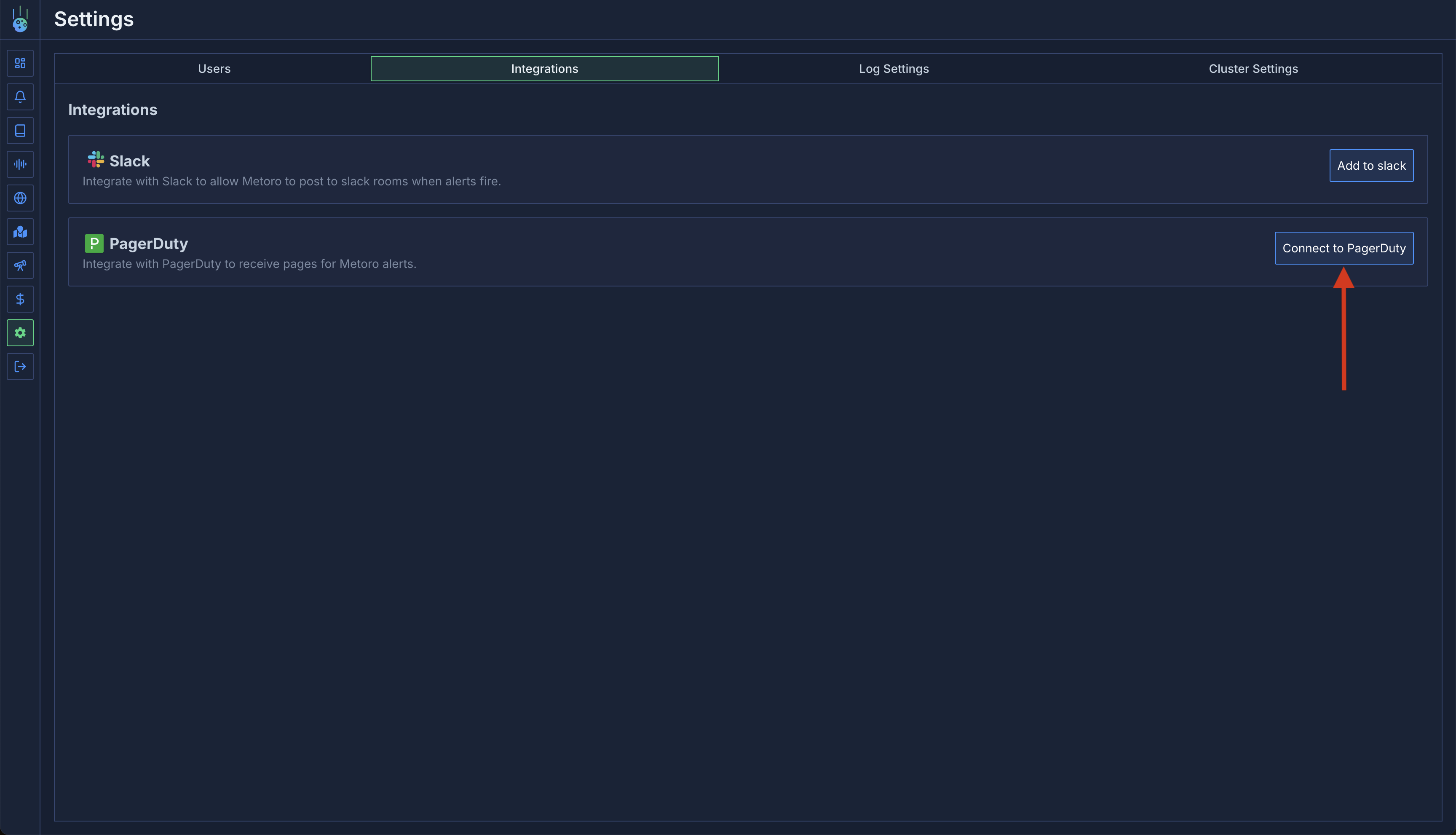
2. Under the **Integrations** tab in Settings, find the **PagerDuty** integration and click the **Connect to PagerDuty** button.
 3. You will be redirected to the PagerDuty login page for authorization. Enter your PagerDuty credentials and click **Sign in**.
4. Once you log in, you will be redirected back to Metoro, where the **Connect Metoro and PagerDuty** page will be displayed.
3. You will be redirected to the PagerDuty login page for authorization. Enter your PagerDuty credentials and click **Sign in**.
4. Once you log in, you will be redirected back to Metoro, where the **Connect Metoro and PagerDuty** page will be displayed.
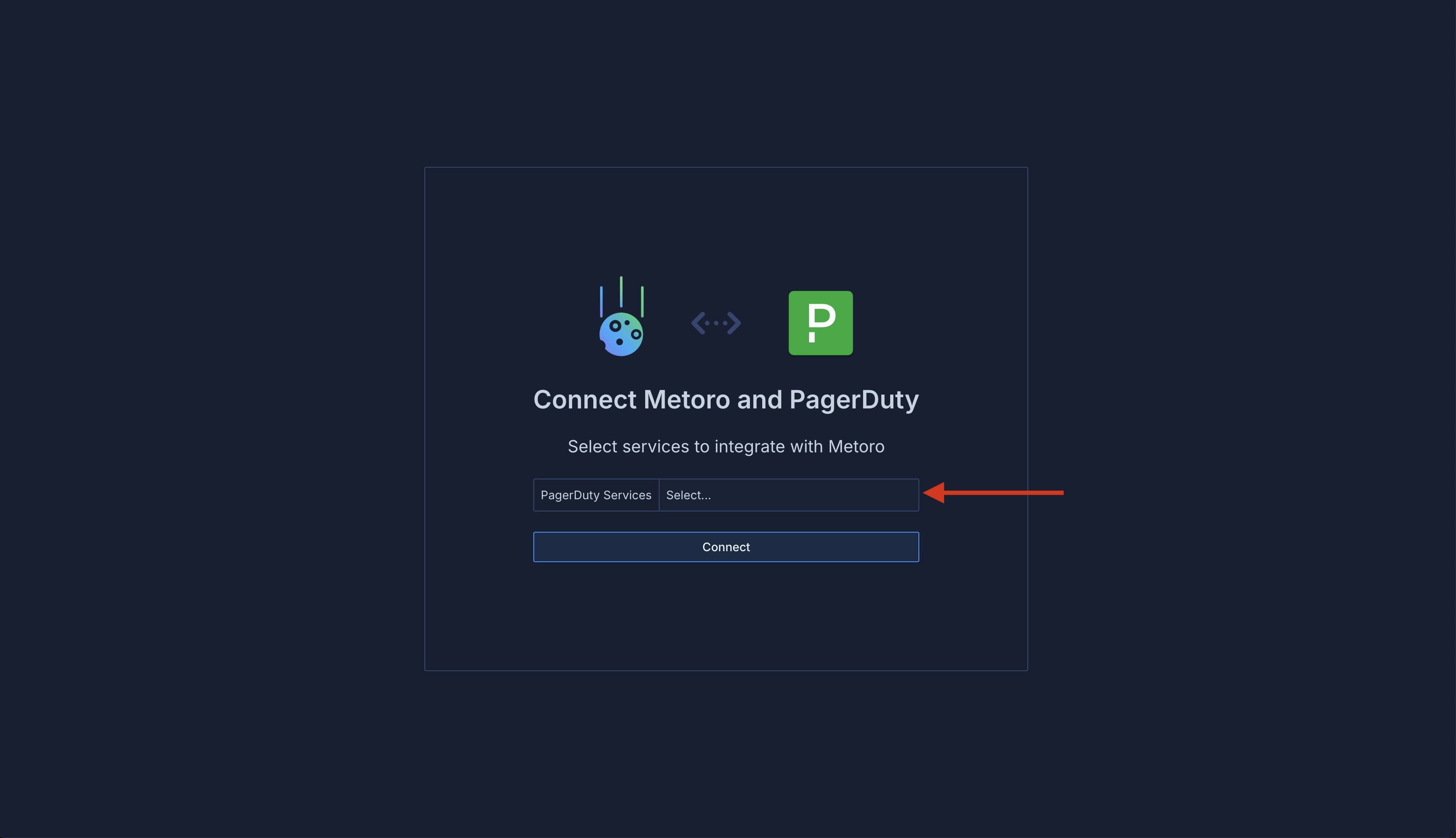 5. Select the PagerDuty service(s) you want to integrate with Metoro from the dropdown list and click **Connect** when you are done. You will be taken back to the **Settings** page in Metoro if the integration is successful.
* **Note**: If you do not see the PagerDuty service you want to integrate with Metoro in the dropdown list, please make sure you have followed the steps in the **In PagerDuty** section above. If you have followed the steps and still do not see the service, please contact us using one of the support options listed in the **Support** section above.
* **Note**: If the integration is successful for the selected service(s), you will see an Integration named **Metoro - PagerDuty** in your PagerDuty account in **Services** > **Service Directory** > select **your service** > under **Integrations** tab.
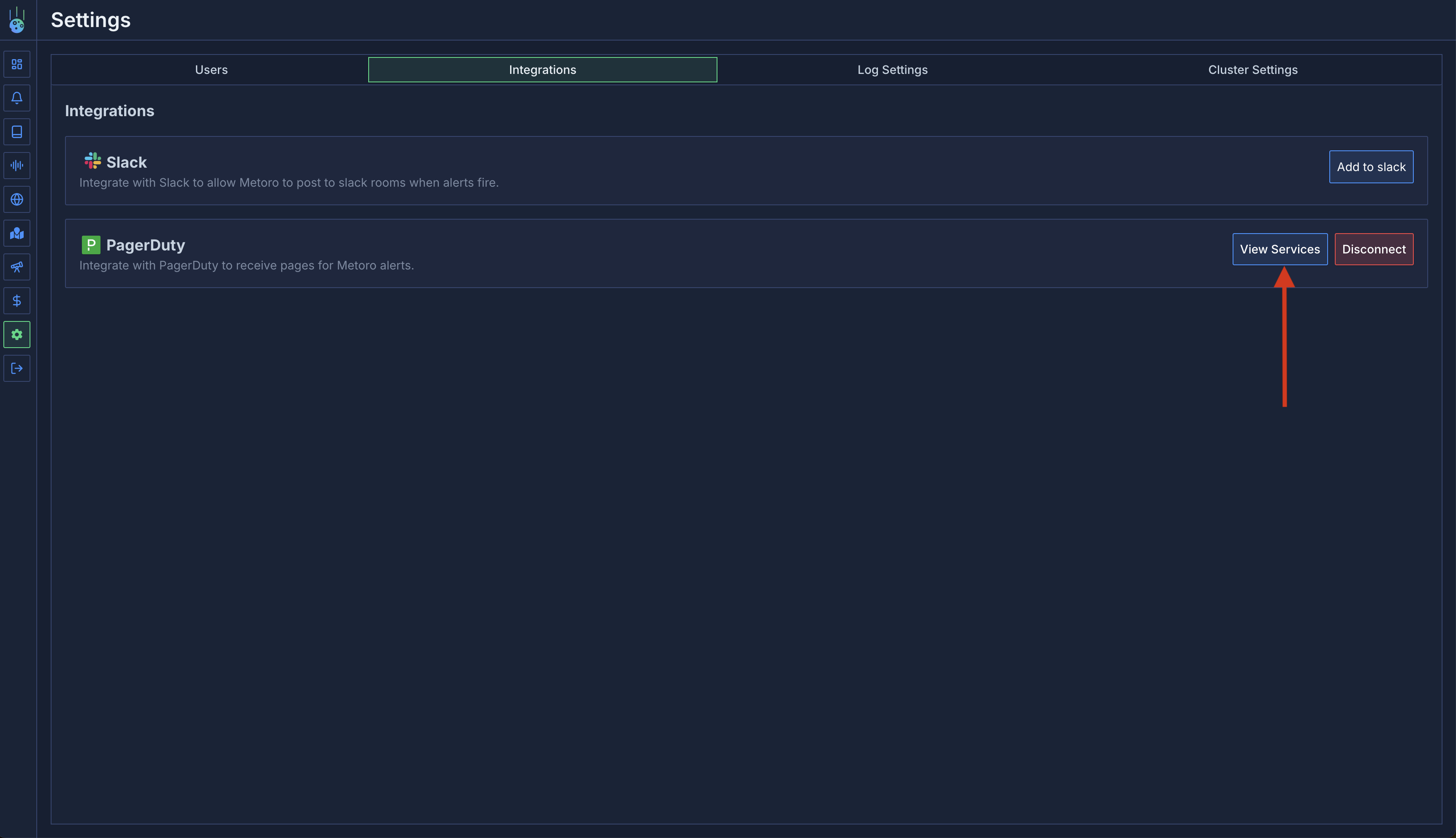
6. You can view the PagerDuty services you have integrated with Metoro in the **PagerDuty** section under **Integrations** tab in **Settings** and add and remove services as needed at any time.
5. Select the PagerDuty service(s) you want to integrate with Metoro from the dropdown list and click **Connect** when you are done. You will be taken back to the **Settings** page in Metoro if the integration is successful.
* **Note**: If you do not see the PagerDuty service you want to integrate with Metoro in the dropdown list, please make sure you have followed the steps in the **In PagerDuty** section above. If you have followed the steps and still do not see the service, please contact us using one of the support options listed in the **Support** section above.
* **Note**: If the integration is successful for the selected service(s), you will see an Integration named **Metoro - PagerDuty** in your PagerDuty account in **Services** > **Service Directory** > select **your service** > under **Integrations** tab.
6. You can view the PagerDuty services you have integrated with Metoro in the **PagerDuty** section under **Integrations** tab in **Settings** and add and remove services as needed at any time.
 #### Select PagerDuty as a Destination in Alert Creation
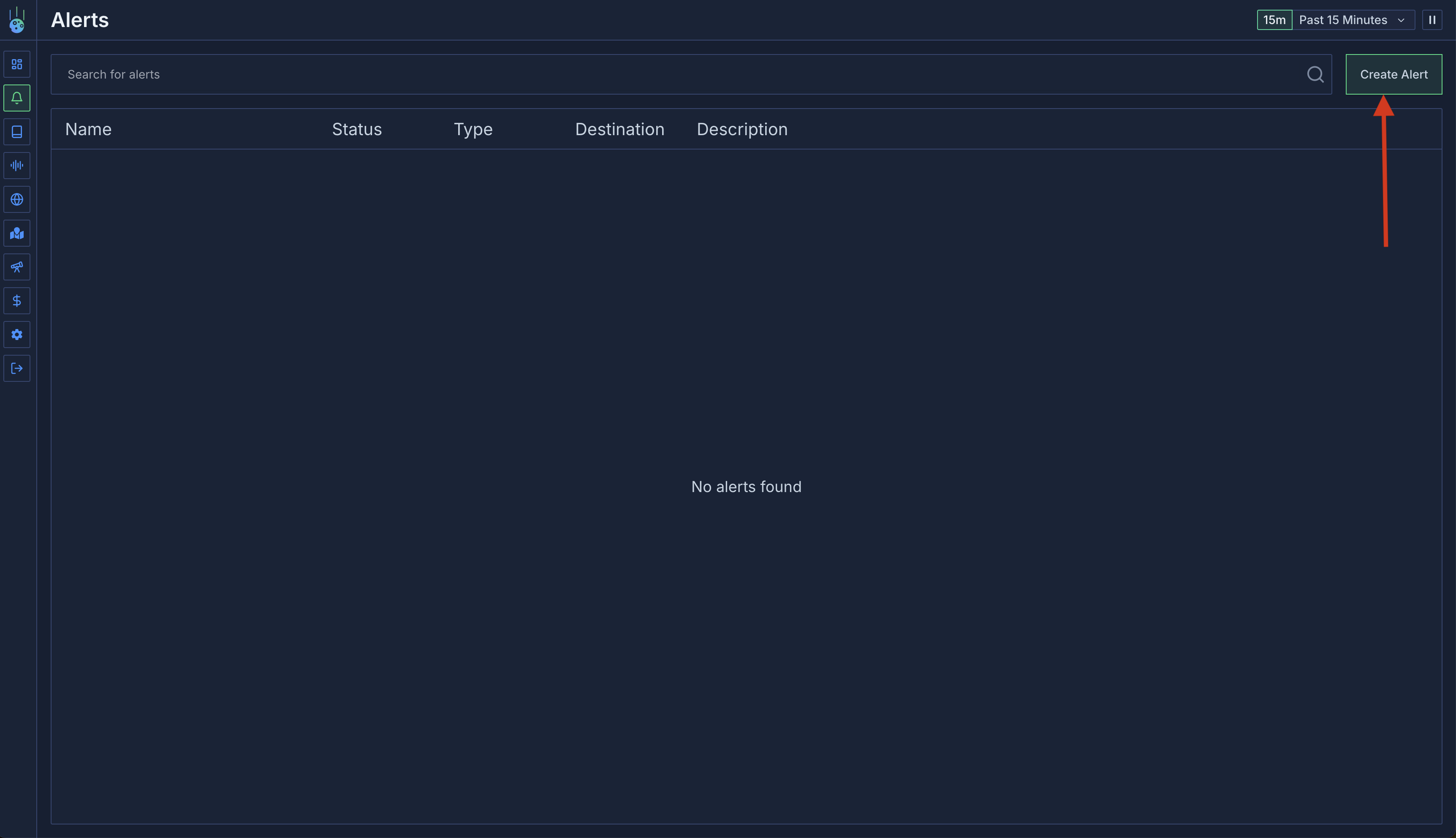
1. Navigate to **Alerts** from the Metoro sidebar. Click the **Create Alert** button and follow the steps to create an alert.
#### Select PagerDuty as a Destination in Alert Creation
1. Navigate to **Alerts** from the Metoro sidebar. Click the **Create Alert** button and follow the steps to create an alert.
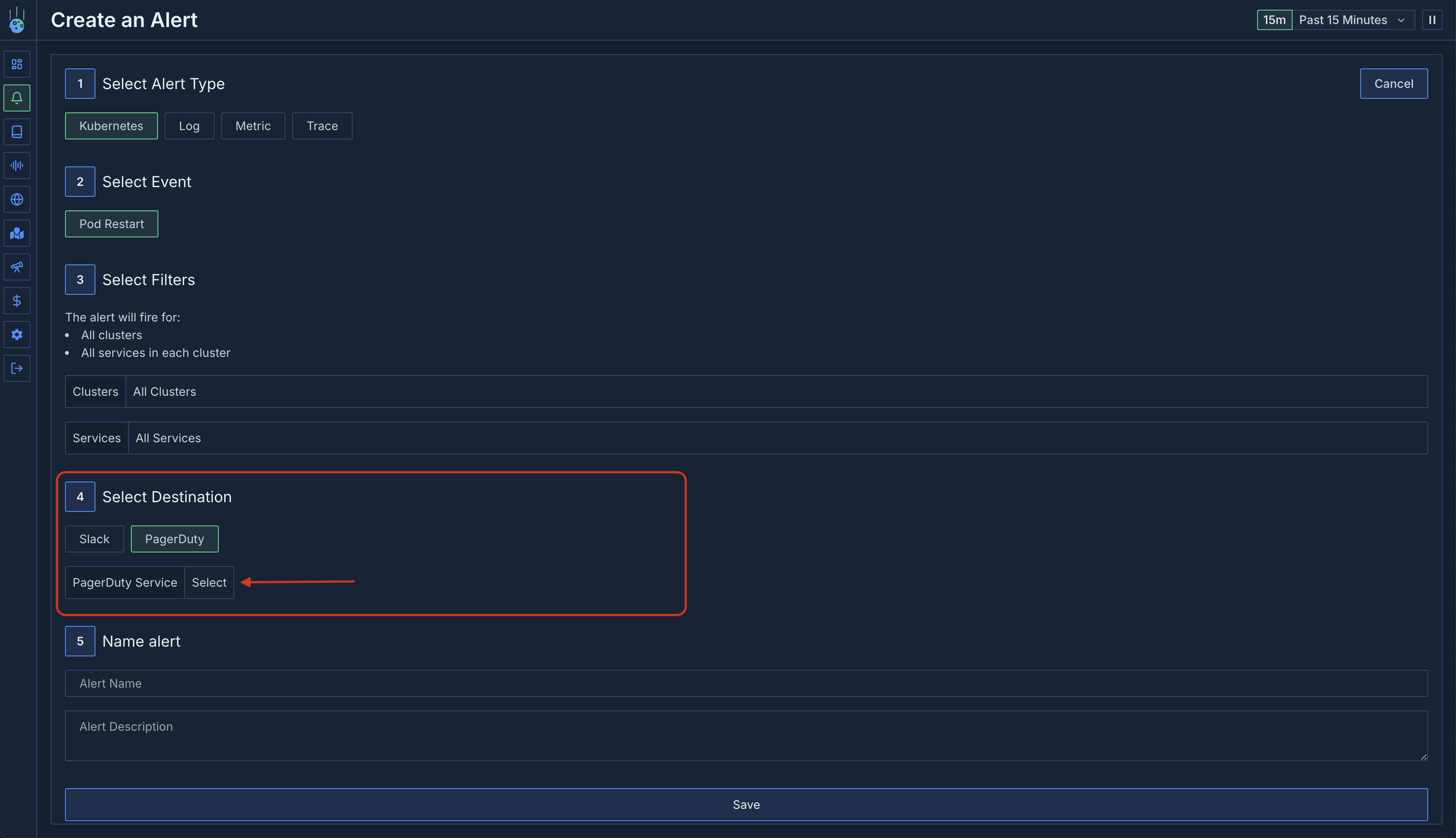
 2. In the **Select Destination** section of the alert creation wizard, select **PagerDuty**.
3. When you select **PagerDuty**, you will see an option to configure a PagerDuty Service to send the alerts to. Click **Select** to see a dropdown list of the PagerDuty services you have integrated with Metoro. Select the service you want to send the alerts to.
2. In the **Select Destination** section of the alert creation wizard, select **PagerDuty**.
3. When you select **PagerDuty**, you will see an option to configure a PagerDuty Service to send the alerts to. Click **Select** to see a dropdown list of the PagerDuty services you have integrated with Metoro. Select the service you want to send the alerts to.
 4. Follow the rest of the steps in the alert creation wizard to complete the alert creation.
### How to Uninstall
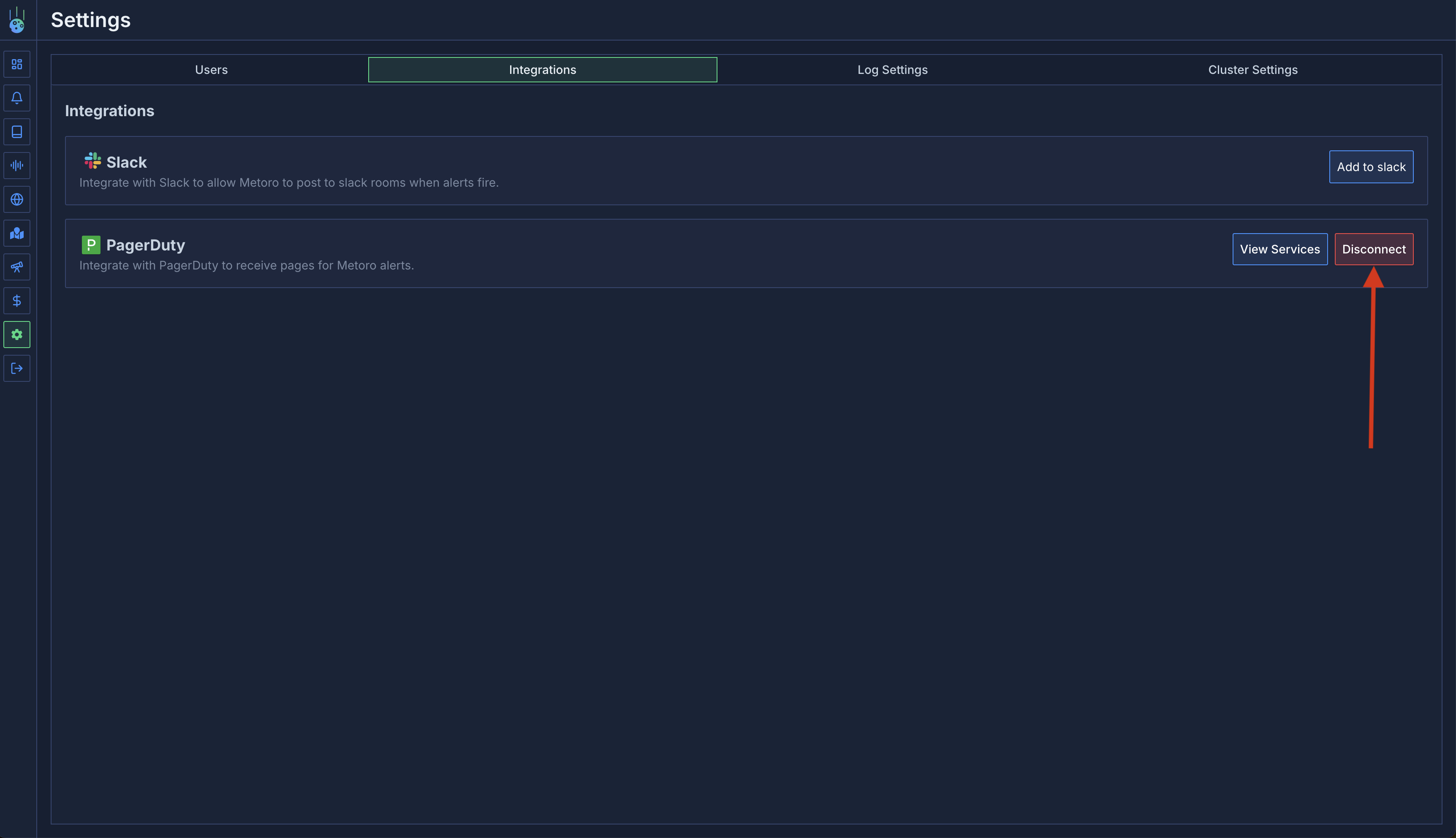
* In Metoro, navigate to **Settings** from the Metoro sidebar. Under **Integrations** tab, find **PagerDuty** integration and click **Disconnect** button and confirm deletion by clicking **Delete Integration** on the pop-up dialog.
4. Follow the rest of the steps in the alert creation wizard to complete the alert creation.
### How to Uninstall
* In Metoro, navigate to **Settings** from the Metoro sidebar. Under **Integrations** tab, find **PagerDuty** integration and click **Disconnect** button and confirm deletion by clicking **Delete Integration** on the pop-up dialog.