> ## Documentation Index
> Fetch the complete documentation index at: https://metoro.io/docs/llms.txt
> Use this file to discover all available pages before exploring further.
# Alert Destinations
> Configure where and how your alerts are delivered, including recovery notifications
**New Feature**: Recovery notifications are now available for webhook, Slack, and email destinations! Get notified when your alerts return to normal state.
Alert destinations determine where notifications are sent when alerts are triggered or resolved. Metoro supports multiple destination types, allowing you to route alerts to the right teams and systems.
## Supported Destination Types
Send alert notifications directly to Slack channels for immediate team visibility.
**Key Features:**
* Direct channel integration
* Rich message formatting
* Alert status and details
* Recovery notifications support
* Deep links to Metoro
Integrate with PagerDuty for on-call management and incident response.
**Key Features:**
* Automatic incident creation
* Service-level routing
* Escalation policy support
* Auto-resolution on recovery
Send alert notifications via email to specific recipients.
**Key Features:**
* Multiple recipients
* Detailed alert information
* HTML-formatted messages
* Recovery notifications support
* Direct links to details
Send alerts to custom endpoints for integration with any system.
**Key Features:**
* Custom HTTP POST requests
* JSON payloads
* Trigger & recovery support
* Configurable endpoints
Automatically trigger AI investigations for firing alerts.
**Key Features:**
* Automated root cause analysis
* Alert correlation
* Remediation suggestions
* Workflow integration
[Learn more about AI alert investigations →](/docs/ai-sre/alert-investigations)
## Configuring Alert Destinations
Open your alerts page in the Metoro, then select the alert you want to configure destinations for, or create a new alert.
In the "Select Destination" section, click the **Add Destination** button
Select your preferred destination type from the dropdown menu
Enter the destination-specific settings (channel, email, webhook, etc.)
Save your alert configuration to activate the destination
 ### Multiple Destinations
You can configure multiple destinations for a single alert to ensure notifications reach all necessary channels and teams.
* Click **Add Destination** for each additional destination
* Each destination operates independently
* Mix different destination types as needed
* Remove destinations using the X button
* Edit existing destinations inline
* Use Slack for team visibility
* Add PagerDuty or another incident response tooling's webhook for critical alerts
* Configure email as backup
### Multiple Destinations
You can configure multiple destinations for a single alert to ensure notifications reach all necessary channels and teams.
* Click **Add Destination** for each additional destination
* Each destination operates independently
* Mix different destination types as needed
* Remove destinations using the X button
* Edit existing destinations inline
* Use Slack for team visibility
* Add PagerDuty or another incident response tooling's webhook for critical alerts
* Configure email as backup
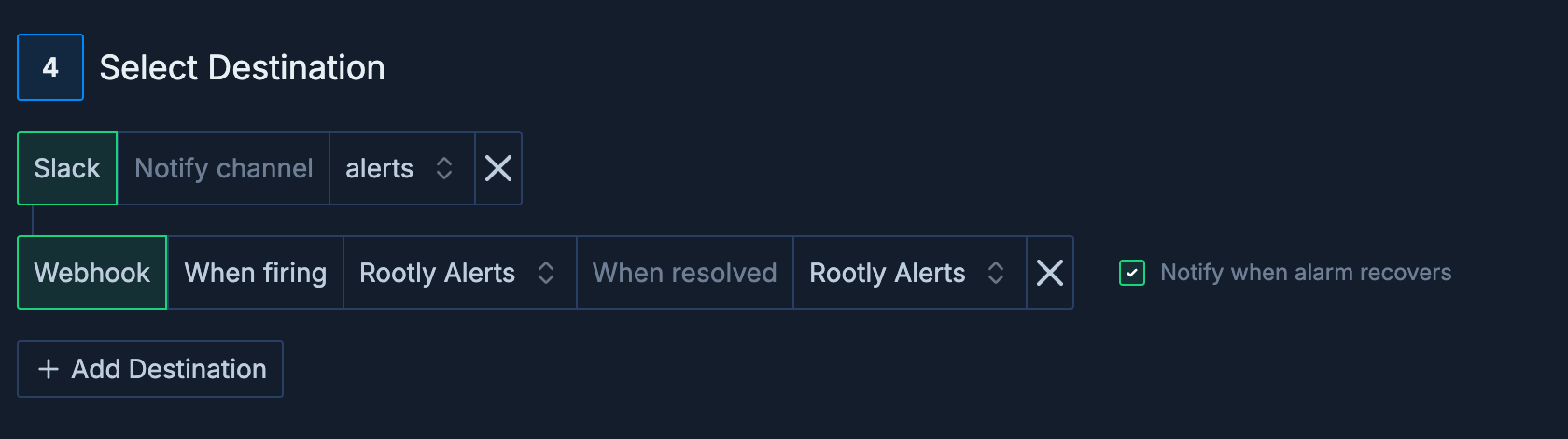 ## Recovery Notifications
Recovery notifications are available for webhook, Slack, and email destinations, allowing you to know when alerts return to normal state.
### What are Recovery Notifications?
Recovery notifications inform you when an alert condition is no longer met and the alert has returned to a normal state.
* **Automated incident resolution** in external systems
* **Clear communication** about alert lifecycle
* **Reduced manual intervention** for ops teams
* **Better tracking** of alert duration and impact
* **Improved MTTR** (Mean Time To Recovery) metrics
1. Alert triggers and sends notification to "firing" webhook
2. Metoro continuously monitors the alert condition
3. When condition is no longer met, alert recovers
4. Recovery notification sent to "resolved" webhook
5. External systems can auto-close incidents
Include `$alert_uuid` and `$alert_state` variable in your webhook payload to differentiate between firing and resolved states for the same alert.
Include `$fire_alert_uuid` variable in your webhook payload to differentiate between different firing instances of the same alert.
This is useful is you have a `group by` in your alert configuration because alerts with a `group by` can have multiple firing instances.
For example, if you have an alert that is grouped by with `service.name`, each service will have its own firing instance with a unique `$fire_alert_uuid`.
### Configuring Recovery Notifications
Select **Slack** from the destination type dropdown and choose your channel
Check the **"Notify when alarm recovers"** checkbox that appears next to the Slack destination
Slack recovery notifications are sent to the same channel as firing notifications, with clear visual indicators (✅ for resolved vs 🔥 for firing).
Select **Email** from the destination type dropdown and enter recipient email addresses
Check the **"Notify when alarm recovers"** checkbox that appears next to the email destination
Email recovery notifications are sent to the same recipients as firing notifications, with a blue theme and "ALERT RESOLVED" badge to clearly indicate the alert has returned to normal.
Select **Webhook** from the destination type dropdown and choose your primary webhook for alert triggers
Check the **"Notify when alarm recovers"** checkbox that appears next to the webhook destination.
If you have not selected a firing destination, you cannot select Notify when alarm recovers option.
The interface expands to show two webhook selectors.
You can use the same webhook for both or configure different endpoints.
### Recovery Webhook Payload
```json Resolved Payload theme={null}
{
"alert_state": "resolved",
"resolved_at": "2024-01-15T10:30:00Z",
"alert_uuid": "abc-123",
"alert_name": "High CPU Usage",
"environment": "production",
"service": "api-server"
}
```
```json Firing Payload theme={null}
{
"alert_state": "firing",
"alert_uuid": "abc-123",
"alert_name": "High CPU Usage",
"environment": "production",
"service": "api-server",
}
```
The `alert_state` field is critical for distinguishing between trigger and recovery notifications. Always validate this field in your webhook handler.
Please see the webhook documentation for more details on how to configure these payloads: [Webhook Documentation](/docs/integrations/webhooks).
## Troubleshooting
You can check webhook delivery status and errors in Metoro Logs view. This provides visibility into successful deliveries and any issues encountered.
Go to the [Logs page](https://us-east.metoro.io/logs) and filter by `environment=metoro-internal` and `service.name=metoro-webhooks` to see webhook notifications that are successfully sent or failed with errors.
Ensure that the webhook payload is a valid JSON object. You might be missing a closing brace or have an extra/missing comma.
Common authentication issues and solutions:
* **401 Unauthorized**: Check API keys/tokens. Make sure that your webhook includes **Authorization** header with **Bearer \** value.
* **403 Forbidden**: Verify IP whitelisting
* **Expired Token**: Refresh authentication tokens from your webhook provider
## Quick Reference
Programmatically configure alert destinations using our REST API
Step-by-step guide to creating your first alert
Common alert patterns and configurations
Configure Slack, PagerDuty, webhooks, and more
***
**Need Help?**
Join our [Slack community](https://join.slack.com/t/metorocommunity/shared_invite/zt-2makpjl5j-F0WcpGnPcdc8anbNGcewqw) for support, or contact [support@metoro.io](mailto:support@metoro.io) for assistance with alert destinations.
## Recovery Notifications
Recovery notifications are available for webhook, Slack, and email destinations, allowing you to know when alerts return to normal state.
### What are Recovery Notifications?
Recovery notifications inform you when an alert condition is no longer met and the alert has returned to a normal state.
* **Automated incident resolution** in external systems
* **Clear communication** about alert lifecycle
* **Reduced manual intervention** for ops teams
* **Better tracking** of alert duration and impact
* **Improved MTTR** (Mean Time To Recovery) metrics
1. Alert triggers and sends notification to "firing" webhook
2. Metoro continuously monitors the alert condition
3. When condition is no longer met, alert recovers
4. Recovery notification sent to "resolved" webhook
5. External systems can auto-close incidents
Include `$alert_uuid` and `$alert_state` variable in your webhook payload to differentiate between firing and resolved states for the same alert.
Include `$fire_alert_uuid` variable in your webhook payload to differentiate between different firing instances of the same alert.
This is useful is you have a `group by` in your alert configuration because alerts with a `group by` can have multiple firing instances.
For example, if you have an alert that is grouped by with `service.name`, each service will have its own firing instance with a unique `$fire_alert_uuid`.
### Configuring Recovery Notifications
Select **Slack** from the destination type dropdown and choose your channel
Check the **"Notify when alarm recovers"** checkbox that appears next to the Slack destination
Slack recovery notifications are sent to the same channel as firing notifications, with clear visual indicators (✅ for resolved vs 🔥 for firing).
Select **Email** from the destination type dropdown and enter recipient email addresses
Check the **"Notify when alarm recovers"** checkbox that appears next to the email destination
Email recovery notifications are sent to the same recipients as firing notifications, with a blue theme and "ALERT RESOLVED" badge to clearly indicate the alert has returned to normal.
Select **Webhook** from the destination type dropdown and choose your primary webhook for alert triggers
Check the **"Notify when alarm recovers"** checkbox that appears next to the webhook destination.
If you have not selected a firing destination, you cannot select Notify when alarm recovers option.
The interface expands to show two webhook selectors.
You can use the same webhook for both or configure different endpoints.
### Recovery Webhook Payload
```json Resolved Payload theme={null}
{
"alert_state": "resolved",
"resolved_at": "2024-01-15T10:30:00Z",
"alert_uuid": "abc-123",
"alert_name": "High CPU Usage",
"environment": "production",
"service": "api-server"
}
```
```json Firing Payload theme={null}
{
"alert_state": "firing",
"alert_uuid": "abc-123",
"alert_name": "High CPU Usage",
"environment": "production",
"service": "api-server",
}
```
The `alert_state` field is critical for distinguishing between trigger and recovery notifications. Always validate this field in your webhook handler.
Please see the webhook documentation for more details on how to configure these payloads: [Webhook Documentation](/docs/integrations/webhooks).
## Troubleshooting
You can check webhook delivery status and errors in Metoro Logs view. This provides visibility into successful deliveries and any issues encountered.
Go to the [Logs page](https://us-east.metoro.io/logs) and filter by `environment=metoro-internal` and `service.name=metoro-webhooks` to see webhook notifications that are successfully sent or failed with errors.
Ensure that the webhook payload is a valid JSON object. You might be missing a closing brace or have an extra/missing comma.
Common authentication issues and solutions:
* **401 Unauthorized**: Check API keys/tokens. Make sure that your webhook includes **Authorization** header with **Bearer \** value.
* **403 Forbidden**: Verify IP whitelisting
* **Expired Token**: Refresh authentication tokens from your webhook provider
## Quick Reference
Programmatically configure alert destinations using our REST API
Step-by-step guide to creating your first alert
Common alert patterns and configurations
Configure Slack, PagerDuty, webhooks, and more
***
**Need Help?**
Join our [Slack community](https://join.slack.com/t/metorocommunity/shared_invite/zt-2makpjl5j-F0WcpGnPcdc8anbNGcewqw) for support, or contact [support@metoro.io](mailto:support@metoro.io) for assistance with alert destinations.