> ## Documentation Index
> Fetch the complete documentation index at: https://metoro.io/docs/llms.txt
> Use this file to discover all available pages before exploring further.
# Autonomous Deployment Monitoring & Verification
> Automatic deployment tracking and AI-powered verification to catch breaking changes
## Overview
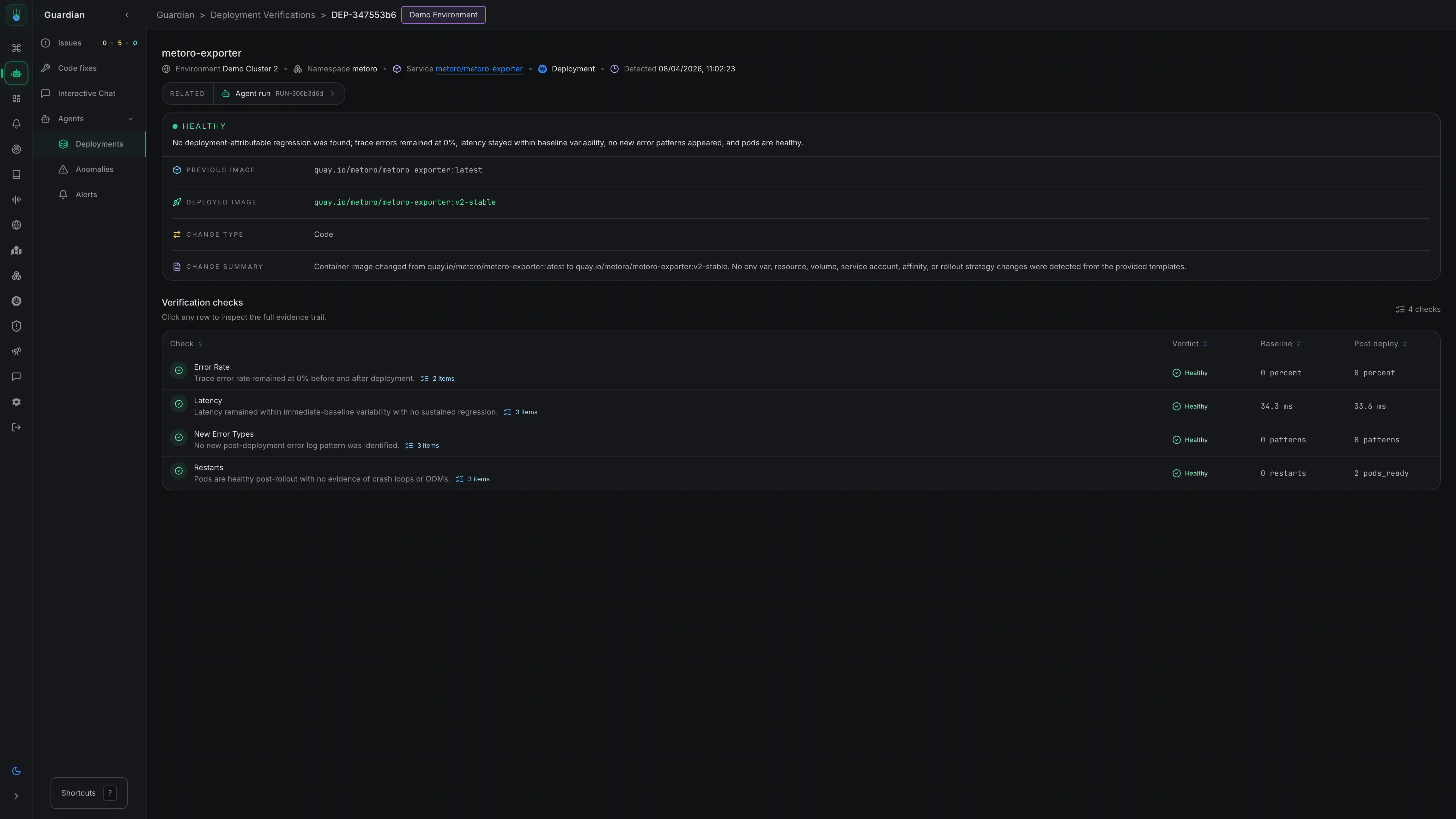
Metoro automatically tracks all releases you make across your Kubernetes clusters. When you deploy a new image tag, Metoro marks it as a `new_deployment` event for that service. This enables:
* **Automatic release tracking** - No manual tagging or annotation required
* **Slack notifications** - Get notified when deployments happen
* **Flexible routing** - Route deployment notifications to different channels based on service and environment
* **AI Verification** - Metoro can automatically verify deployments for breaking changes
 ## How Deployment Tracking Works
1. **Detection** - Metoro monitors your Kubernetes clusters for image tag changes
2. **Event Creation** - When a new image tag is deployed, a `new_deployment` event is created for the service
3. **Notification** - Based on your notification configuration, alerts are sent to the appropriate channels
4. **Verification** (optional) - If enabled, AI deployment verification checks the deployment for issues
## Setting Up Deployment Notifications
You can configure deployment notifications to route to different Slack channels based on service and environment.
### Step 1: Navigate to Settings
Go to **Settings** → **Features** → **Deployment Notifications**
[Take me there](https://us-east.metoro.io/settings?tab=features\&subtab=deployment-monitoring)
### Step 2: Create a Notification Configuration
Click **Add Configuration** to create a new notification rule:
1. **Select Services** - Choose which services this rule applies to (or select all)
2. **Select Environments** - Choose which environments trigger notifications (e.g., `prod`, `staging`, `dev`)
3. **Select Destination** - Choose the Slack channel or webhook to send notifications to
### Example Configurations
Route all deployment events for `service-a` in production to a dedicated team channel:
* **Services**: `service-a`
* **Environments**: `prod`
* **Destination**: `#service-a-devs`
Route all deployment events in development to a shared channel:
* **Services**: All
* **Environments**: `dev`
* **Destination**: `#dev-deployments`
You can create as many configurations as you need. For example:
**Config 1:**
* Services: `payment-service`, `checkout-service`
* Environments: `prod`
* Destination: `#payments-team`
**Config 2:**
* Services: All
* Environments: `staging`
* Destination: `#staging-deployments`
## AI Deployment Verification
When enabled, AI deployment verification automatically checks each deployment to ensure it doesn't introduce breaking changes.
### What AI Deployment Verification Checks
Metoro analyzes the following signals after each deployment:
| Check | Description |
| ------------------------ | ------------------------------------------------ |
| **5XX Error Rates** | Compares error rates before and after deployment |
| **Latency** | Detects latency regressions |
| **New Error Logs** | Identifies new error/critical patterns in logs |
| **Resource Consumption** | Monitors CPU and memory usage changes |
| **Pod Health** | Checks for unhealthy pods |
If given access to code, Metoro will also analyze code changes and use this information while evaluating the above signals.
For example, if there is a new error log added to the codebase, Metoro will check for its presence after the deployment.
### Verification Results
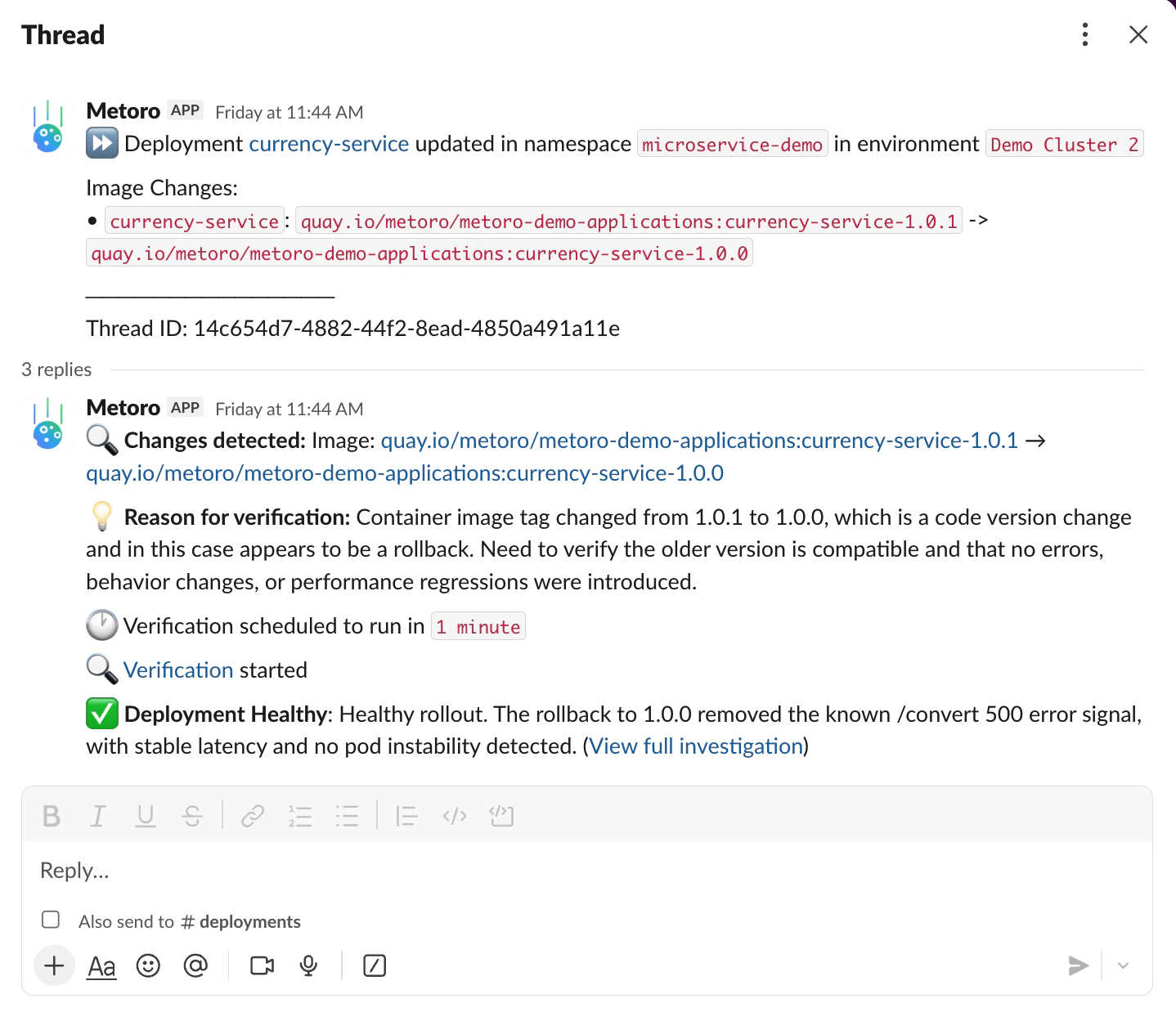
After verification completes, Metoro will:
* **Thumbs Up** - Deployment looks healthy, no issues detected
* **Alert** - Something is wrong, Metoro will notify you with details about the issue
## How Deployment Tracking Works
1. **Detection** - Metoro monitors your Kubernetes clusters for image tag changes
2. **Event Creation** - When a new image tag is deployed, a `new_deployment` event is created for the service
3. **Notification** - Based on your notification configuration, alerts are sent to the appropriate channels
4. **Verification** (optional) - If enabled, AI deployment verification checks the deployment for issues
## Setting Up Deployment Notifications
You can configure deployment notifications to route to different Slack channels based on service and environment.
### Step 1: Navigate to Settings
Go to **Settings** → **Features** → **Deployment Notifications**
[Take me there](https://us-east.metoro.io/settings?tab=features\&subtab=deployment-monitoring)
### Step 2: Create a Notification Configuration
Click **Add Configuration** to create a new notification rule:
1. **Select Services** - Choose which services this rule applies to (or select all)
2. **Select Environments** - Choose which environments trigger notifications (e.g., `prod`, `staging`, `dev`)
3. **Select Destination** - Choose the Slack channel or webhook to send notifications to
### Example Configurations
Route all deployment events for `service-a` in production to a dedicated team channel:
* **Services**: `service-a`
* **Environments**: `prod`
* **Destination**: `#service-a-devs`
Route all deployment events in development to a shared channel:
* **Services**: All
* **Environments**: `dev`
* **Destination**: `#dev-deployments`
You can create as many configurations as you need. For example:
**Config 1:**
* Services: `payment-service`, `checkout-service`
* Environments: `prod`
* Destination: `#payments-team`
**Config 2:**
* Services: All
* Environments: `staging`
* Destination: `#staging-deployments`
## AI Deployment Verification
When enabled, AI deployment verification automatically checks each deployment to ensure it doesn't introduce breaking changes.
### What AI Deployment Verification Checks
Metoro analyzes the following signals after each deployment:
| Check | Description |
| ------------------------ | ------------------------------------------------ |
| **5XX Error Rates** | Compares error rates before and after deployment |
| **Latency** | Detects latency regressions |
| **New Error Logs** | Identifies new error/critical patterns in logs |
| **Resource Consumption** | Monitors CPU and memory usage changes |
| **Pod Health** | Checks for unhealthy pods |
If given access to code, Metoro will also analyze code changes and use this information while evaluating the above signals.
For example, if there is a new error log added to the codebase, Metoro will check for its presence after the deployment.
### Verification Results
After verification completes, Metoro will:
* **Thumbs Up** - Deployment looks healthy, no issues detected
* **Alert** - Something is wrong, Metoro will notify you with details about the issue
 ### Enabling Deployment Verification
1. Navigate to **Settings** → **Features** → **Deployment Verification**
2. Toggle **Enable AI Deployment Verification**
3. Configure which services and environments should have verification enabled
Deployment verification uses the same flexible filtering as deployment notifications. You can enable verification for specific services and environments.
### Verification Notification Configuration
Configure where verification results are sent:
1. Go to **Settings** → **Features** → **Deployment Verification**
2. Click **Add Notification Configuration**
3. Select:
* **Services** - Which services to monitor
* **Environments** - Which environments to monitor
* **Destination** - Where to send verification results
You might want verification alerts to go to a different channel than deployment notifications. For example, send all deployments to `#deployments` but send verification failures to `#incidents`.
## Filtering Deployment Events with Annotations
You can control deployment tracking at the individual workload level using Kubernetes annotations. This is useful for reducing noise from automated tools like ScaleOps that frequently update resource limits or annotations.
### Disabling Deployment Tracking
To completely disable deployment tracking for a specific workload, add the following annotation to your Deployment, StatefulSet, or DaemonSet:
```yaml theme={null}
apiVersion: apps/v1
kind: Deployment
metadata:
name: my-app
annotations:
metoro.io/deployment-verification-disabled: "true"
spec:
# ...
```
When this annotation is set to "true", no deployment events will be created for this workload, and Metoro will not verify its deployments.
This is useful for:
* Workloads managed by auto-scaling tools that change frequently
* Development or test environments where deployment tracking is not needed
### Excluding Specific Configuration Paths
For workloads where you want deployment tracking but need to ignore certain configuration changes (like resource limits managed by ScaleOps), you can exclude specific JSON paths from change detection:
```yaml theme={null}
apiVersion: apps/v1
kind: Deployment
metadata:
name: my-app
annotations:
metoro.io/deployment-verification-exclude-paths: |
["template.spec.containers.*.resources", "template.metadata.annotations.scaleops.sh/*"]
spec:
# ...
```
When only excluded paths change, no deployment event is created. If other paths also change, a deployment event will still be created.
### Supported Path Patterns
| Pattern | Description | Example |
| --------------- | ----------------------------------- | --------------------------------------------- |
| Exact path | Matches exactly this path | `template.spec.nodeSelector` |
| Array wildcard | `*` matches any array index | `template.spec.containers.*.resources` |
| Prefix wildcard | `/*` matches any key under a prefix | `template.metadata.annotations.scaleops.sh/*` |
Paths can be specified with or without the `spec.` prefix. For example, both `spec.template.spec.containers.*.resources` and `template.spec.containers.*.resources` are equivalent and will work correctly.
### Common Use Cases
Exclude resource changes and ScaleOps annotations:
```yaml theme={null}
annotations:
metoro.io/deployment-verification-exclude-paths: |
["template.spec.containers.*.resources", "template.metadata.annotations.scaleops.sh/*"]
```
Only exclude resource changes (limits and requests):
```yaml theme={null}
annotations:
metoro.io/deployment-verification-exclude-paths: |
["template.spec.containers.*.resources"]
```
Exclude specific annotation prefixes:
```yaml theme={null}
annotations:
metoro.io/deployment-verification-exclude-paths: |
["template.metadata.annotations.autoscaling.k8s.io/*"]
```
Be careful not to exclude too many paths, as this may cause you to miss important configuration changes that could affect your application's behavior.
### Customizing Verification Delay
By default, Metoro waits 5 minutes after a deployment is detected before running verification. This gives your application time to fully roll out and stabilize before metrics are analyzed.
You can customize this delay per workload using the `metoro.io/deployment-verification-delay-seconds` annotation:
```yaml theme={null}
apiVersion: apps/v1
kind: Deployment
metadata:
name: my-app
annotations:
metoro.io/deployment-verification-delay-seconds: "120"
spec:
# ...
```
| Value | Description |
| ------- | ----------------------- |
| Minimum | 1 second |
| Maximum | 3600 seconds (1 hour) |
| Default | 300 seconds (5 minutes) |
Use a shorter delay for services that start up quickly, or a longer delay for services that take time to warm up their caches or establish connections.
**When to customize the delay:**
* **Shorter delay (e.g., 60-120 seconds)**: Fast-starting services, stateless microservices, or when you want quick feedback on deployments
* **Longer delay (e.g., 600-900 seconds)**: Services with warm-up periods, cache initialization, or gradual rollout strategies
* **Default (300 seconds)**: Works well for most services
Invalid values (non-numeric, negative, zero, or exceeding the maximum) will fall back to the default 5-minute delay.
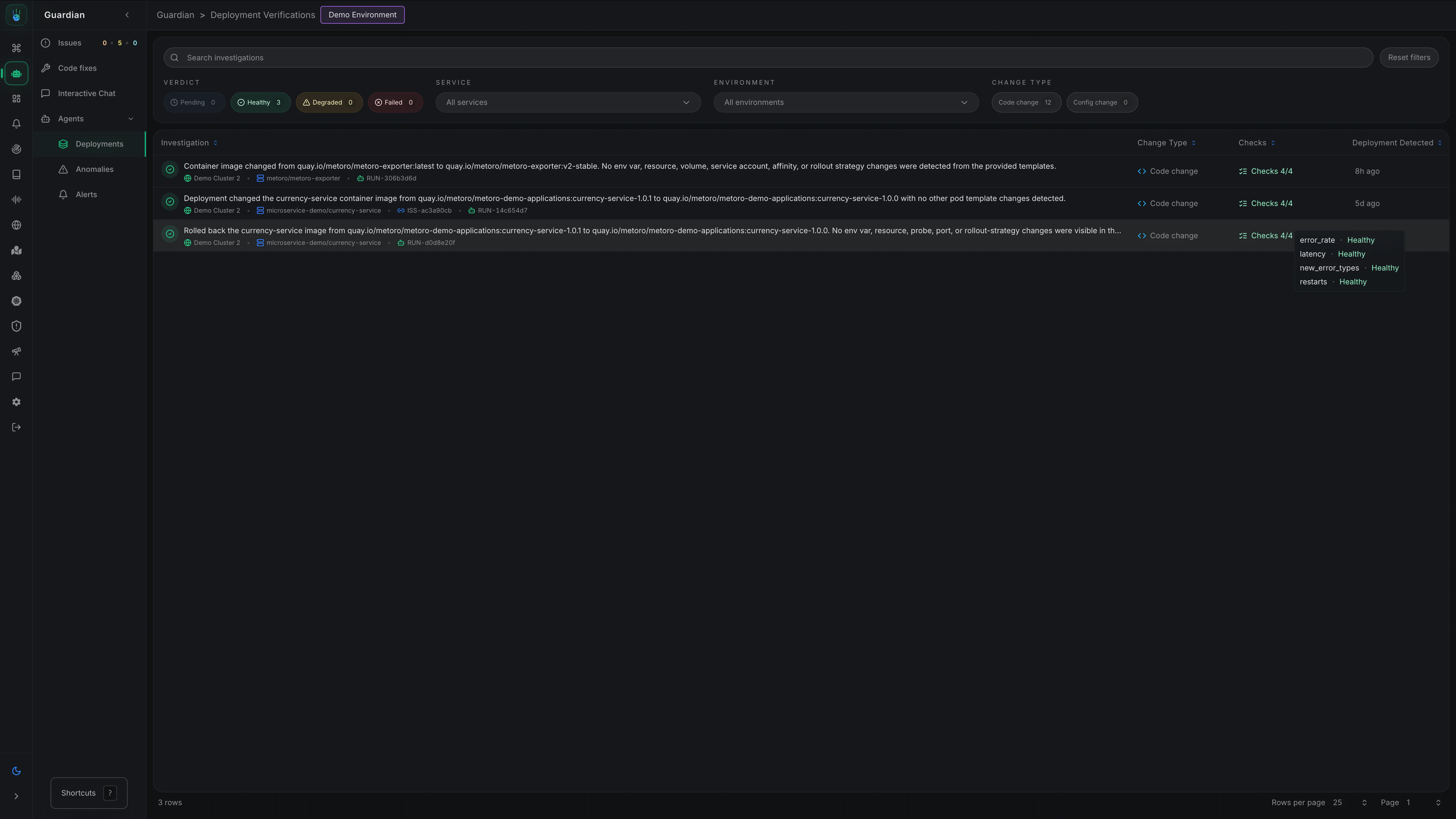
## Viewing Deployments
You can view all deployment verification checks from **Guardian** -> **Agents** -> **Deployment Verification** in Metoro:
### Enabling Deployment Verification
1. Navigate to **Settings** → **Features** → **Deployment Verification**
2. Toggle **Enable AI Deployment Verification**
3. Configure which services and environments should have verification enabled
Deployment verification uses the same flexible filtering as deployment notifications. You can enable verification for specific services and environments.
### Verification Notification Configuration
Configure where verification results are sent:
1. Go to **Settings** → **Features** → **Deployment Verification**
2. Click **Add Notification Configuration**
3. Select:
* **Services** - Which services to monitor
* **Environments** - Which environments to monitor
* **Destination** - Where to send verification results
You might want verification alerts to go to a different channel than deployment notifications. For example, send all deployments to `#deployments` but send verification failures to `#incidents`.
## Filtering Deployment Events with Annotations
You can control deployment tracking at the individual workload level using Kubernetes annotations. This is useful for reducing noise from automated tools like ScaleOps that frequently update resource limits or annotations.
### Disabling Deployment Tracking
To completely disable deployment tracking for a specific workload, add the following annotation to your Deployment, StatefulSet, or DaemonSet:
```yaml theme={null}
apiVersion: apps/v1
kind: Deployment
metadata:
name: my-app
annotations:
metoro.io/deployment-verification-disabled: "true"
spec:
# ...
```
When this annotation is set to "true", no deployment events will be created for this workload, and Metoro will not verify its deployments.
This is useful for:
* Workloads managed by auto-scaling tools that change frequently
* Development or test environments where deployment tracking is not needed
### Excluding Specific Configuration Paths
For workloads where you want deployment tracking but need to ignore certain configuration changes (like resource limits managed by ScaleOps), you can exclude specific JSON paths from change detection:
```yaml theme={null}
apiVersion: apps/v1
kind: Deployment
metadata:
name: my-app
annotations:
metoro.io/deployment-verification-exclude-paths: |
["template.spec.containers.*.resources", "template.metadata.annotations.scaleops.sh/*"]
spec:
# ...
```
When only excluded paths change, no deployment event is created. If other paths also change, a deployment event will still be created.
### Supported Path Patterns
| Pattern | Description | Example |
| --------------- | ----------------------------------- | --------------------------------------------- |
| Exact path | Matches exactly this path | `template.spec.nodeSelector` |
| Array wildcard | `*` matches any array index | `template.spec.containers.*.resources` |
| Prefix wildcard | `/*` matches any key under a prefix | `template.metadata.annotations.scaleops.sh/*` |
Paths can be specified with or without the `spec.` prefix. For example, both `spec.template.spec.containers.*.resources` and `template.spec.containers.*.resources` are equivalent and will work correctly.
### Common Use Cases
Exclude resource changes and ScaleOps annotations:
```yaml theme={null}
annotations:
metoro.io/deployment-verification-exclude-paths: |
["template.spec.containers.*.resources", "template.metadata.annotations.scaleops.sh/*"]
```
Only exclude resource changes (limits and requests):
```yaml theme={null}
annotations:
metoro.io/deployment-verification-exclude-paths: |
["template.spec.containers.*.resources"]
```
Exclude specific annotation prefixes:
```yaml theme={null}
annotations:
metoro.io/deployment-verification-exclude-paths: |
["template.metadata.annotations.autoscaling.k8s.io/*"]
```
Be careful not to exclude too many paths, as this may cause you to miss important configuration changes that could affect your application's behavior.
### Customizing Verification Delay
By default, Metoro waits 5 minutes after a deployment is detected before running verification. This gives your application time to fully roll out and stabilize before metrics are analyzed.
You can customize this delay per workload using the `metoro.io/deployment-verification-delay-seconds` annotation:
```yaml theme={null}
apiVersion: apps/v1
kind: Deployment
metadata:
name: my-app
annotations:
metoro.io/deployment-verification-delay-seconds: "120"
spec:
# ...
```
| Value | Description |
| ------- | ----------------------- |
| Minimum | 1 second |
| Maximum | 3600 seconds (1 hour) |
| Default | 300 seconds (5 minutes) |
Use a shorter delay for services that start up quickly, or a longer delay for services that take time to warm up their caches or establish connections.
**When to customize the delay:**
* **Shorter delay (e.g., 60-120 seconds)**: Fast-starting services, stateless microservices, or when you want quick feedback on deployments
* **Longer delay (e.g., 600-900 seconds)**: Services with warm-up periods, cache initialization, or gradual rollout strategies
* **Default (300 seconds)**: Works well for most services
Invalid values (non-numeric, negative, zero, or exceeding the maximum) will fall back to the default 5-minute delay.
## Viewing Deployments
You can view all deployment verification checks from **Guardian** -> **Agents** -> **Deployment Verification** in Metoro:
 You can also view all deployments (not just verification checks) for a service in Metoro, even if you don't have deployment verification enabled:
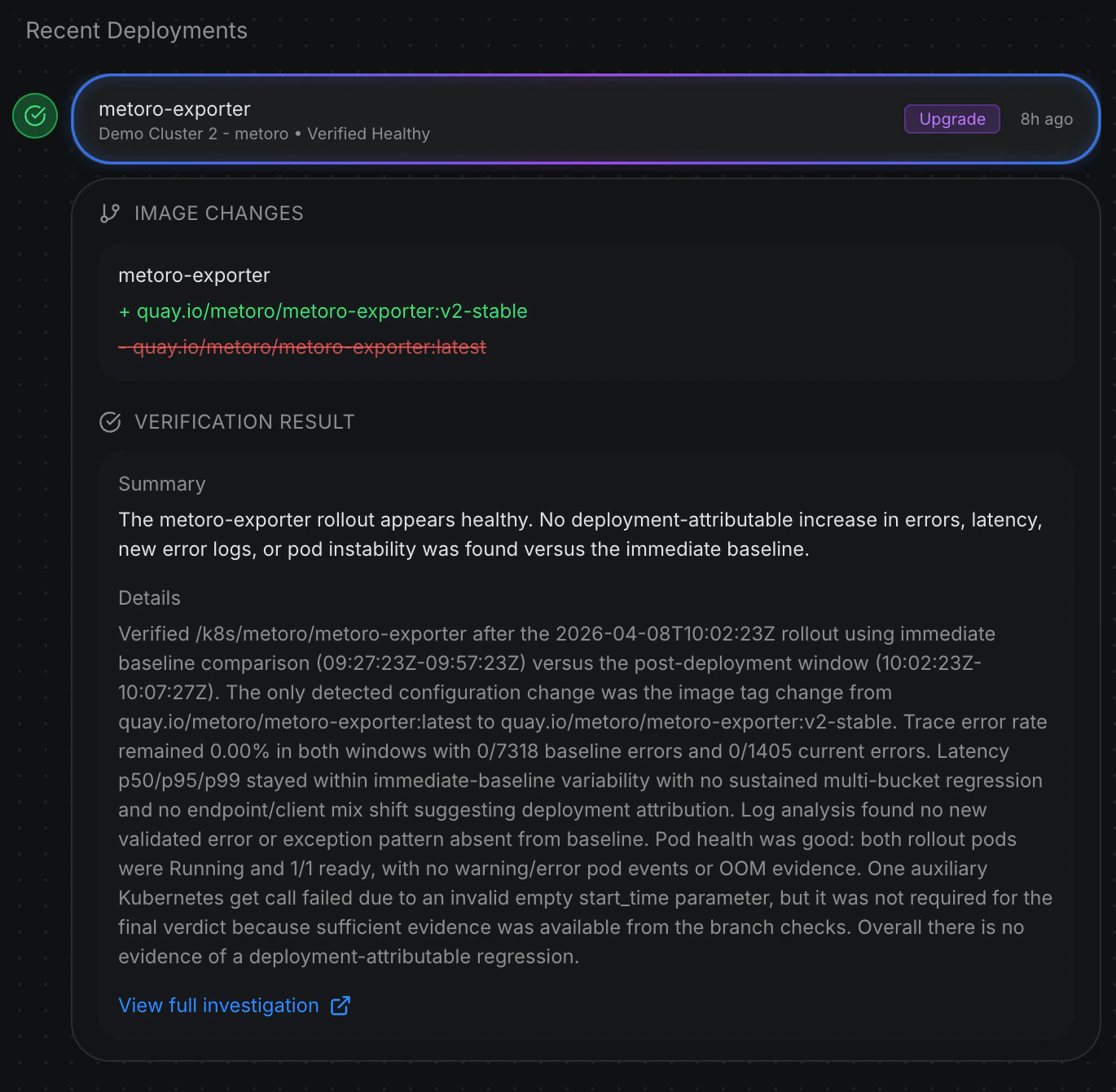 1. Navigate to **Service Catalogue** in the main navigation. [Take me there](https://us-east.metoro.io/service-catalog)
2. Select the service you want to view
3. Click **Show Deployments** on the top right. Make sure to adjust the time range if needed as deployments will only show if they have occurred within the selected time frame.
4. View deployment history including:
* Previous and new image tags
* Timestamp
* Verification status (if enabled)
## Related Documentation
Learn about automatic anomaly detection and investigation
Configure runbooks for AI alert investigations
Investigate alert-driven incidents with AI
Set up Slack for notifications
1. Navigate to **Service Catalogue** in the main navigation. [Take me there](https://us-east.metoro.io/service-catalog)
2. Select the service you want to view
3. Click **Show Deployments** on the top right. Make sure to adjust the time range if needed as deployments will only show if they have occurred within the selected time frame.
4. View deployment history including:
* Previous and new image tags
* Timestamp
* Verification status (if enabled)
## Related Documentation
Learn about automatic anomaly detection and investigation
Configure runbooks for AI alert investigations
Investigate alert-driven incidents with AI
Set up Slack for notifications